
Preface

How to use charles to intercept https requests on iOS devices
1. Install Charles
Just download it from the official website. As for cracking, Google it yourself. I’m using Charles version 4.1.3, which should be the latest at the moment.
2. HTTP Capture Configuration
(1) Check your computer’s IP
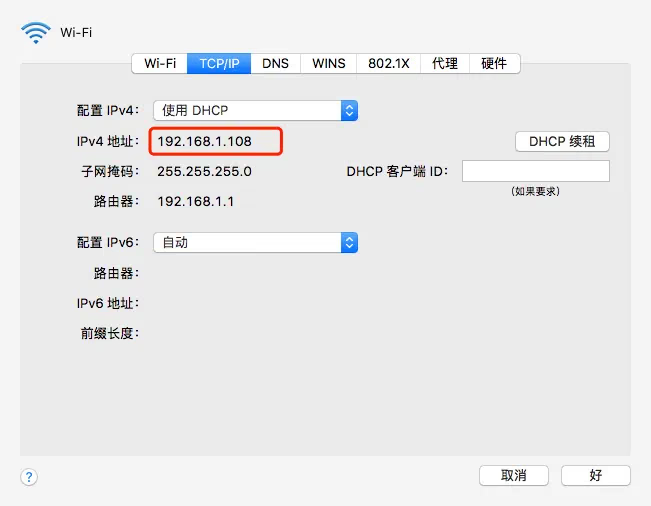
(2) Configure HTTP proxy on your phone
Connect your phone to your computer, tap “Settings -> Wi-Fi -> connected WiFi”, and set the HTTP proxy: Server: your computer’s IP address, e.g. 192.168.1.108 Port: 8888
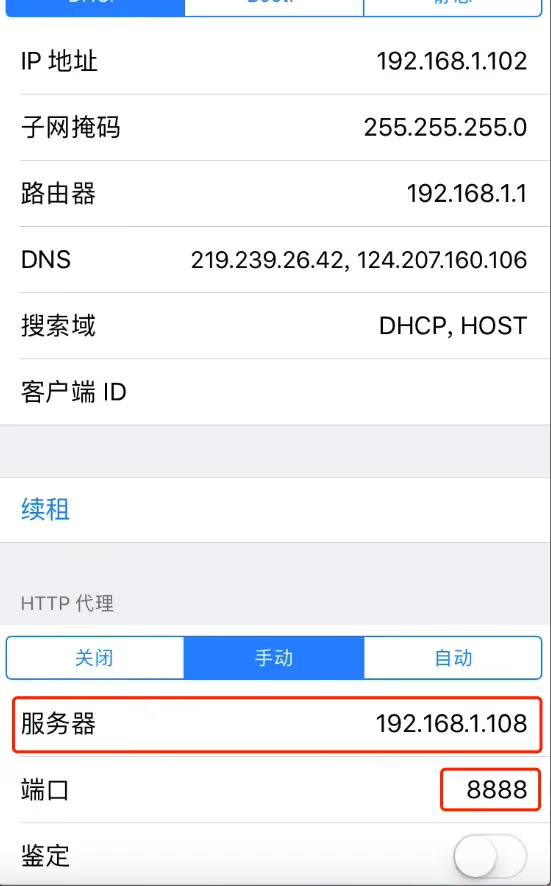
Note: Here I’m using my own computer’s IP as an example. The red area — remember to replace it with your own computer’s IP
After setting the proxy, open Charles on your computer. When your phone makes a request, the following popup will appear:
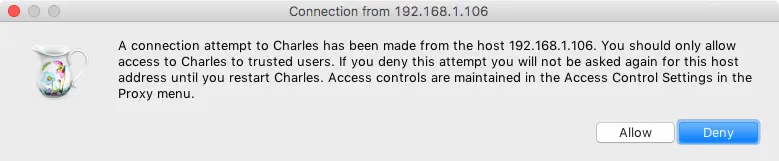
Click Allow and you’re done
3. HTTPS Capture
From the top-left menu, select SSL Proxying Settings
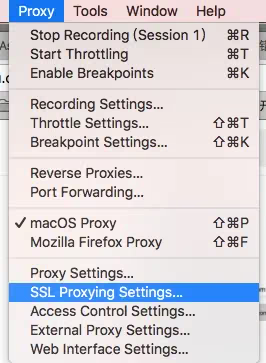
Then check Enable SSL Proxying
Next, click Add
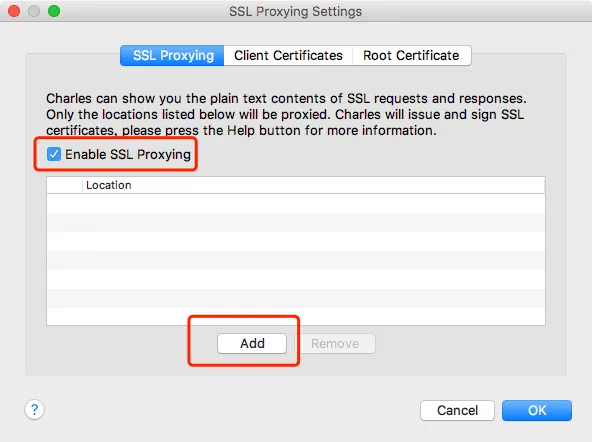
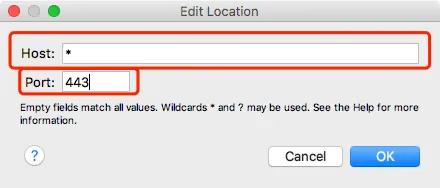
Then in
Host: Enter * to match all. If you want to intercept, for example, *.baidu.com, then enter that
Port: 443 (default port). Click OK when done
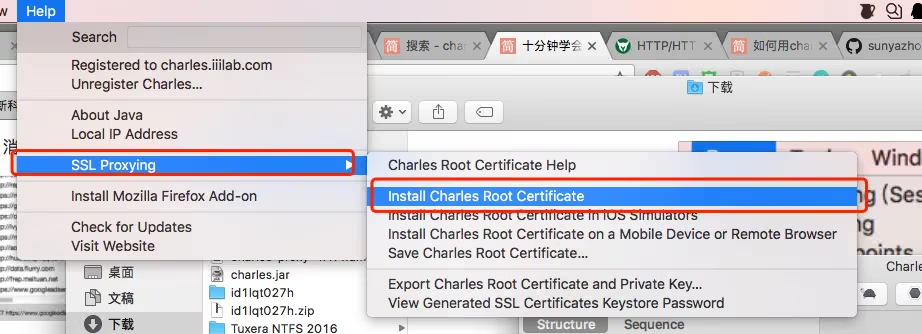
Next, click Help -> SSL Proxying -> Install Root Certificate
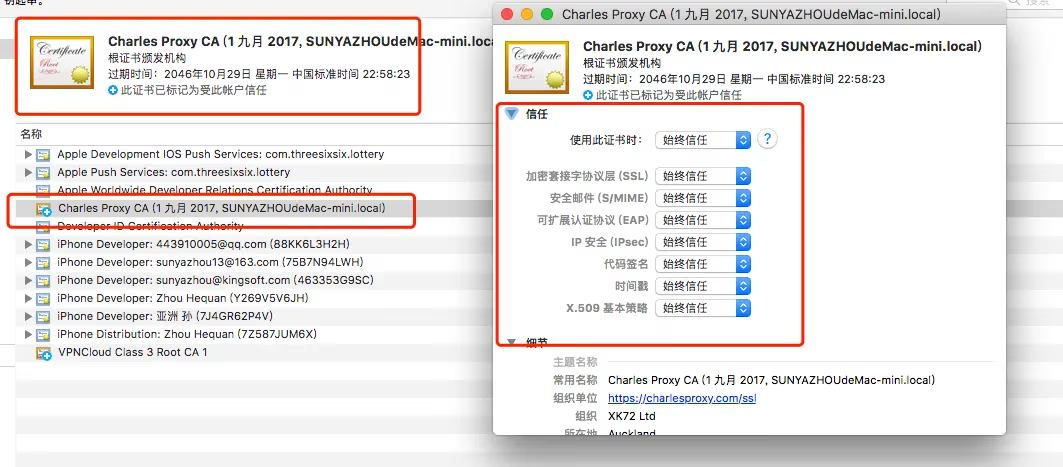
After installing to Keychain, click on Charles’s root certificate and select Use Trust
The next step is to install the root certificate on your phone
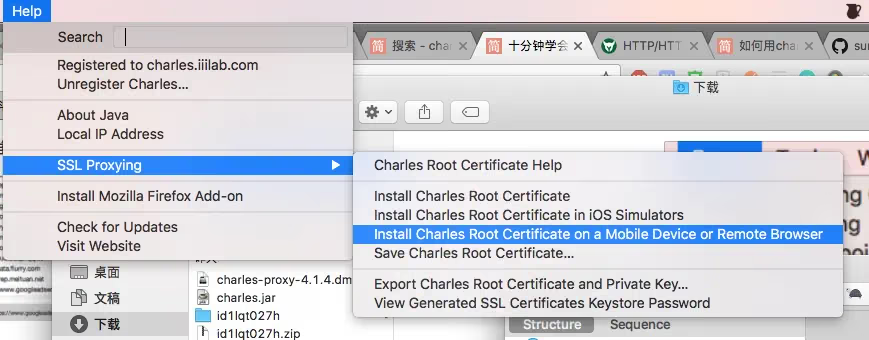
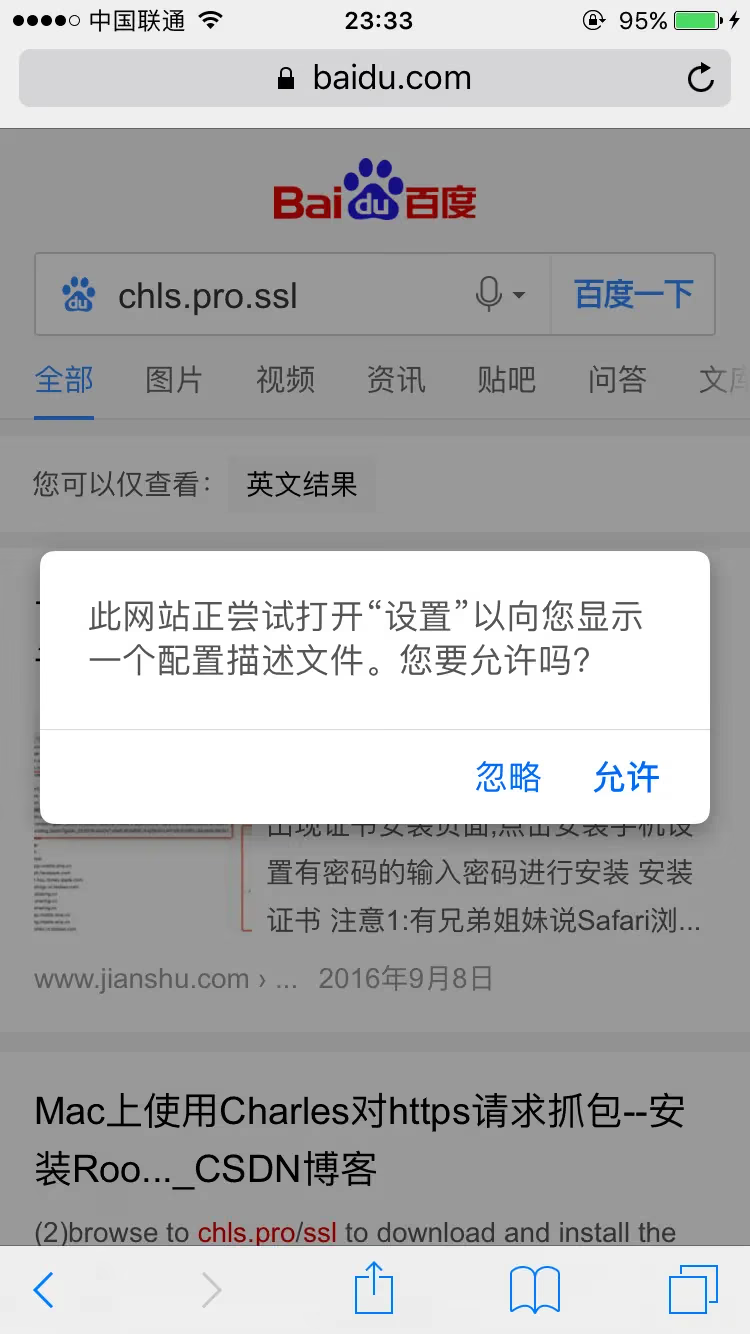
Now, on the phone with the proxy IP configured (on the iPhone), open the URL directly in Safari: chls.pro/ssl
Your phone will soon show this prompt — click Allow
Then install the certificate
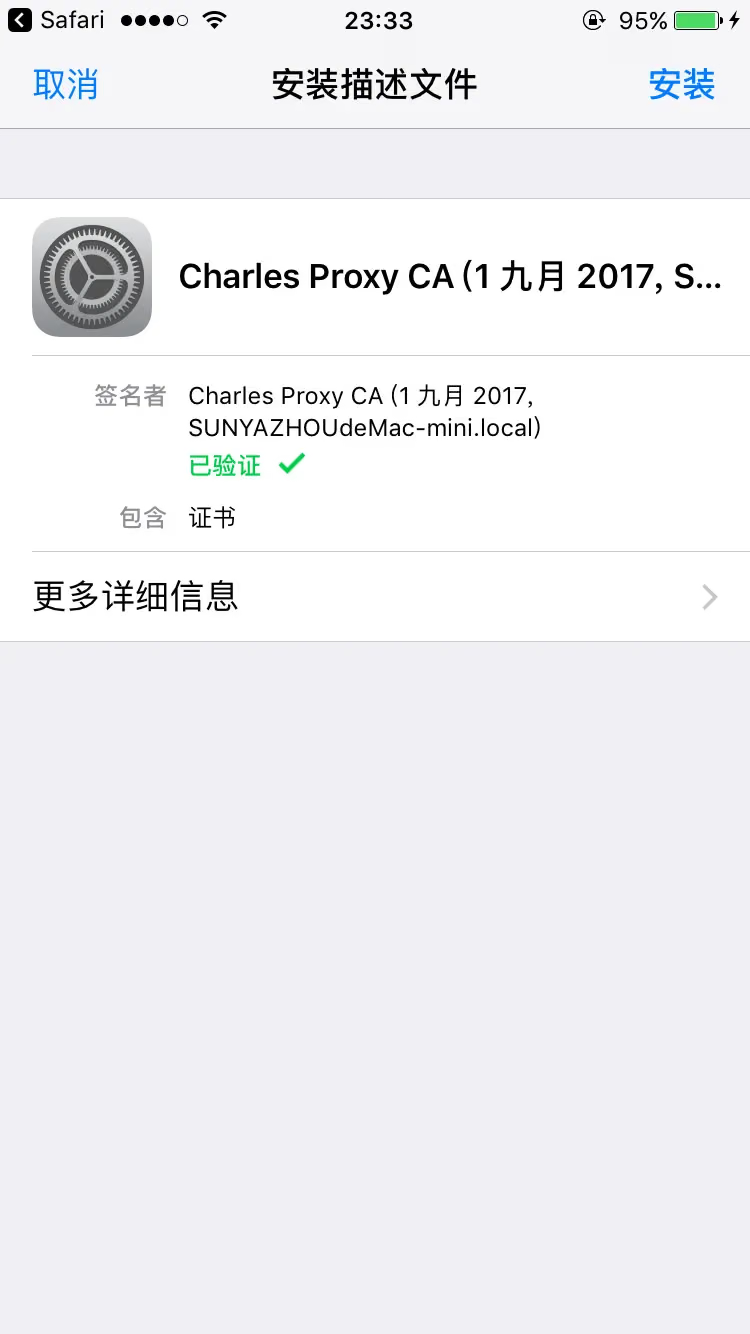
After installation, the last step is very important
You must go to General -> About This Phone -> Certificate Trust Settings to trust the certificate
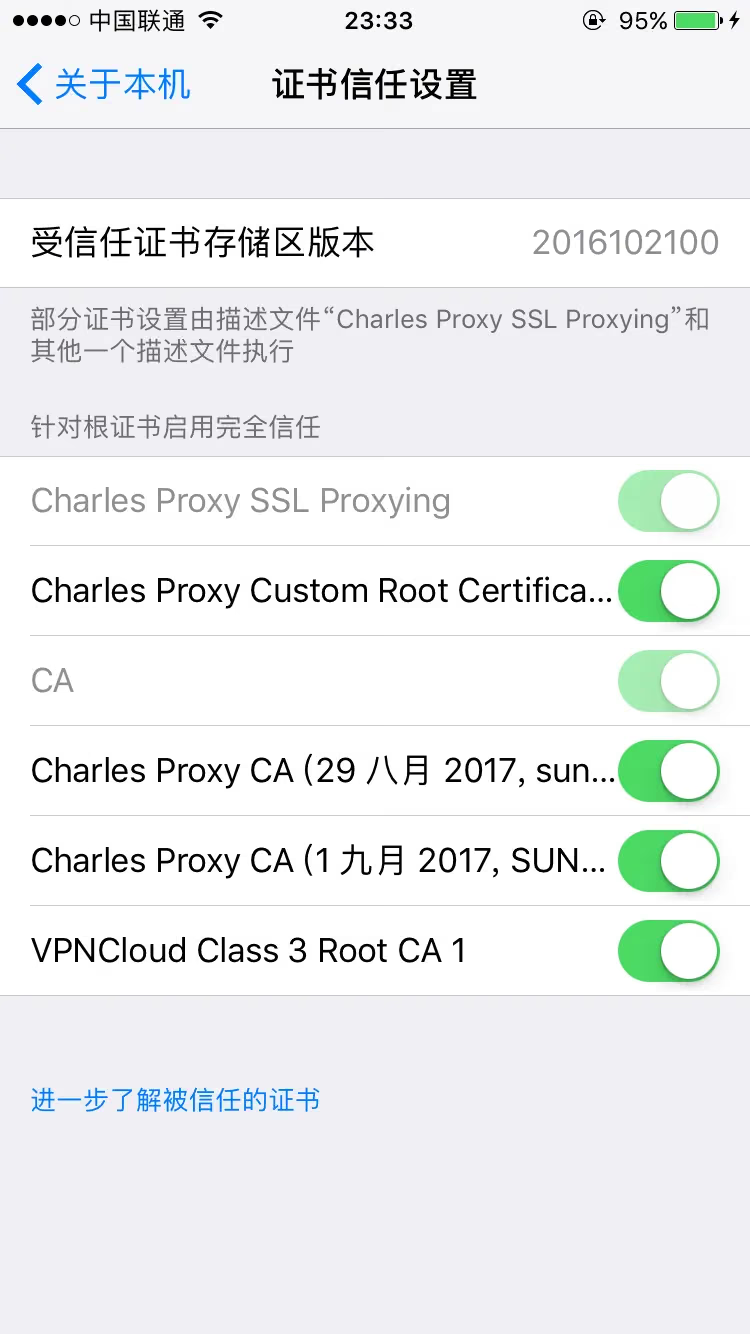
If you don’t trust it, you’ll see the following issue when capturing:
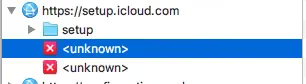
Note: This seems to be required only for iOS 10.3 and above
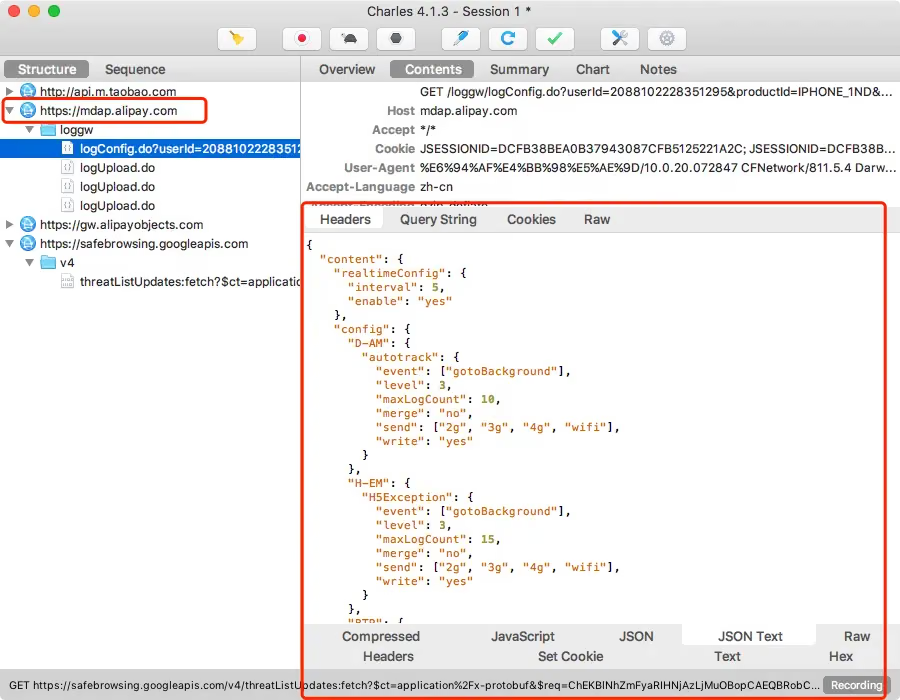
Finally, here’s a screenshot of a successful capture (Alipay’s API)
End of article