
Preface
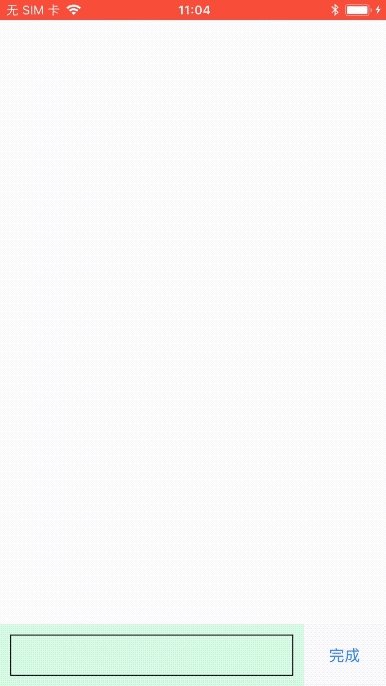
It’s been a long time since I wrote a technical article. This one records a small detail of the keyboard pop-up animation, with a flow like WeChat.
Here’s the image
Animation detail code
The core of the details mainly lies in some keys in the notification
- Animation duration
- The animation curve
…
The notification below receives the “keyboard will show” notification UIKeyboardWillShowNotification
1
2
3
4
[[NSNotificationCenter defaultCenter] addObserver:self
                                             selector:@selector(didReceiveKeyboardShowNotification:)
                                                 name:UIKeyboardWillShowNotification
                                               object:nil];
Then comes the core implementation code
1
2
3
4
5
6
7
8
9
10
11
12
13
14
15
16
17
18
19
- (void)didReceiveKeyboardShowNotification:(NSNotification *)noti {
    NSDictionary *userInfo = noti.userInfo;
    NSTimeInterval animationDuration;
    UIViewAnimationCurve animationCurve;
    CGRect keyboardFrame;
    [[userInfo objectForKey:UIKeyboardAnimationCurveUserInfoKey] getValue:&animationCurve];
    [[userInfo objectForKey:UIKeyboardAnimationDurationUserInfoKey] getValue:&animationDuration];
    [[userInfo objectForKey:UIKeyboardFrameEndUserInfoKey] getValue:&keyboardFrame];

    UIViewAnimationOptions animationOptions = animationCurve << 16;

    self.bottomConstrains.offset = -CGRectGetHeight(keyboardFrame);
    [UIView animateWithDuration:animationDuration delay:0. options:animationOptions animations:^{
        [self.view setNeedsUpdateConstraints];
        [self.view layoutIfNeeded];
    } completion:^(BOOL finished) {

    }];
}
self.bottomConstrains.offset = -CGRectGetHeight(keyboardFrame); is the constraint I wrote — please refer to the demo for details
Keyboard dismissal works the same way — receive the UIKeyboardWillHideNotification key
1
2
3
4
[[NSNotificationCenter defaultCenter] addObserver:self
                                             selector:@selector(didReceiveKeyboardHideNotification:)
                                                 name:UIKeyboardWillHideNotification
                                               object:nil];
When it dismisses, just set the constraint offset to 0
1
2
3
4
5
6
7
8
9
10
11
12
13
14
15
16
17
18
- (void)didReceiveKeyboardHideNotification:(NSNotification *)noti {
    NSDictionary *userInfo = noti.userInfo;
    NSTimeInterval animationDuration;
    UIViewAnimationCurve animationCurve;
    CGRect keyboardFrame;
    [[userInfo objectForKey:UIKeyboardAnimationCurveUserInfoKey] getValue:&animationCurve];
    [[userInfo objectForKey:UIKeyboardAnimationDurationUserInfoKey] getValue:&animationDuration];
    [[userInfo objectForKey:UIKeyboardFrameEndUserInfoKey] getValue:&keyboardFrame];

    UIViewAnimationOptions animationOptions = animationCurve << 16;
    self.bottomConstrains.offset = 0;
    [UIView animateWithDuration:animationDuration delay:0. options:animationOptions animations:^{
        [self.view setNeedsUpdateConstraints];
        [self.view layoutIfNeeded];
    } completion:^(BOOL finished) {

    }];
}
self.bottomConstrains.offset = 0; //set the offset back to its original position
The animation is done with Masonry
Finally, don’t forget to remove the notification observer
1
2
3
- (void)dealloc {
    [[NSNotificationCenter defaultCenter] removeObserver:self];
}
Summary
This tiny detail of the keyboard popping up is easily overlooked. I wrote this article to record the knowledge and techniques. I hope you all can offer plenty of advice.
End of article