

Preface
This post reflects strong personal opinions. If you feel uncomfortable while reading, please close it immediately. This article is for personal learning records only. You are welcome to repost or share it under the license terms — please respect the copyright and keep the original link. Thank you for your understanding and cooperation. If you find this site helpful, consider subscribing via RSS. Thanks for your support!
I’m building a macOS clipboard tool. Its panel has a horizontal row of history cards along the bottom. After a few days of using it I found it too flat — you move the mouse across and the cards just sit there. Nothing like the poster walls on Apple TV, where a card comes alive the moment the cursor rests on it.
So I decided to add a hover tilt. My estimate at the time: two lines of rotation3DEffect, done in ten minutes.
What I actually ran into: where m34 even goes, how SwiftUI’s perspective relates to it, why a certain strength makes cards “spill outside their frame”, and why the whole thing flickers at 60fps when the mouse sits near a card’s edge.
That last one was the killer. It wasn’t a bad parameter — rotation3DEffect was rewriting the hit-test area.
This post is the whole trail. Every number below was measured on my machine, not copied from docs.
1. What m34 actually does
CATransform3D is a 4×4 matrix with fields named m11 through m44. Most people only ever touch m41/m42/m43 (translation) and the upper-left 3×3 (rotation and scale). m34 usually stays empty.
It produces depth because it participates in the fourth component of homogeneous coordinates. Core Animation uses row-vector convention, so a point (x, y, z, 1) multiplied through gives:
1
2
w' = 1 + z · m34
screen point = (x / w', y / w')
Therefore:
- With
m34 = 0,w'is always 1. Dividing by 1 does nothing — that’s orthographic projection. The left and right edges only get squeezed horizontally by the rotation; there’s no “near is big, far is small”. - With
m34 ≠ 0, largerzmakesw'larger, so the projection divides down and shrinks.
Here’s the counterintuitive but crucial part: the sign decides which side recedes. The conventional form is m34 = -1.0 / 500 (negative). Then larger z means nearer, w' = 1 - z/500 shrinks, the projection grows — that’s normal near-is-big behaviour. The tvOS reimplementation (React Native’s RCTTVView.m) uses m34 = 1.0 / 500 with a positive sign, and it must be paired with the opposite rotation direction to look the same. That’s why the two versions floating around online seem to “look identical but with flipped numbers”.
One more thing I didn’t grasp at first: m34 only matters when z exists. For a flat, z = 0 image, setting m34 to 1/2 or 1/5000 renders exactly the same, because w' = 1 + 0 · m34 = 1.
So the projection matrix and the rotation are a package deal: rotate first to “turn the plane into depth”, and only then does m34 have a job. The Apple Developer Forums note that “you can’t just call CATransform3DRotate(identity, …), the result is very distorted” is the same fact seen from the other side.
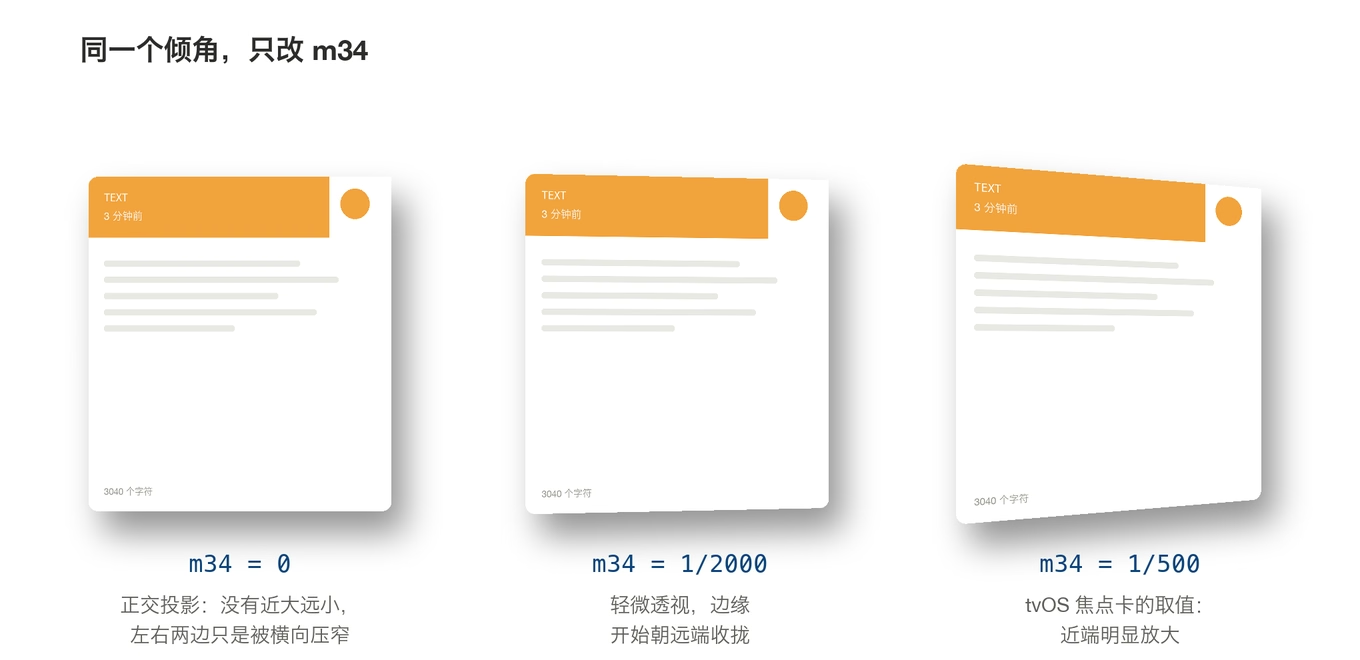
All three cards above have exactly the same tilt (16° about Y); only m34 differs. The leftmost is orthographic — it reads like an image that was sheared sideways. The middle one at 1/2000 starts to converge. The right one at 1/500 is tvOS’s value: the near edge is visibly enlarged, the far edge visibly recedes.
It’s clearer in motion, sweeping m34 continuously from 1/5555 to 1/195:

2. The four ingredients of an Apple TV focus card
Taken apart, the Apple TV focus effect is four things stacked. Any one of them alone doesn’t sell it:
- 3D tilt — the card leans toward the cursor,
m34 = 1/500. - Hover scale-up — roughly 1.05, working with the tilt to suggest “lifted off the table”.
- Dynamic shadow — the light source is fixed at the upper left, so the shadow swings opposite to the lean.
- Specular highlight / parallax — cursor position decides the lit face, while icons and text float above the background as parallax layers (reimplementations push the foreground layer to something like
1/-250for stronger parallax).

The animation adds them one at a time: tilt only → scale → shadow → lighting. The first two are just deformation. Physicality starts at step three, and only at step four does the card come alive.
Worth quoting the Human Interface Guidelines verbatim: “Parallax is designed to be almost unnoticeable.”
That line directly shaped my parameter choices later. Even Apple doesn’t chase “wow, so 3D” on a TV. They lean on subtle shadow and lighting shifts, not big angles.
3. SwiftUI’s perspective is not m34
SwiftUI has no m34. It has rotation3DEffect(_:axis:anchor:perspective:).
My first version’s mistake was treating that parameter as the reciprocal of m34, and I set full strength to perspective: 2.0. I shipped it to myself for an evening and the card corners felt like they were about to fly off the panel. The user also sent a screenshot saying it was “pressing outside the boundary”.
So I stopped guessing and measured.
Method
ImageRenderer renders any SwiftUI view offscreen without needing a window server (extremely handy in a headless environment). A minimal case — black background, white rectangle:
1
2
3
4
5
Rectangle()
    .fill(Color.white)
    .frame(width: 272, height: 288)
    .rotation3DEffect(.degrees(10), axis: (x: 0, y: 1, z: 0),
                      anchor: .center, perspective: p)
Render to PNG, then use Pillow to find the bounding box of white pixels. Rotating about Y means z depends only on x (z = -x·sinθ), so w' = 1 - x·sinθ·m34 varies only with x. The result: the top and bottom edges project to non-horizontal lines, and the bounding-box height grows from 288 to 288 / (1 - u) where
1
u = (W/2) · sinθ · m34
Solve for m34. To make sure I hadn’t flipped a direction, I recomputed the width from the same m34 (2·(W/2)·cosθ / (1 - u²)) and compared against the actual measurement — agreement within 1pt at every step.
Results
| perspective | bbox height (px) | equivalent m34 |
|---|---|---|
| 0 (orthographic) | 288 | — |
| 0.6 | 302 | 1/509 ← tvOS’s 1/500 lands here |
| 0.8 | 308 | 1/363 |
| 1.0 | 312 | 1/309 |
| 1.2 | 318 | 1/250 |
| 1.5 | 328 | 1/193 |
| 2.0 | 344 | 1/145 |
| 3.0 | 380 | 1/97 |
| 4.0 | 426 | 1/73 |
So the real conclusions are:
- Larger
perspectivemeans stronger perspective (the direction was right — my first version used it as a reciprocal, which is exactly backwards); - It’s a dimensionless factor, not m34, and not
1/m34; - For this 272×288 card,
perspective: 0.6is tvOS’sm34 = 1/500, and the 1.2 I originally picked is twice that.
In other words: the strength that genuinely matches Apple TV is 0.6, and I had labelled it “very weak”.
The constant also depends on size
I assumed the conversion table was universal. Then I tried other sizes:
| View size | equivalent m34 at perspective = 1 |
|---|---|
| 100×100 | 1/110 |
| 272×288 | 1/309 |
| 544×576 | 1/595 |
Same code, same perspective, and a small card gets three times the perspective of a large one. I tried 400×100 and 100×400 to find the rule (1/470 and 1/356 respectively) — it isn’t simply proportional to width or to the diagonal; both dimensions matter.
Conclusion: don’t derive a formula, measure at the size you actually use. This card is hard-coded at 272×288, so the table above is valid for this project forever. But if cards ever become resizable, the table has to be re-measured.
4. Direction mapping: press where the finger is
Knowing the strength isn’t enough; you need a direction. The normalization step is industry-standard:
1
2
let dx = (point.x - size.width / 2) / (size.width / 2)   // -1…1
let dy = (point.y - size.height / 2) / (size.height / 2)
The tvOS reimplementation calls it xFactor = MIN(1, MAX(-1, ...)) — identical.
Then rotate on each axis:
1
2
3
4
.rotation3DEffect(.degrees( tilt.width * maxAngle), axis: (x: 0, y: 1, z: 0),
                  anchor: .center, perspective: p)
.rotation3DEffect(.degrees(-tilt.height * maxAngle), axis: (x: 1, y: 0, z: 0),
                  anchor: .center, perspective: p)
Note the minus sign on the second one. SwiftUI’s Y axis points down, so a positive dy means the cursor is below the card. “Pressed from below” requires the top edge to recede, which is a rotation in the negative direction about X. Get this sign wrong and nothing crashes — the card just looks like it’s chasing the mouse instead of being pressed by it.

The four cards correspond to the cursor being right, left, below, and above. The rule in one sentence: the edge the cursor points at sinks in, the opposite edge lifts.
Another detail: these are two independent rotation3DEffect calls, and mathematically Y-then-X is not the same as X-then-Y — the order changes the final orientation. At 10° you can’t see it, but if a large-angle card flip ever comes up, the order has to be reconsidered.
5. Lighting: you can’t put a highlight on a white card
Apple TV’s highlight is a specular reflection — cursor at the upper left, a bright patch at the upper left. But my card is pure white (to match Paste’s look), and a white highlight on a white surface does nothing.
So invert it: don’t paint where it’s bright, darken where it isn’t.
1
2
3
4
5
6
RadialGradient(
    colors: [.clear, .black.opacity(lightOpacity)],
    center: UnitPoint(x: (tilt.width + 1) / 2, y: (tilt.height + 1) / 2),
    startRadius: 12,
    endRadius: 270
)
Fully transparent at the cursor position, fading to 26% black 270pt out. When the card tilts, the half away from the cursor darkens naturally, and the lit and unlit faces separate — the perceptual result is nearly identical to a real specular highlight, because the eye judges “which way does this face point” from luminance contrast, not from the presence of a bright blob.
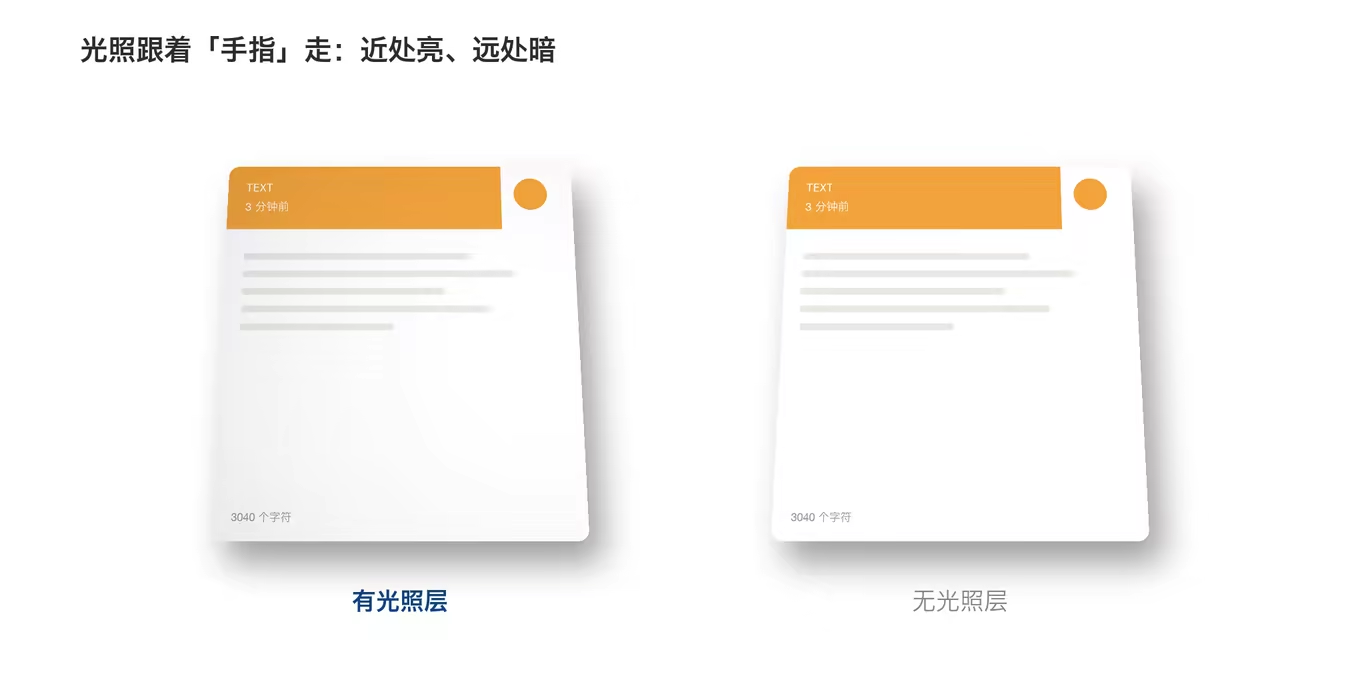
The left card has the lighting layer, the right doesn’t; tilt and shadow are identical. Watch it for a few seconds and the difference is obvious: the right one is a sticker that got bent, the left one is a solid slab being pressed down.
I reworked this once. My first version pushed the vignette ceiling to 70/255, and the animation came out grey — like the card had a layer of dirt on it. Dropping to 28/255 and widening the gradient radius past the diagonal fixed it: the far end should recede slightly, not get a coat of grey paint.
6. The bug that flickered hard enough to hurt
After a night of using it, an ugly symptom appeared: with the mouse over the center of a card everything was fine, but near the edge the whole card flickered at high frequency, like a failing fluorescent tube.
The user recorded it and sent me the video. I extracted frames and diffed consecutive ones, and pinned it to a single-frame spike — not a gradient, a jump.
Root cause
rotation3DEffect and scaleEffect also change SwiftUI’s hit-test region. That creates a self-exciting loop:
1
2
mouse enters → active → card tilts → hit area tilts with it → mouse is now outside
   → ended → card resets → hit area resets → mouse is inside again → active → …
One cycle is 16ms — exactly 60fps. It looks like insane flicker. It never triggers in the center, because the center point stays inside the region no matter how the card tilts. That’s why it only happens at the edges, and why it’s easy to misdiagnose as a random bug.
The fix
The key is to separate the visual transform from hit testing. The body used to be one block; now it’s “card body” plus “outer hit container”:
1
2
3
4
5
6
7
8
9
var body: some View {
    cardBody
        // the 3D transform applies to the body only
        .modifier(MTCardTiltEffect(tilt: tilt, isHovering: isHovering, strength: strength))
        // wrap it in a fixed-size container that doesn't follow the transform
        .frame(width: Self.cardSize.width, height: Self.cardSize.height)
        .contentShape(Rectangle())
        .onContinuousHover(coordinateSpace: .local) { handleHover($0) }
}
All three modifiers, in this exact order:
modifier(...)first — the transform touches the card only;.frame(fixed size)next — gives the outer layer a box that does not move with the transform;.contentShape(Rectangle())last — pins hit testing to that rectangle explicitly.
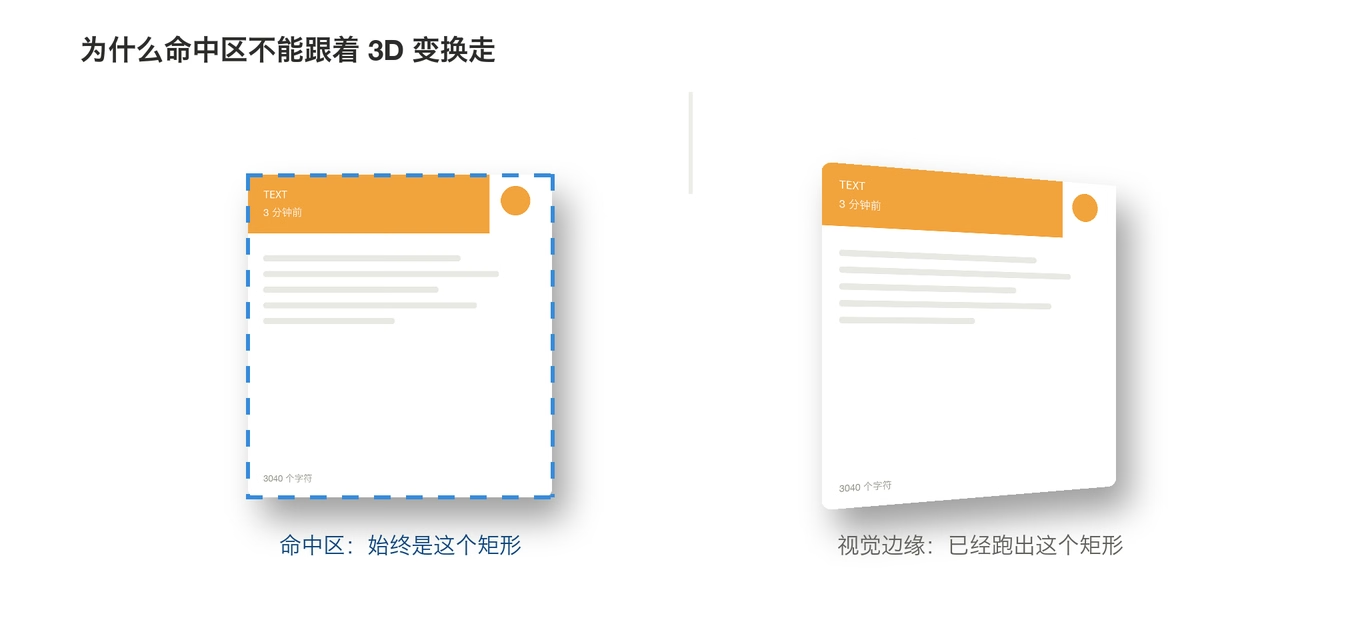
The blue dashed rectangle on the left is the hit area; the right shows the visual edge after tilting. They deliberately don’t coincide: hit testing is always the untilted rectangle, and the tilt is only what gets drawn.
Plus a safety net
Pinning the hit area alone isn’t enough. Screens have scaling, floating point has error, and a mouse resting exactly on the boundary can still jitter once — and one jitter is one visible flash.
So ended doesn’t reset immediately. It waits 0.12s, and any active in the meantime cancels the reset:
1
2
3
4
5
case .ended:
    resetWork?.cancel()
    let work = DispatchWorkItem { isHovering = false; tilt = .zero }
    resetWork = work
    DispatchQueue.main.asyncAfter(deadline: .now() + 0.12, execute: work)
0.12s was tuned by hand: one frame (16ms) doesn’t absorb the jitter, and anything longer leaves a ghost — the mouse has left but the card still leans.
The division of labour: contentShape fixes the structural jitter (the shape of the hit region changed), the delay fixes the numerical jitter (error at the boundary). The former alone gets you 80% of the way; it doesn’t cure it.
7. Making it adjustable
Once I was happy with the effect, one thought stopped me: this app is for other people. What makes my taste the correct one?
So two things went in: a master switch (off by default) and a strength slider (0…1).
Strength isn’t just multiplied into the angle. Four parameters have to move together, otherwise a “weak” setting would shrink only the angle while scale and shadow stayed at full — which looks wrong:
1
2
3
4
5
6
7
8
9
static func parameters(for strength: Double) -> MTCardTiltParameters {
    let s = min(1, max(0, strength))
    return MTCardTiltParameters(
        maxAngle: 10 * s,          // up to 10 degrees
        perspective: max(0.01, 1.2 * s),
        scale: 1 + 0.04 * s,       // up to 4% larger
        lightOpacity: 0.26 * s     // up to 26% darkening
    )
}
The max(0.01, ...) around perspective is a floor. perspective: 0 means “no perspective at all” in SwiftUI (I measured it — plain orthographic, nothing breaks). But since “zero perspective” and “effect switched off” are the same thing anyway, clamping to a non-zero value is cheaper than worrying about a 0 showing up in a division somewhere.
The input also needs defending, because this value lives in UserDefaults and the user (or an older build) can put anything in there:
1
2
3
4
5
6
7
8
9
static func normalizedTiltStrength(_ value: Double) -> Double {
    guard value.isFinite else { return tiltStrengthDefault }   // NaN / inf falls back
    return min(1, max(0, value))
}

/// zero when the master switch is off
static func effectiveTiltStrength(enabled: Bool, strength: Double) -> Double {
    enabled ? normalizedTiltStrength(strength) : 0
}
effectiveTiltStrength collapses “switch” and “strength” — two independent states — into a single exit point, so the UI layer never has to write if enabled all over the place. The self-test suite has 18 assertions for it alone: clamping at the bounds, monotonicity, the NaN fallback, and that it must be zero when the switch is off.
Why off by default
This is a nice-to-have, not a feature. Defaulting to on would bring three problems: per-frame redraws (only while hovering, but still), discomfort for users sensitive to motion, and the impression that the app is showing off on first launch.
So it ships off, the slider is greyed out, and users turn it on themselves under the “Appearance” tab. If it’s too much, drag left — handing the choice over beats guessing a “best value”.
For the record, I settled around 60%. Note that 60% isn’t “tvOS strength” in slider coordinates — perspective = 1.2 × 0.6 = 0.72, which works out to about 1/420, i.e. 1.2× tvOS. 50% on the slider is what corresponds to perspective 0.6, tvOS’s 1/500.
8. A few not-so-obvious details
zIndex is not optional. Once tilted and scaled, a card overflows its own slot. If the neighbouring card was drawn later, it covers the overflow and the edge looks sliced off.
1
.zIndex(isTilting ? 1 : 0)
ScrollView clips overflowing content. I initially misdiagnosed this as “covered by the header bar” and started shrinking the header. The real cause is that ScrollView clips to its bounds by default, and the ten-odd points the card lifts by were being cut. macOS 14+ has a switch for it:
1
.scrollClipDisabled()
Two animation curves, not one. The angle that tracks the mouse must be fast, or the feel turns sluggish. The lift on enter/leave wants a bit of bounce:
1
2
.animation(.easeOut(duration: 0.12), value: tilt)                    // tracks cursor
.animation(.spring(response: 0.3, dampingFraction: 0.75), value: isHovering)  // lift/drop
Make the tracking a spring too and the card can’t keep up when the mouse moves quickly — it lags all the way.
Hover can’t be tested headless. GUI processes launched in this environment can’t obtain a window-server session, so onContinuousHover never fires. So I added an environment-variable backdoor that pins a given card at a fixed tilt, purely for screenshot verification of angle, direction, and whether it collides with neighbours:
1
MTPASTE_TILT_TEST="2:0.9,-0.5" ./MTPastePro --show
(2: is the card index; the rest is the normalized x/y.) It’s debug-only, but it saved me several times: when you can’t verify through interaction, turn “state produced by interaction” into “state you can inject directly”.
Closing
A single hover tilt, going from “two lines of code” to shippable, came down to four things:
m34only works whenzexists; it’s paired with rotation;- SwiftUI’s
perspectiveis notm34, the conversion constant depends on view size, and it must be measured; - 3D transforms rewrite the hit-test area — visuals and hit testing must be separated, or the edges flicker at 60fps;
- The parameters must be adjustable, especially when the “correct value” is itself subjective.
As for the Apple TV effect: copying the numbers is easy. Understanding why those numbers is the actual work. The HIG says parallax should be almost unnoticeable, and I ended up shipping twice that strength on the desktop — not because I copied it wrong, but because viewing distance and context differ, and one number can’t be right for both.
Which is exactly why it ended up on a slider.