
Preface
This post reflects strong personal opinions. If you feel uncomfortable while reading, please close it immediately. This article is for personal learning records only. You are welcome to repost or share it under the license terms — please respect the copyright and keep the original link. Thank you for your understanding and cooperation. If you find this site helpful, consider subscribing via RSS. Thanks for your support!
The worst time to look for a reliable tool is when you actually need to reinstall Windows. This post documents Rufus, my go-to utility for building bootable USB drives, so I can just follow it next time — whether it’s my own machine or a friend’s. It’s based on ITHome’s coverage of Rufus 4.16 and the Rufus Chinese site’s guide; both sources are linked at the end.
1. What Is Rufus
Rufus is a free, open-source tool for creating Windows bootable USB drives. It writes an ISO image onto a USB stick quickly and reliably, so you can install or repair Windows / Linux. Why it’s worth trusting:
- Fast: write-optimized for USB flash drives, noticeably quicker than many alternatives.
- Broad compatibility: supports Windows, Linux, UEFI and BIOS, covering both old and new PCs and various ISO images.
- Safe and transparent: open source, tiny footprint, no bundling, no ads — every step is clear and controllable.
- Portable: a portable (green) build runs by double-clicking, no installation needed.
Official site: https://rufus.ie/ Chinese site: https://rufux.cn/
2. Why Rufus
There are plenty of bootable-USB tools (Ventoy, UltraISO, Microsoft’s official Media Creation Tool, etc.). Rufus stands out because:
- Small and snappy: a single file of a few hundred KB to a few MB, ready instantly.
- Friendly to old machines: the MBR + BIOS path is extremely compatible with legacy hardware.
- Reliable writes: verifies the write and can scan for bad blocks, so the resulting drive actually boots.
- Windows 11 “bypass” options: one-click skip of TPM, Secure Boot, network, and Microsoft account requirements (see Section 6).
If you only install once in a blue moon, Microsoft’s tool is fine. But for a repeatable, controllable, maximally-compatible drive, Rufus is the pick.
3. Preparation
Before you start, get three things ready:
- A USB drive of 8 GB or larger (16 GB recommended — Windows 11 images now commonly exceed 5 GB).
- A Windows ISO image downloaded from Microsoft or a trusted source.
- Back up the USB drive — the process wipes it completely and irreversibly.
4. Create a Bootable USB (Three Steps)
The whole thing takes just three steps and a few minutes.
Step 1: Plug in the USB and launch Rufus
Insert the USB stick and run Rufus (double-click the portable build). It auto-detects the drive — confirm the “Device” field shows the stick you intend to wipe.
Step 2: Select the ISO image
Under “Boot selection”, choose “Disk or ISO image”, click the “SELECT” button, and locate your Windows ISO. Rufus auto-detects the image info (edition, architecture, etc.).
Step 3: Configure and start writing
- Modern PC: Partition scheme = GPT, Target system = UEFI (non-CSM).
- Old PC: Partition scheme = MBR, Target system = BIOS or UEFI-CSM.
Double-check the device name, then click “START” and wait for the progress bar to finish.
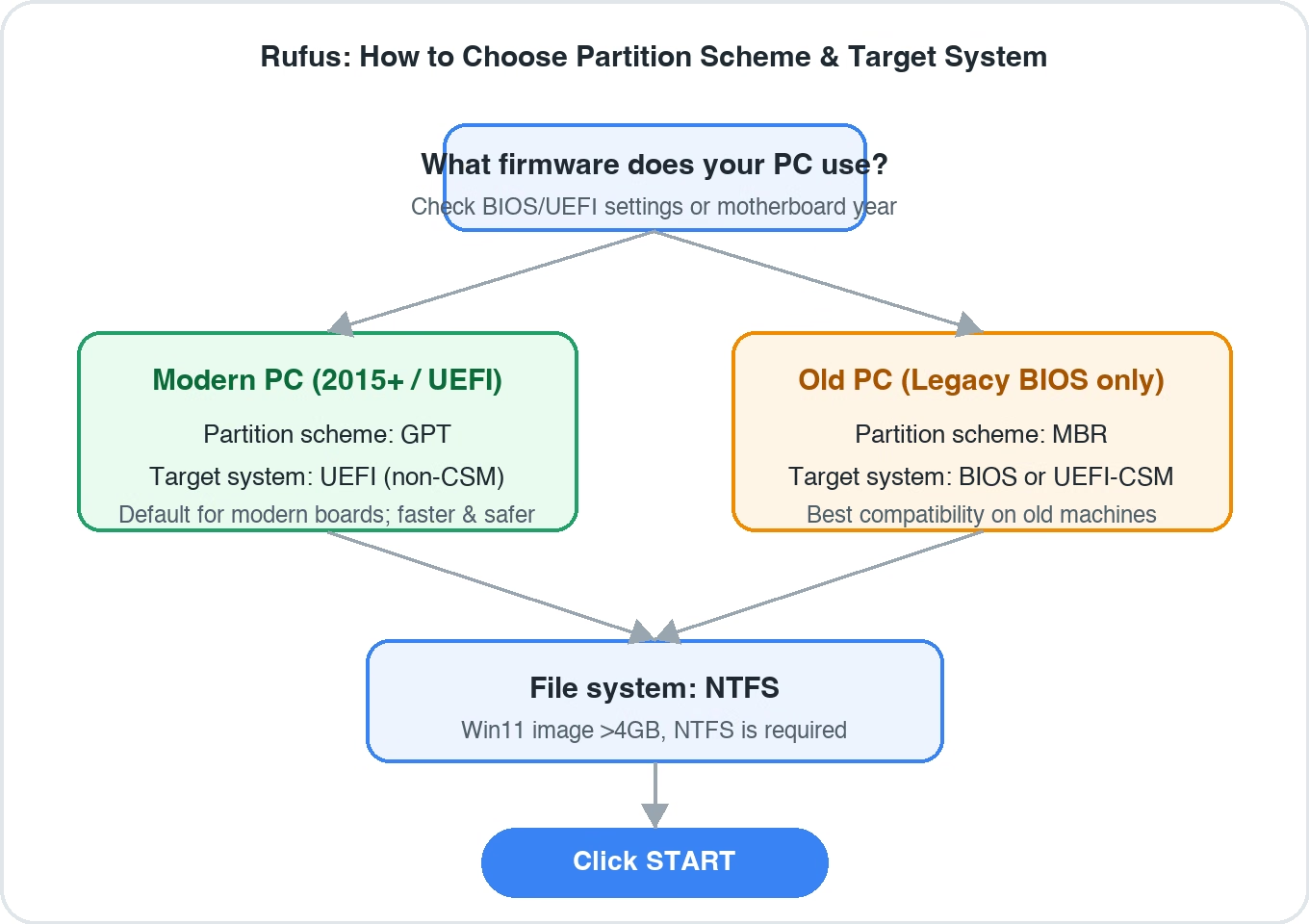
Not sure about GPT/MBR or UEFI/BIOS? See the diagram above: new PCs always use GPT + UEFI; only ancient Legacy-BIOS-only machines need MBR + BIOS.
5. Key Options Explained
Rufus exposes quite a few options; here are the ones that matter for building a boot drive:
| Option | Meaning | Suggestion |
|---|---|---|
| Device | Target USB drive | Confirm it’s the one you’ll wipe |
| Boot selection | Source: ISO / disk image / free space | Pick “Disk or ISO image” and SELECT the file |
| Partition scheme | Disk partition table format | GPT for new PCs, MBR for old ones |
| Target system | Boot method | UEFI (new) / BIOS or UEFI-CSM (old) |
| File system | USB format | NTFS (Win11 image >4GB requires it) |
| Cluster size | Allocation unit | Leave at default |
| Volume label | USB name | Anything, for easy identification |
Why NTFS? Windows 11’s install.wim often exceeds 4 GB, and FAT32’s single-file limit is exactly 4 GB, so it won’t fit. Rufus handles the “NTFS partition + UEFI NTFS boot” combo so even older boards can boot from an NTFS drive.
6. Windows 11 Special Handling
Windows 11 officially requires TPM 2.0, Secure Boot, and — during setup — an internet connection and a Microsoft account. Rufus offers handy custom-install options in the popup after you click START:
- Remove requirement for 4 GB+ RAM, Secure Boot, and TPM 2.0: lets unsupported older hardware install Win11.
- Bypass network and Microsoft account requirements: no forced online setup, local account allowed.
Tick what you need. Note: bypassing hardware requirements only means “it installs” — an old machine’s Win11 experience may still be poor, so weigh it yourself.
7. Boot from the USB and Install
With the drive ready, plug it into the target PC:
- Power on / restart, and repeatedly press F12 / F11 / Esc / Del (varies by brand) at the logo screen to open the boot menu.
- Select your USB drive (usually shown as the stick’s brand name or “UEFI: xxx”).
- Follow the Windows setup prompts to partition and install.
If the boot menu won’t appear, you may need to disable “Secure Boot” in BIOS or move the USB to the top of the boot order — check your PC maker’s docs.
8. Version Notes: 4.16 Beta Bypasses a UEFI NTFS Bug
Per ITHome (2026-10-31), Rufus 4.16 Beta mainly works around an AMI UEFI NTFS driver defect affecting “millions of PCs”:
- The defect lives in AMI’s UEFI NTFS driver (version
0x10000), common across ASUS, Gigabyte, Dell, Intel and others’ firmware. - When an NTFS file’s data is scattered across non-contiguous clusters, the driver may read wrong data, causing boot-disk verification to fail after entering UEFI (while the same file verifies fine in Windows/Linux).
- AMI confirmed the issue in early 2024 but didn’t fix it; since board makers rarely update firmware often, Rufus chose a workaround: ensure files are written contiguously to the NTFS media, avoiding the fragmented-read error.
4.16 also improves USB 3.2+ detection, fixes a regression where “write as ESP” consumed the whole disk, updates the bundled GRUB to 2.16, and patches several security vulnerabilities. Grab the latest version when building a drive to avoid avoidable pitfalls.
9. Download & Official Sites
- Official site (latest, English): https://rufus.ie/
- Rufus Chinese site (guide + download): https://rufux.cn/
- Guide: https://rufux.cn/guide.html
- Download: https://rufux.cn/download.html
Always download from the official or Chinese site to avoid third-party builds bundled with junk.
References
This post is compiled from the following public sources; copyright belongs to the original authors:
- ITHome: “Open-source tool Rufus 4.16 Beta released: bypasses a UEFI NTFS bug affecting millions of PCs” — https://www.ithome.com/1/020/452.htm
- Rufus Chinese site (Rufus 中文官网) guide and intro — https://rufux.cn/index.html (detailed steps at https://rufux.cn/guide.html)
- Rufus official site — https://rufus.ie/