
Preface
This article is strongly personal in tone. If you find it uncomfortable to read, please close it as soon as possible. This article is only a personal learning record. You are welcome to repost or share it within the scope of the license agreement, but please respect the copyright and keep the original link. Thank you for your understanding and cooperation. If you find this site helpful, you can subscribe via RSS. Thanks for your support!
WWDC on Widgets in iOS 17
WWDC23 provided some videos about widgets. Recently I ran into some issues while developing widgets, so here I’ll interpret the content of the videos.
Bring widgets to new places
The widget ecosystem is expanding: Discover how you can use the latest WidgetKit APIs to make your widget look great everywhere. We’ll show you how to identify your widget’s background, adjust layout dynamically, and prepare colors for vibrant rendering so that your widget can sit seamlessly in any environment.
The widget ecosystem is expanding: learn how to use the latest WidgetKit APIs to make your widget look great everywhere. We’ll show you how to identify your widget’s background, dynamically adjust the layout, and prepare colors for vibrant rendering, so that your widget can run seamlessly in any environment.
Transition to content margins
Desktop widgets were introduced in iOS 14, and lock screen widgets were added in iOS 16. Now they can extend to: the Mac desktop, iPad lock screen, iPhone StandBy, and the new Smart Stack on Apple Watch. So it’s very important to ensure that, after coding once, your widget performs well in every location. My understanding is that this means universal adaptation across all Apple platforms: iOS, iPadOS, watchOS, macOS. In other words, code a widget once and it can run on all Apple systems.
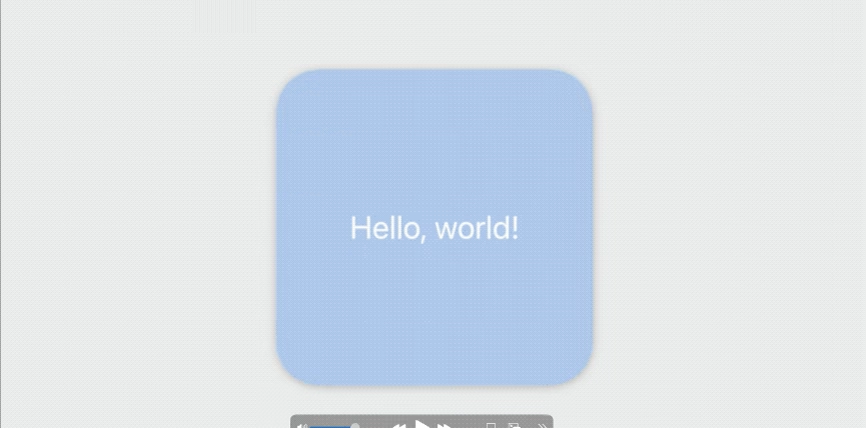
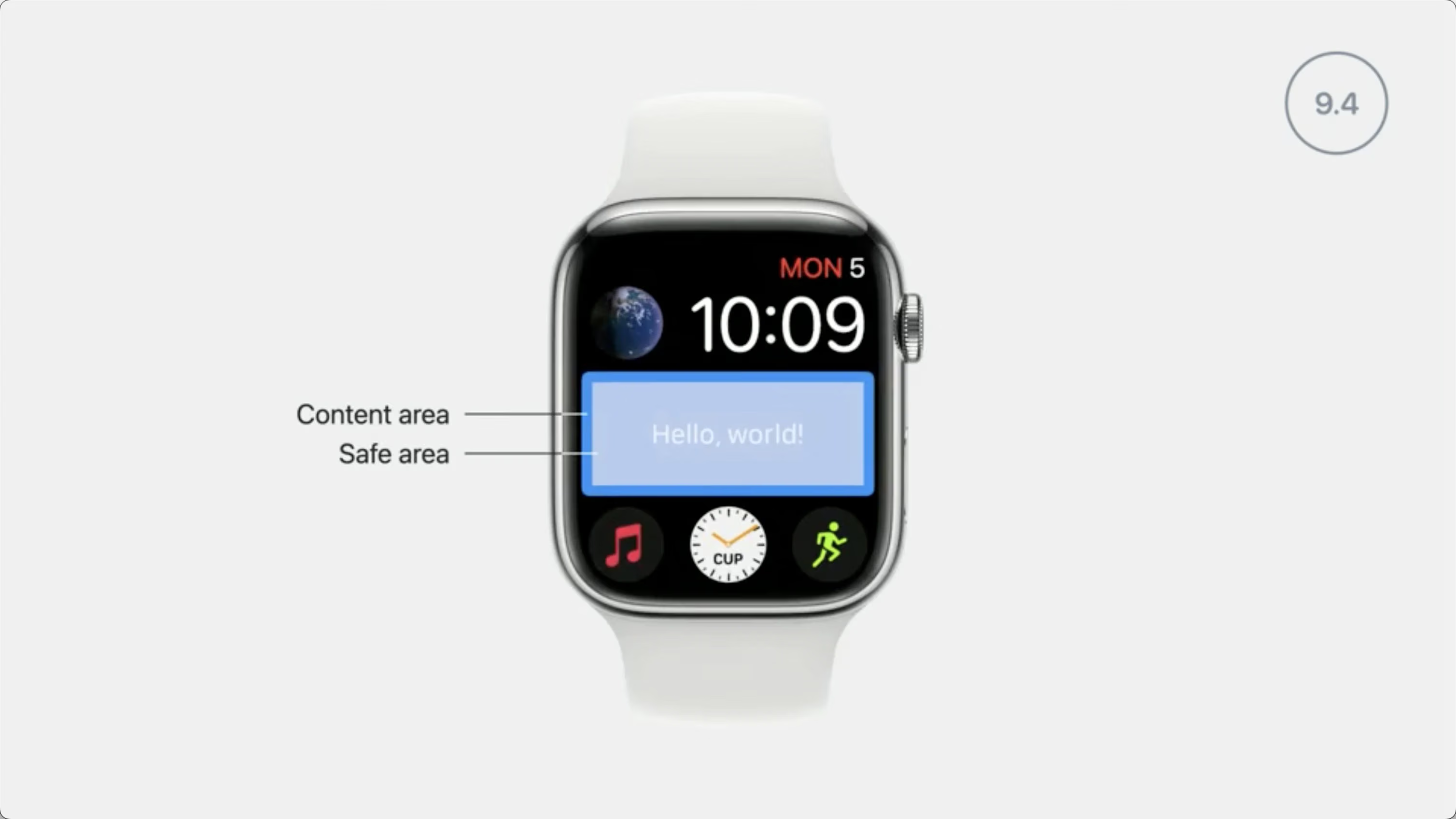
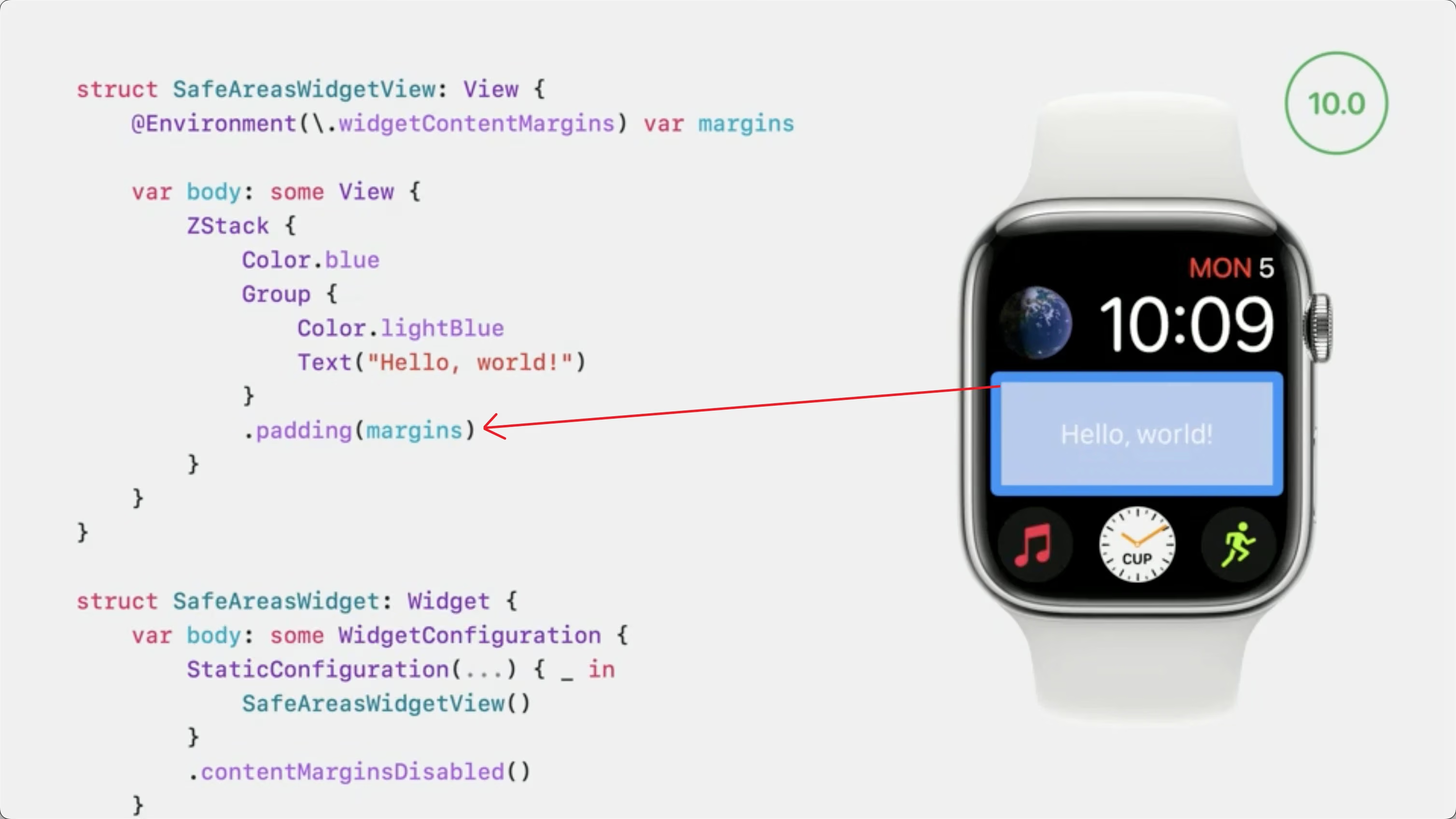
Taking the watchOS safe area as an example:
- watchOS 9 and below: a system-defined safe area is used to keep the widget from being too close to the edge. Developers can ignore it via
Color.blue.ignoresSafeArea(). - watchOS 10 and above: the
ignoresSafeArea()method no longer works; instead, you should apply thecontentMarginsDisabledmodifier to thewidget configurationto achieve this.
Add a removable background
Existing accessory family widgets can automatically adapt to the iPad lock screen. iPads can also show system small widgets right alongside them. But there will be a semi-transparent background; if you want to remove it, you can use:
1
2
3
4
5
ZStack {
    // TODO
}.containerBackground(for: .widget) {
    Color.gameBackground
}
This way, the system can automatically decide whether to show the background based on the display location. The same applies to widgets on watchOS: the system gives a semi-transparent background by default, and you can also hand the background handling over to the system this way to present colorful styles.
If you really don’t want the system to use a removable background for certain widgets (such as the desktop photo widget on iOS), you can apply the containerBackgroundRemovable(false) modifier to the widget’s configuration.
Dynamically adjust layout
When using StandBy mode, widgets are enlarged and the background is removed. You can check whether the background has been removed with the following code to adapt accordingly:
1
@Environment(\.showsWidgetContainerBackground) var showsWidgetBackground
Prepare for vibrant rendering
For widgets on the iPad lock screen, the system may adjust the saturation (desaturate) as needed, meaning the widget may need to fine-tune its colors, background, and other styles based on the actual situation. You can check whether the rendering is .vibrant with the following code to adapt:
1
@Environment(\.widgetRenderingMode) var widgetRender
Adding interactivity to widgets and Live Activities
Adding interactivity to widgets and Live Activities
AppIntent
This is probably one of the most interesting items for widget development at this WWDC. It simplifies the existing implementation of interactive widgets, while also noticeably improving the existing interaction effects.
Starting with iOS 17, iPadOS 17, and macOS 14, widgets and Live Activities can use buttons and toggles to provide special functionality without launching the main app.
Note: only the Button and Toggle components are supported; you need to import the AppIntents module.
The following widget types include Buttons and Toggles with this feature in the new SDK:
1
2
3
4
5
6
WidgetFamily.systemSmall
WidgetFamily.systemMedium
WidgetFamily.systemLarge
WidgetFamily.systemExtraLarge
WidgetFamily.accessoryCircular on iPhone and iPad
WidgetFamily.accessoryRectangular on iPhone and iPad
In practice, you need to implement your own AppIntent object:
1
2
3
4
5
6
7
8
struct MyIntent : AppIntent {
    static var title: LocalizedStringResource = "title"

    func perform() async throws -> some IntentResult {
        await MyActionWhichMaybeAsync()
        return .result()
    }
}
A few notes here:
- After perform() returns, the system immediately triggers a timeline update
- So if perform() contains asynchronous operations, you need to await their completion
- You need to update and persist the widget data in perform()
The essence of how AppIntent works is that the system triggers the timeline to update the widget view (an immutable object). For concrete usage, refer to the official code example.
Preview
One interesting thing is that the preview approach has been updated. Compared to the original:
1
2
3
4
5
struct MyWidgetView_Previews: PreviewProvider {
   static var previews: some View {
       MyWidgetView().previewContext(WidgetPreviewContext(family: .systemLarge))
   }
}
It adds timeline support, making it easy to observe animation effects, etc.:
1
2
3
4
5
#Preview(as: WidgetFamily.systemLarge) {
    // TODO:view
} timeline: {
    // TODO:timeline list
}
Animating data updates in widgets and Live Activities
Animating data updates in widgets and Live Activities
The effects in Live Activities have been extended to widgets. The timer-style Text in Live Activities has a built-in page-flip effect; if you don’t want it, here’s how to remove it:
1
Text(Date.now, style: .timer).contentTransition(.identity)
Summary
iOS widgets have some subtle changes. After analyzing the WWDC session, we still need to study them seriously.