

Preface
This article carries strong personal sentiments. If you find it uncomfortable to read, please close it. This article is for personal learning records only. You’re welcome to repost or share it within the scope of the license — please respect the copyright and keep the original link. Thank you for your understanding and cooperation. If you find this site helpful, you can subscribe via RSS. Thanks for your support!
Problem Description
Recently I encountered a problem while learning. I’m using a Mac for HarmonyOS development, and the company’s internal test device is a HUAWEI Mate 60 Pro running HarmonyOS NEXT Developer Preview.
For a new phone, transferring files between it and the computer has become a pain point. I frequently need to get mp4 video files and screenshots from the phone’s screen recordings. Since HarmonyOS is completely separated from Android, most phone assistant tools can’t recognize this phone, including the officially recommended HiSuite Huawei Phone Assistant.
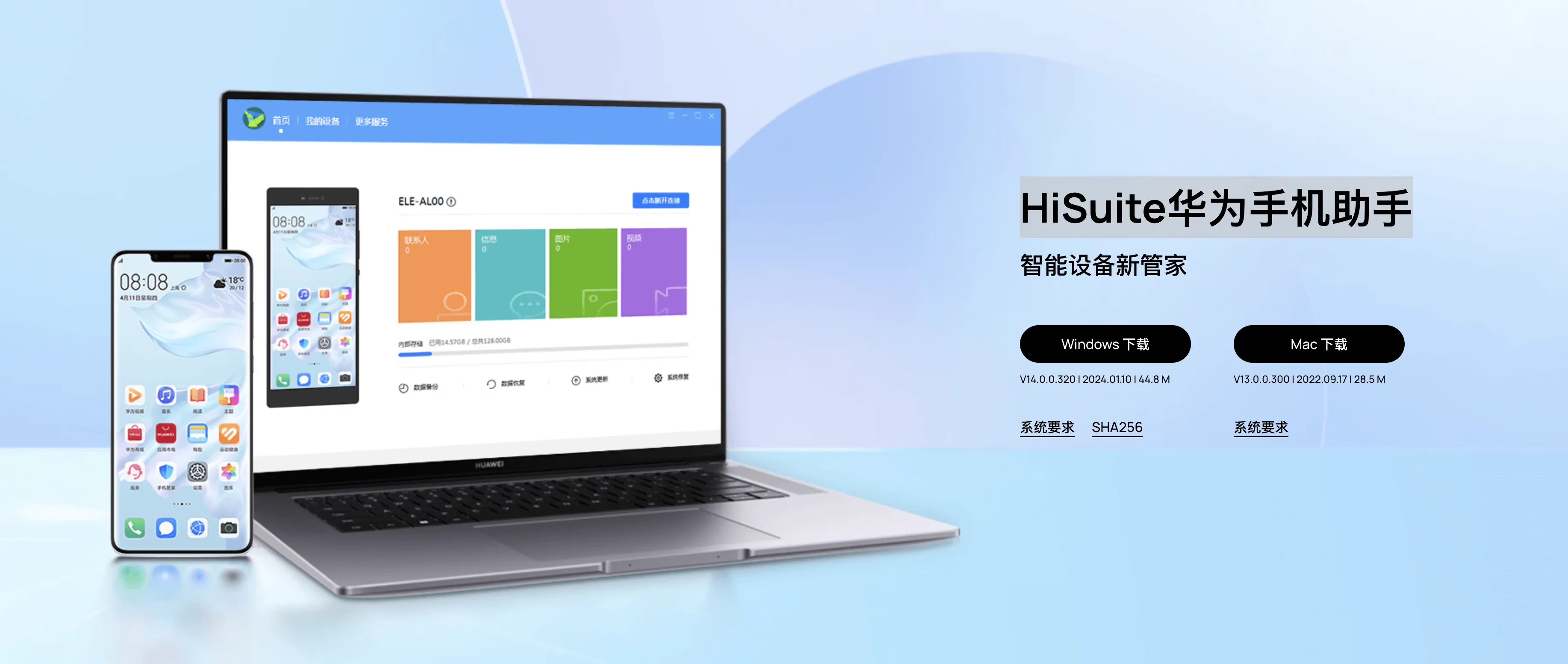
HarmonyOS isn’t like Apple, where a universal AirDrop can freely transfer between most devices in its ecosystem. HarmonyOS’s current stage can’t achieve this yet. HarmonyOS’s AirDrop is called “Huawei Share,” which also requires devices within the Huawei ecosystem for seamless file transfer. But macOS is obviously not a Huawei ecosystem product. So how do we solve this problem?
Using the Traditional Android hdc Method
hdc
hdc (HarmonyOS Device Connector) is a command-line tool provided by HarmonyOS for developers to debug. Through this tool, you can interact with real devices on Windows/Linux/Mac systems.
Preparation
Connect to the Mac via USB cable. Here’s my computer’s configuration: 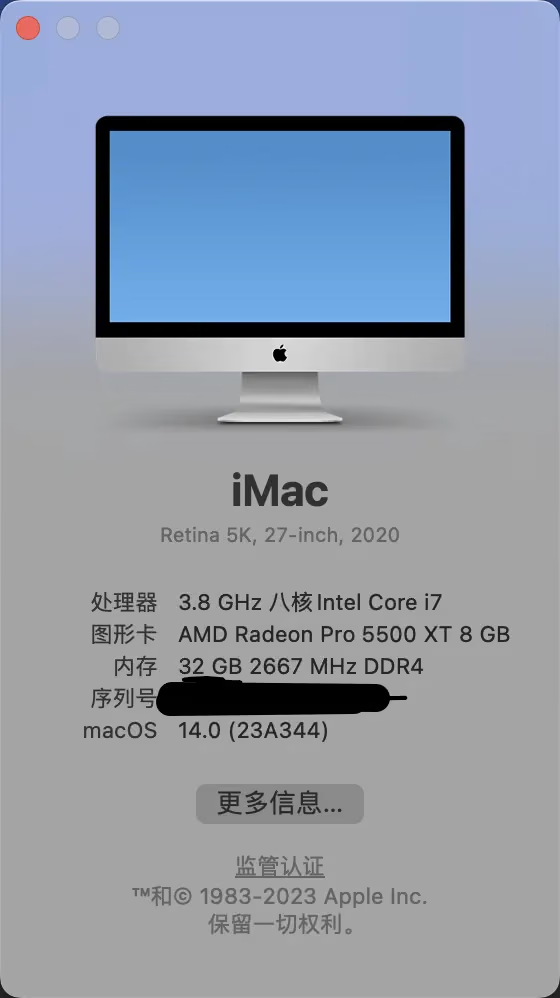
Then install the hdc environment on your computer. The above documentation covers this, so I won’t repeat it here. Assume you’ve successfully installed and can run it.
Enter hdc -v
1
Ver: 1.2.0a
Connecting the Device and Transferring Files
List all connected devices:
1
2
3
4
输入:  hdc list target -v

start server at tcp:7035
FMR0223823025245		USB	Connected	localhost	hd
Then mount the device:
1
2
3
输入:hdc target mount

Mount finish
Grant root privileges to the device-side hdc background service process:
1
hdc smode
When connecting devices, if there’s only one, no need to specify the device identifier. If there are multiple, you can only connect one at a time, and you need to specify the device identifier each time. Here’s the command format:
1
hdc -t FMR0223823025245 shell
Then the output is:
1
#
This enters the interactive terminal, ready to communicate via shell.
Next, we find the file directory we want to copy. If you can’t find it, use the following command to check file sizes:
1
du -sh *
HarmonyOS file directories — for example, the album is stored under /storage/media/100/local/files/Photo.
If this doesn’t match, it’s generally similar.
Let’s check the size of the files we want to copy from the phone to the computer using the du -sh * command:
1
2
3
4
5
6
# du -sh *
3.5K	1
3.5K	16
13M	2
1.5M	3
1.7M	4
The numbers are the names of the file directories. After finding the relevant directory and file, use pwd to print the current working directory, and append the file you want to copy to perform the copy.
Assume the absolute path of the file we want to get is /storage/media/100/local/files/Photo/4/VID_1705287805_004.mp4
Now open a new terminal and enter the following command. (Refer to the documentation for more file operation commands.)
1
hdc file recv /storage/media/100/local/files/Photo/4/VID_1705287805_004.mp4 ~/Downloads/
Output:
1
2
[I][2024-01-16 11:11:29] HdcFile::TransferSummary success
FileTransfer finish, Size:1823388, File count = 1, time:140ms rate:13024.20kB/s
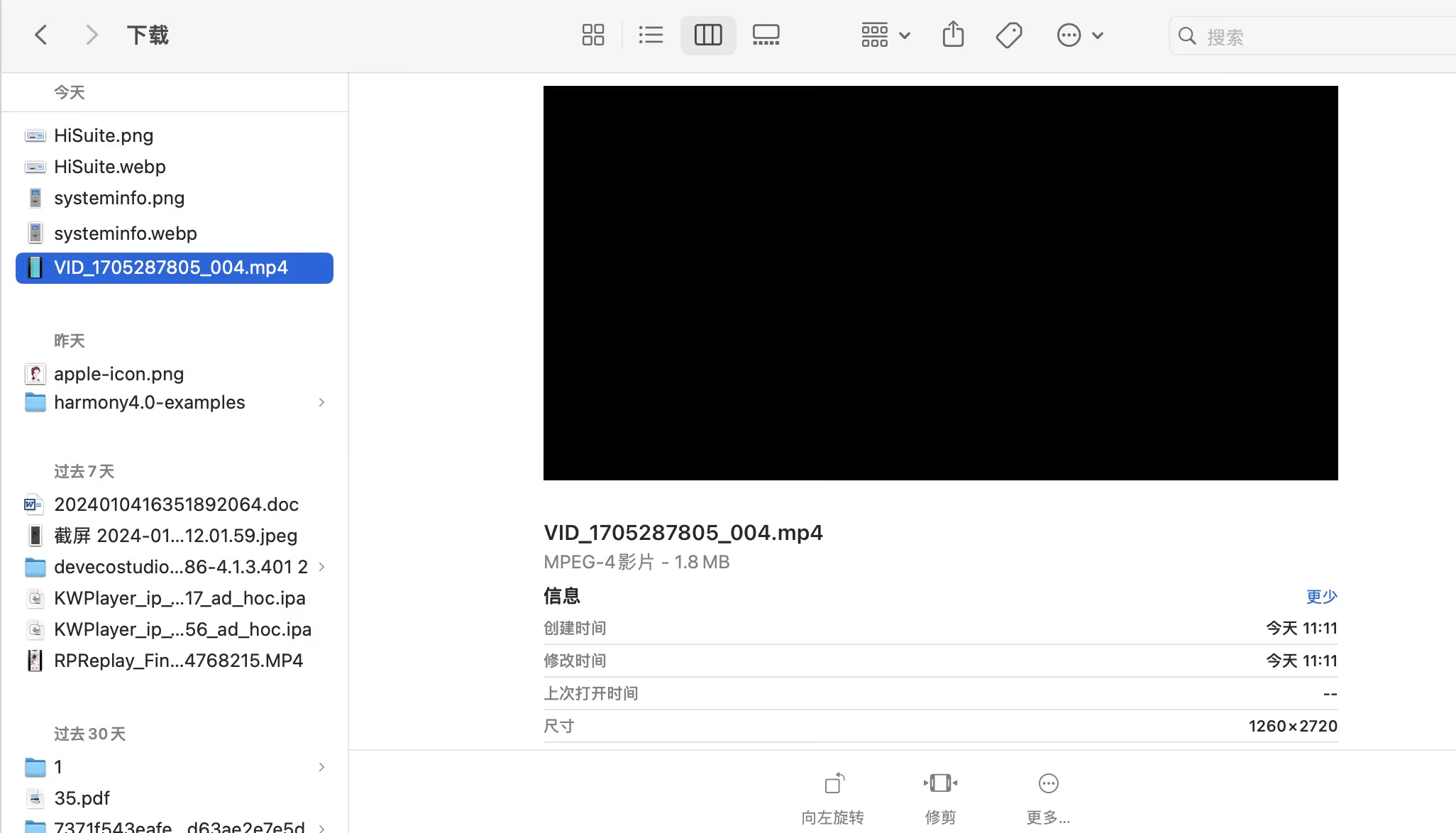
Through the above steps, we’ve transferred the corresponding file from the Huawei HarmonyOS phone to our macOS.
Other Operations
For example, uploading files from macOS to the HarmonyOS phone — I won’t test each one here. This approach is very convenient, entirely command-line based.
Using the IDE Device File Browser Tool (Updated March 2, 2024)
In the latest version of DevEco Studio (DevEco Studio NEXT Developer Preview2), a new device information browser tool was added.
It’s located in the bottom-right corner of the IDE: 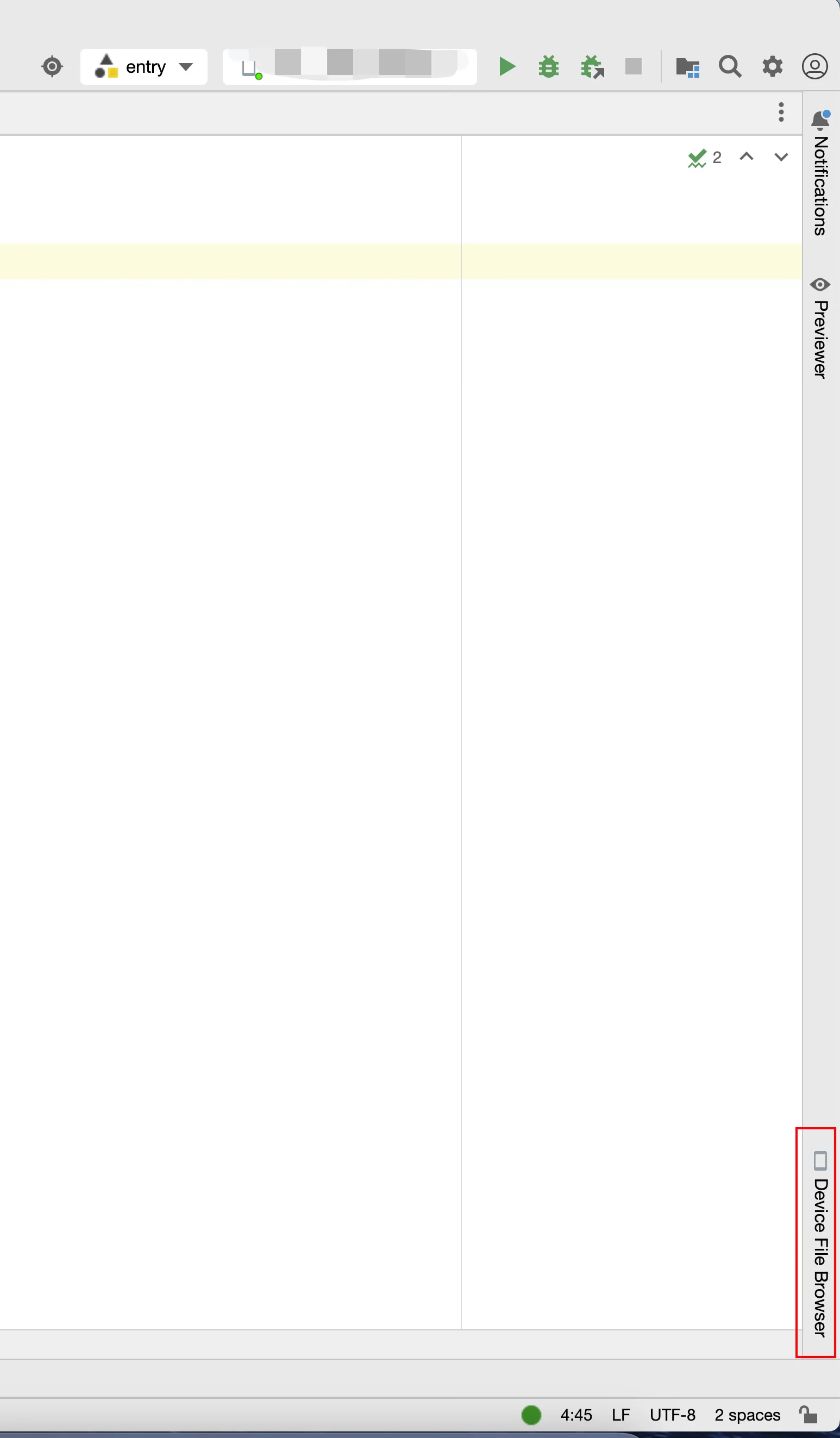 ,
, 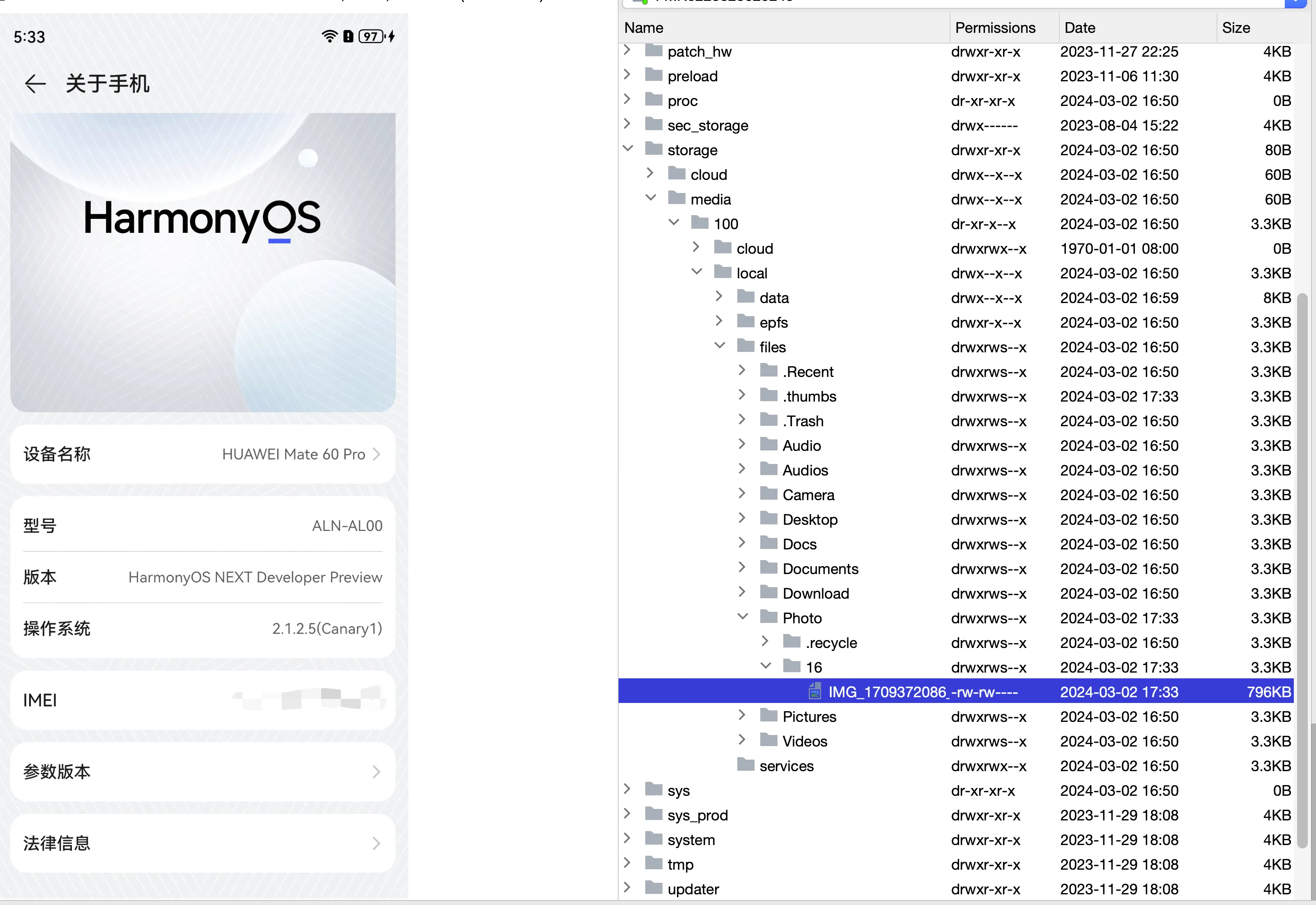
Here’s an example using a screenshot. The above shows the save path for screenshot images.
Updating the New hdc Tool Environment Variable Configuration
1
2
3
4
export PATH=$PATH:~/Library/Huawei/sdk/HarmonyOS-NEXT-DP2/base/toolchains
export HDC_SERVER_PORT=7035
export OHPM_HOME=~/Library/Huawei/ohpm
export PATH=${OHPM_HOME}/bin:${PATH}
I use the .zshrc file, so the environment variables are written in .zshrc.
Summary
I have to say, this functionality is very necessary for the current environment — developing a GUI app to transfer files from phones to other devices, including compatibility with macOS, iOS, iPadOS and other Apple ecosystem devices, as well as Android ecosystem devices for networking and near-field communication file transfer. Such an app is very necessary.