

Preface
Developers familiar with WIN development must be very familiar with shortcuts; on macOS they are called aliases. Recently I was developing some plugin-related logic and found that I needed to copy the plugin to a specified directory, hence this article.
Symbolic Links
If you have a deep understanding of memory management, a symbolic link is like the “pointer to a pointer” in memory management. A symbolic link is essentially an address that points to a hard link, so naturally it only works for that one hard link. Once the hard link that the symbolic link points to is deleted, the symbolic link becomes invalid. Of course, there’s also a subtle difference from “pointer to pointer”: your operations on a symbolic link are all performed by jumping to the hard link and then mapping to operations on the node.
You can create symbolic links using two methods in NSFileManager:
1
2
3
- (BOOL)createSymbolicLinkAtPath:(NSString *)path withDestinationPath:(NSString *)destPath error:(NSError **)error ;
- (BOOL)createSymbolicLinkAtURL:(NSURL *)url withDestinationURL:(NSURL *)destURL error:(NSError **)error;
Use Case
Recently I’ve been developing a plugin and need to copy the plugin from the project directory to the system plugin directory ~/Library/Internet Plug-Ins/ (here I’m using Lao Tan’s plugin as an example: here)
As shown below: 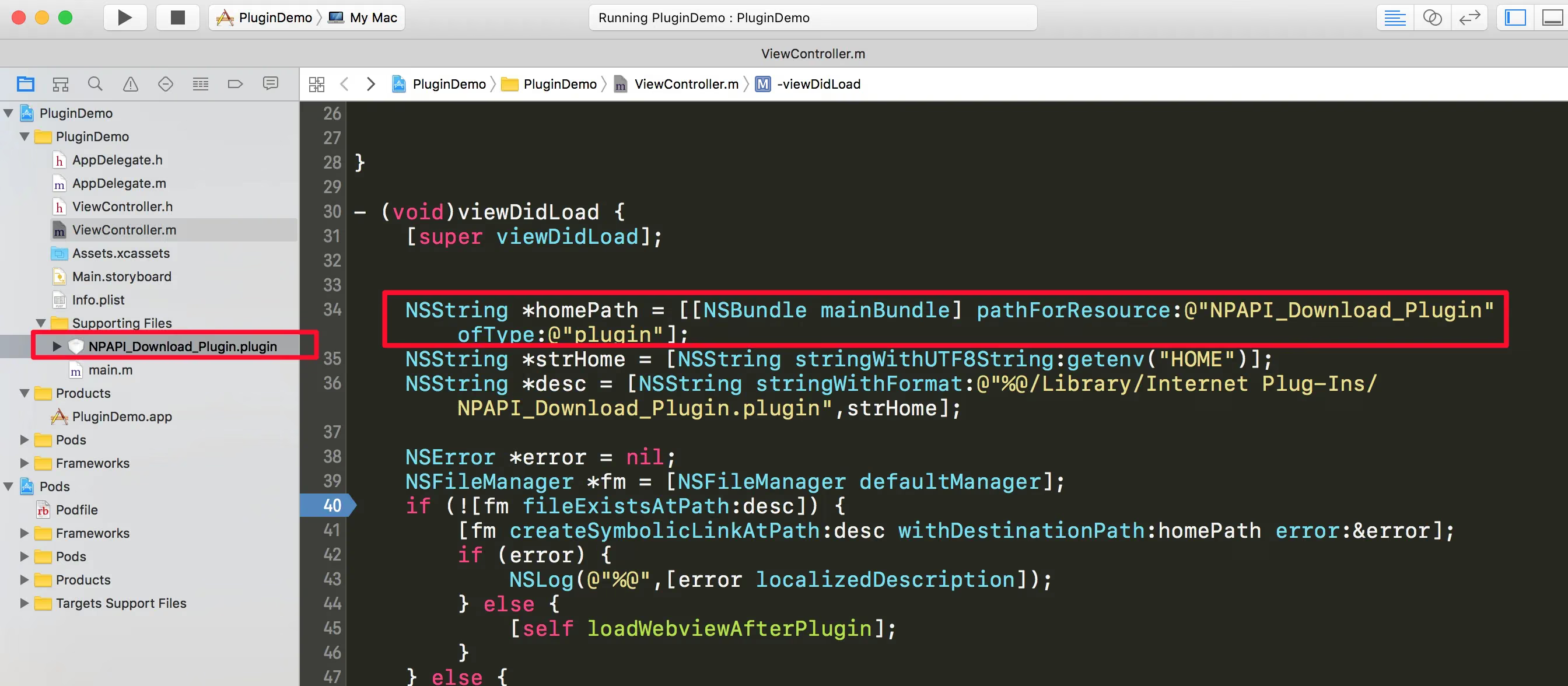
I originally wanted to copy it directly, but there might be upgrade issues in the future, and then handling the logic of judging versions and deleting old ones would be troublesome. So I thought of using an alias instead.

Create the alias using this approach:
1
2
3
4
5
6
7
8
9
    //The file in the project directory
    NSString *homePath = [[NSBundle mainBundle] pathForResource:@"NPAPI_Download_Plugin" ofType:@"plugin"];
    //The plugin's location in the system directory
    NSString *strHome = [NSString stringWithUTF8String:getenv("HOME")];
    NSString *desc = [NSString stringWithFormat:@"%@/Library/Internet Plug-Ins/NPAPI_Download_Plugin.plugin",strHome];
    NSFileManager *fm = [NSFileManager defaultManager];
    //Create the alias
    [fm createSymbolicLinkAtPath:desc withDestinationPath:homePath error:nil];
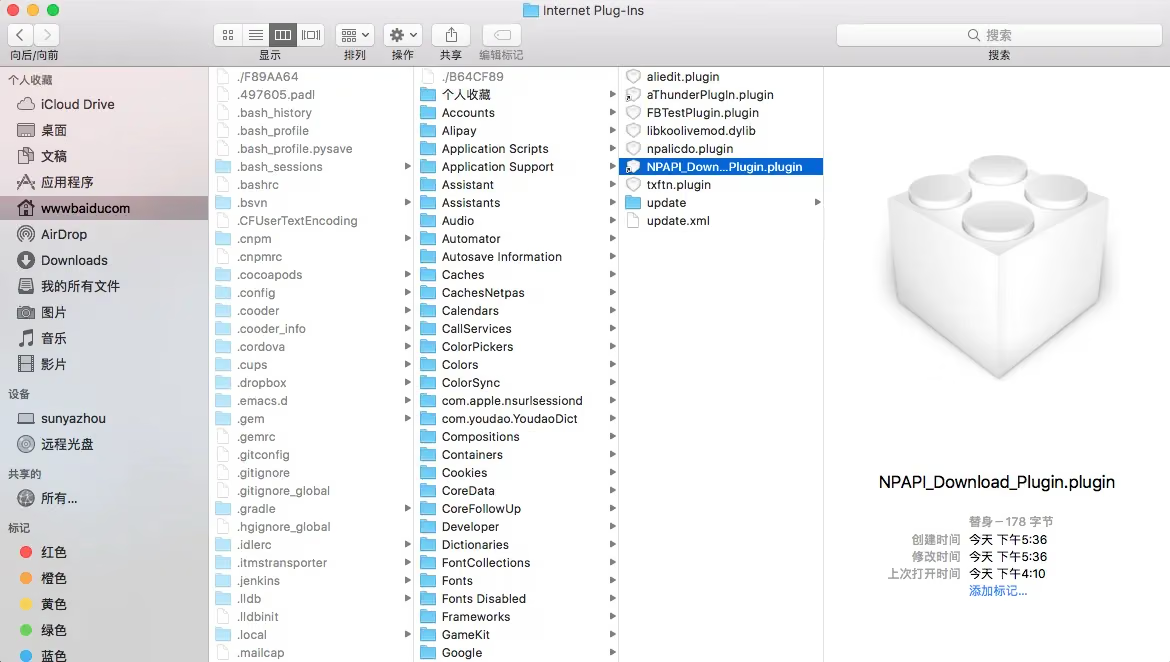
Note: in the createSymbolicLinkAtPath:withDestinationPath:error: method, the first parameter LinkAtPath is desc, which is the location where the alias is placed. The second parameter DestinationPath is homePath, representing the original path of the local file. Using the file in the project directory here is just for convenience; be careful not to confuse it with the copyItem method.
Summary
This mainly covers some macOS development tricks. I hope you can point out any shortcomings.
Reference: Detailed explanation of Hard Link and Symbolic Link in OSX(Unix)
End of article.