

Preface
This article contains strong personal opinions. If you find it uncomfortable to read, please close it immediately. This article is for personal learning records only. You are welcome to reproduce or share it within the scope of the license agreement. Please respect copyright and keep the original link. Thank you for your understanding and cooperation. If you find this site helpful, you can subscribe via RSS. Thank you for your support!
Background
In recent years, the development model for mobile projects has gradually shifted toward pod-oriented development — when a project gets large, each module and business becomes a separate pod. Under this pod-based development model, our development resources such as images, text files, plists, audio files, etc., are created and placed in the bundle directory under the corresponding pod.
When placed in a bundle, @2x and @3x suffix support is no longer available. Note the following code when retrieving images:
1
2
3
4
5
NSBundle *mainBundle = [NSBundle bundleForClass:self.class];
NSString *resourcePath = [mainBundle pathForResource:@"YZTools" ofType:@"bundle"];
NSBundle *resourceBundle = [NSBundle bundleWithPath:resourcePath] ?: mainBundle;
NSString *imagePath = [resourceBundle pathForResource:@"power" ofType:@"jpg"];
UIImage *image = [UIImage imageWithContentsOfFile:imagePath];
- Pods are almost always compiled into frameworks, so the corresponding bundle ends up in the framework’s directory after compilation. At this point, you can’t use the traditional mainBundle to retrieve it, because its default bundle is no longer the main project bundle — you should retrieve it from the bundle in the directory of a core class.
- And if the image name has @2x or @3x, you must specify the full name when retrieving it, as in the example below:
That clearly doesn’t meet our needs.
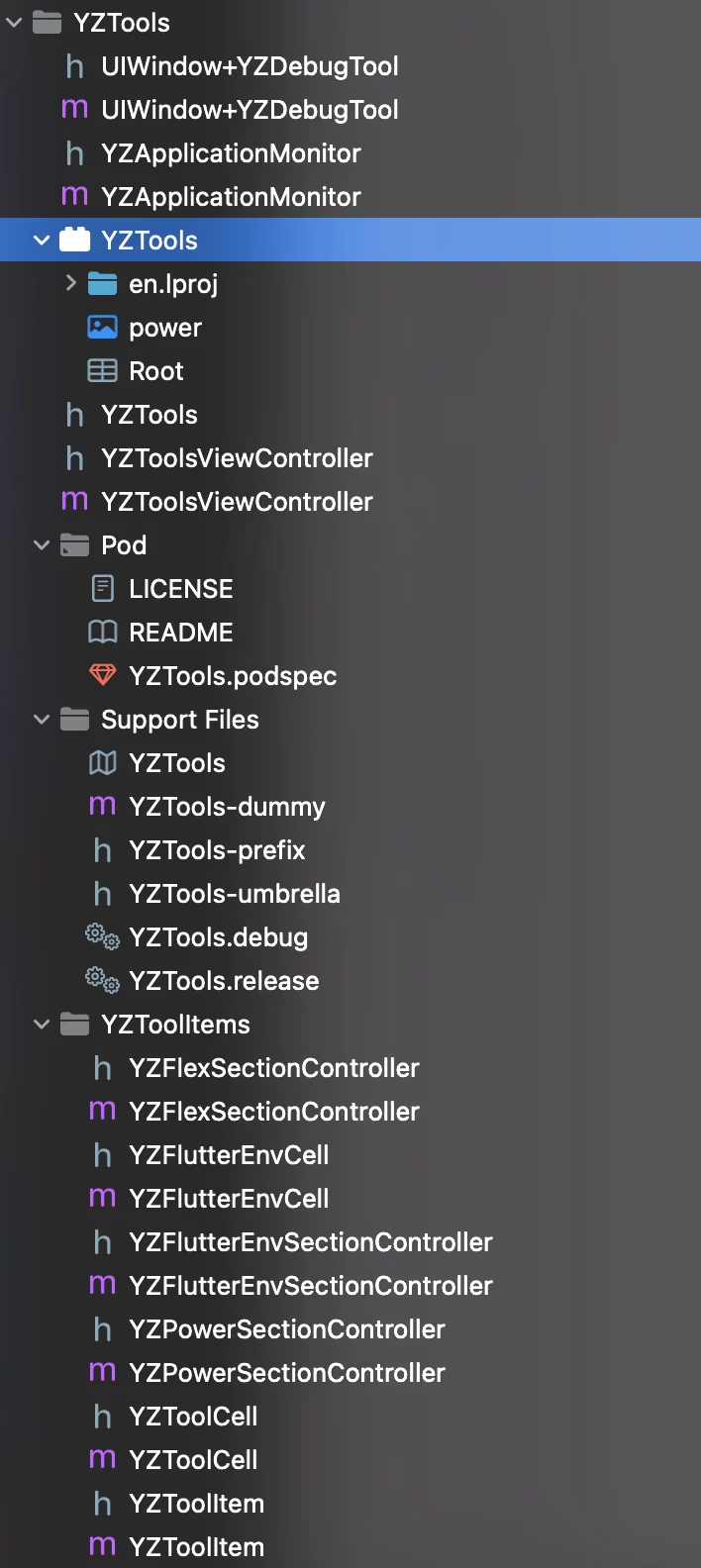
Images all have @2x and @3x versions. How do we retrieve the relevant images from a pod?
Now we need to do a few things:
- Create an XCAssets
- Declare the relevant name in the podspec
- Create a category for images to retrieve them from the pod’s XCAssets
Create XCAssets
As shown below
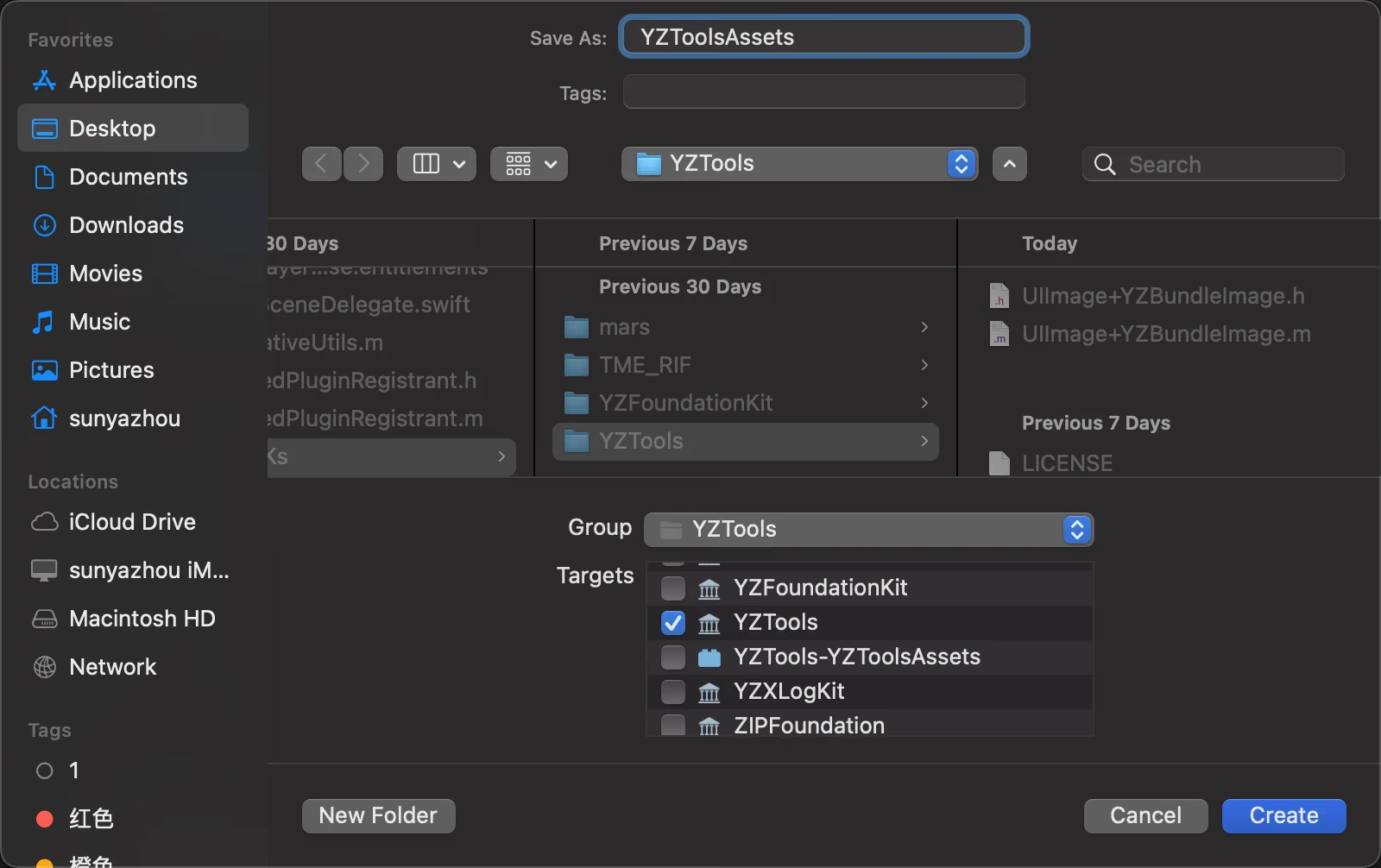
Declare in podspec
1
spec.resource_bundles = {'YZToolsAssets' => ['Resources/*.xcassets']}
Here, YZToolsAssets must exactly match ‘YZToolsAssets’ in spec.resource_bundles in YZTools.podspec.
The relevant documentation is shown below
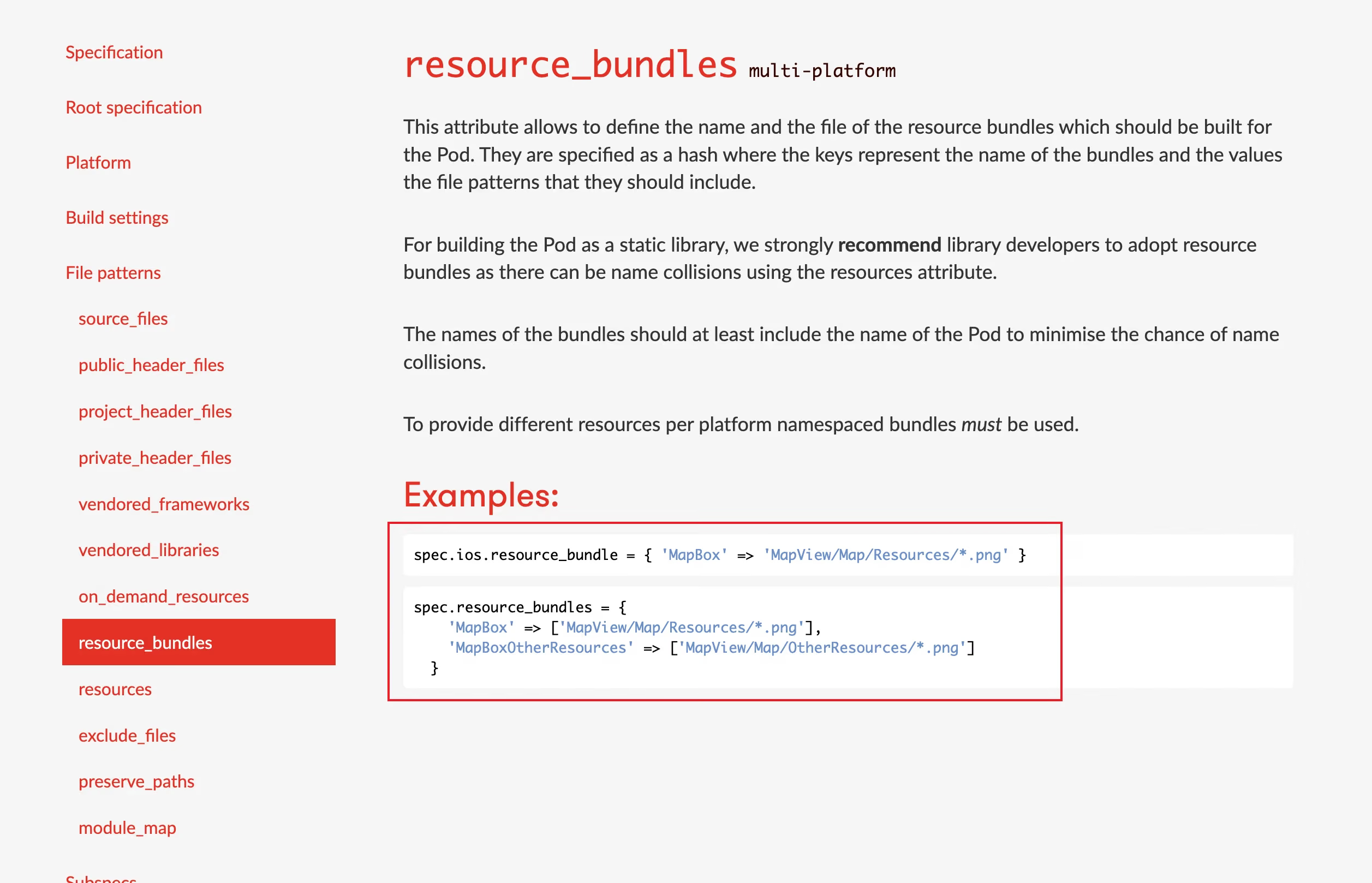
This podspec documentation doesn’t clearly explain how to add XCAssets. You need to study and explore further.
As it turns out, this documentation doesn’t explain how to add XCAssets at all.
Add a category for image retrieval
1
2
3
4
5
6
7
8
9
10
11
12
13
14
15
16
17
18
19
20
21
22
23
24
25
26
27
28
29
30
31
32
33
34
35
36
37
38
39
#import <UIKit/UIKit.h>
NS_ASSUME_NONNULL_BEGIN
@interface UIImage (YZBundleImage)

/// Retrieve image from YZTools's YZToolsAssets
/// - Parameter imageName: Image name
+ (UIImage *)yzToolsImageNamed:(NSString *)imageName;

@end

// YZToolsAssets here must exactly match spec.resource_bundles = {'YZToolsAssets' in YZTools.podspec
NSString *kYZToolsAssets = @"YZToolsAssets";

@implementation UIImage (YZBundleImage)

+ (NSBundle *)yzImageBundle
{
    static NSBundle *imageBundle = nil;
    if (!imageBundle)
    {
        NSBundle *mainBundle = [NSBundle mainBundle];
        NSString *resourcePath = [mainBundle pathForResource:kYZToolsAssets ofType:@"bundle"];
        imageBundle = [NSBundle bundleWithPath:resourcePath] ?: mainBundle;
    }
    NSAssert([imageBundle bundlePath].length > 0, @"内部imageBundle路径不能为空");
    return imageBundle;
}

+ (UIImage *)yzToolsImageNamed:(NSString *)imageName
{
    NSBundle *imageBundle = [self yzImageBundle];
    UIImage *image = [UIImage imageNamed:imageName inBundle:imageBundle compatibleWithTraitCollection:nil];
    return image;
}

@end


NS_ASSUME_NONNULL_END
Here’s the code for using it:
1
UIImage *image = [UIImage yzToolsImageNamed:@"power"];
The result is shown below:

Note that what’s obtained here is the mainBundle.
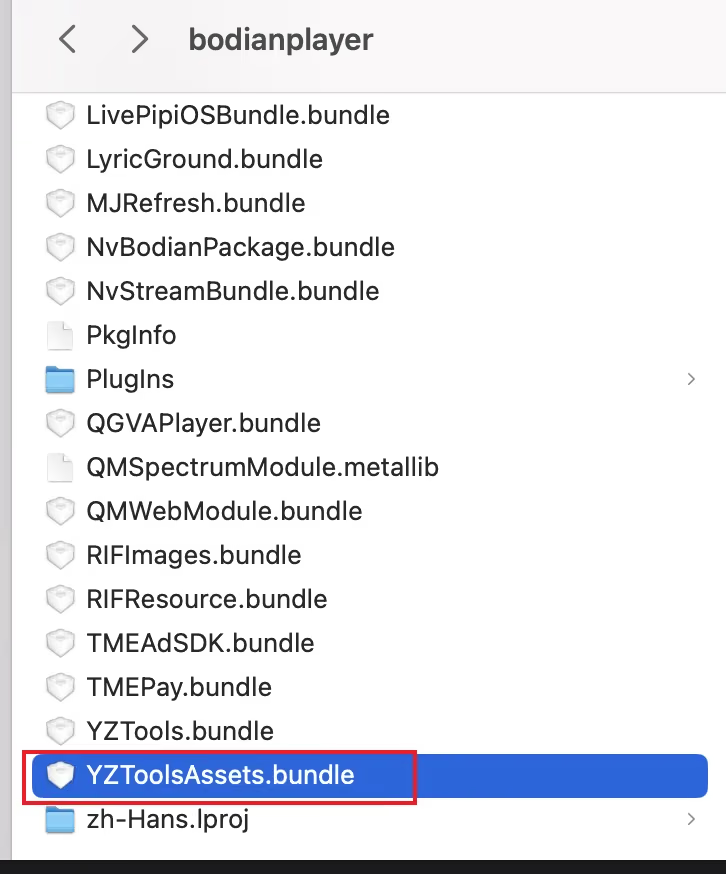
After compilation, the final XCAssets becomes a bundle
Under the .app/ directory
1
/var/containers/Bundle/Application/F3C2809A-A5E4-4808-A2AA-5962D4BE6AA1/bodianplayer.app/YZToolsAssets.bundle
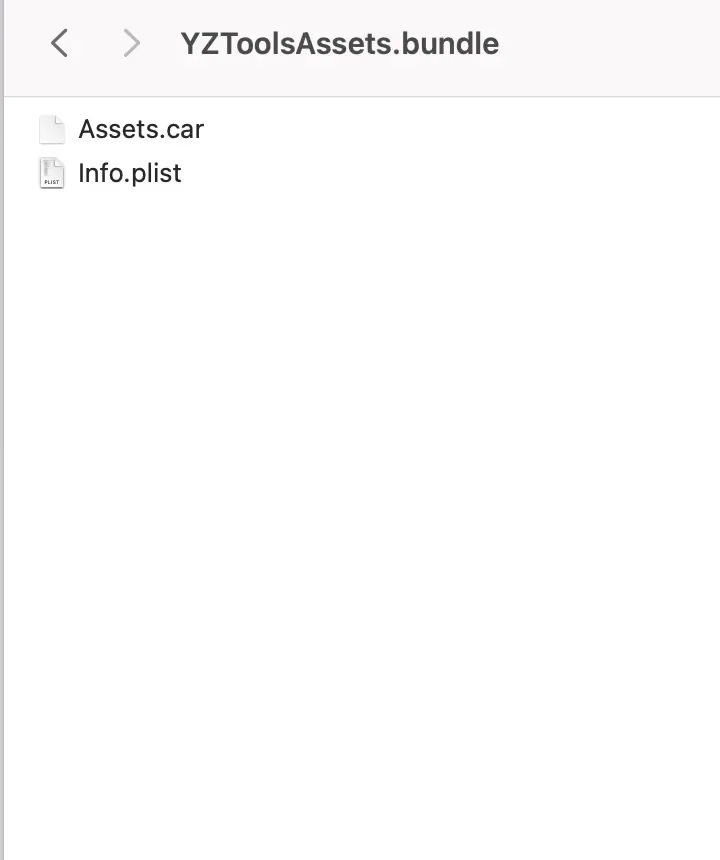
As you can see, the image assets here have been encrypted and turned into a file called Assets.car, which means our resources have been encrypted and packaged, making it difficult for other apps to find them.
Summary
The XCAssets here is ultimately packaged as a bundle and placed in the main app’s directory. The core method is to write the resource_bundles in the pod, and remember the name you give it.
Here’s a demo for everyone — these are just some tips.