

Preface
This article is highly personal in tone. If you find it uncomfortable to read, please close it as soon as possible. This article is only a personal learning record. Reposts and sharing are welcome within the scope of the license agreement. Please respect the copyright and keep the original link. Thank you for your understanding and cooperation. If you find this site helpful, you can subscribe via RSS. Thanks for your support!
Notes
While learning how Flutter handles username and password input, I found that Flutter handles it with ease. After studying it, I realized Flutter’s built-in capabilities are very powerful. Below is a simple demo I recorded for username/password input.
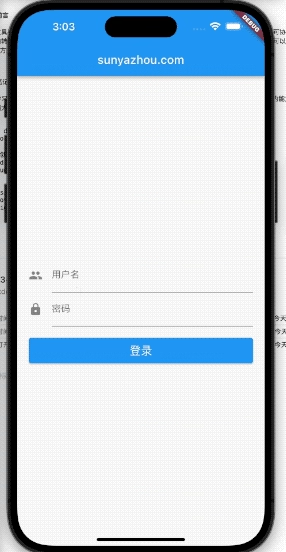
1
2
3
4
5
6
7
8
9
10
11
12
13
14
15
16
17
18
19
20
21
22
23
24
25
26
27
28
29
30
31
32
33
34
35
36
37
38
39
40
41
42
43
44
45
46
47
48
49
50
51
52
53
54
55
56
57
58
59
60
61
62
63
64
65
66
67
68
69
70
71
72
73
74
75
76
77
78
79
80
81
82
83
84
85
86
import 'package:flutter/material.dart';

///Create the app
void main () {
  runApp(MyApp());
}

class MyApp extends StatelessWidget  {
  @override
  Widget build(BuildContext context) {
    return MaterialApp(
      title: "hello flutter",
      home: Scaffold(
        appBar: AppBar(
          title: Text("sunyazhou.com"),
        ),
        body: ContentWidget(),
      ),
    );
  }
}

class LoginWidgetState extends State<LoginWidget> {
  String username = "";
  String password = "";
  GlobalKey<FormState> formGlobalKey = GlobalKey();
  @override
  Widget build(BuildContext context) {
    return Form(
        key: formGlobalKey,
        child: Column(
          mainAxisAlignment: MainAxisAlignment.center,
          children: [
            TextFormField(
              decoration: InputDecoration(
                  icon: Icon(Icons.people),
                  labelText: "用户名",

              ),
              onSaved: (value) {
                  print("执行了username的 onSaved:$value");
                  this.username = value!;
              },
              validator: (value) {
                if (value == null || value.length == 0) {
                  return "用户名不能为空!";
                }
                return null;
              },
            ),
            TextFormField(
              obscureText: true,
              decoration: InputDecoration(
                icon: Icon(Icons.lock),
                labelText: "密码",
              ),
              onSaved: (value) {
                print("执行了password的 onSaved:$value");
                this.password = value!;
              },
              validator: (value) {
                if (value == null || value.length == 0) {
                  return "密码不能为空!";
                }
                return null;
              },
            ),
            SizedBox(height: 20,),
            Container(
              width: double.infinity,
              height: 44,
              child: ElevatedButton(
                child: Text("登录", style: TextStyle(fontSize: 20, color: Colors.white),),
                onPressed: () {
                  print("注册按钮被点击");
                  formGlobalKey.currentState?.validate();
                  formGlobalKey.currentState?.save();
                  print("username:$username, password:$password");
                },
              ),
            ),
          ],
        ),
    );
  }
}
The code above not only provides the input fields, but also performs content validation within them. When an error occurs, you can use formGlobalKey to get the current State and call the validate() function to trigger the validators of the input fields.
1
formGlobalKey.currentState?.validate();
The principle behind this step is roughly:
- Declare a GlobalKey
- Pass an instance of the declared GlobalKey to
Form - Call
formGlobalKey.currentState?.validate();to invoke thevalidatormethods of the child controls inside the form - Finally, submit to the server for login after validating the submitted content
Summary
I have to say, Flutter has its advantages. Through the form control, it injects methods into its children, thereby implementing a protocol-like constraint style. The code is concise and efficient.
Below is a record of my study of other widgets.
1
2
3
4
5
6
7
8
9
10
11
12
13
14
15
16
17
18
19
20
21
22
23
24
25
26
27
28
29
30
31
32
33
34
35
36
37
38
39
40
41
42
43
44
45
46
47
48
49
50
51
52
53
54
55
56
57
58
59
60
61
62
63
64
65
66
67
68
69
70
71
72
73
74
75
76
77
78
79
80
81
82
83
84
85
86
87
88
89
90
91
92
93
94
95
96
97
98
99
100
101
102
103
104
105
106
107
108
109
110
111
112
113
114
115
116
117
118
119
120
121
122
123
124
125
126
127
128
129
130
131
132
133
134
135
136
137
138
139
140
141
142
143
144
145
146
147
148
149
150
151
152
153
154
155
156
157
158
159
160
161
162
163
164
165
166
167
168
169
170
171
172
173
174
175
176
177
178
179
180
181
182
183

class ContentWidget extends StatelessWidget {
  @override
  Widget build(BuildContext context) {
    return Padding(
      padding: const EdgeInsets.all(20.0),
      child: LoginWidget(),
    );
  }
}

class LoginWidget extends StatefulWidget {
  @override
  State<StatefulWidget> createState() {
    return LoginWidgetState();
  }
}

class RegisterWidget extends StatefulWidget {
  @override
  State<StatefulWidget> createState() {
    return RegisterWidgetState();
  }
}

class RegisterWidgetState extends State <RegisterWidget> {
  final textEditingController = TextEditingController();

  @override
  void initState() {
    // TODO: implement initState
    textEditingController.text = "默认值";
    textEditingController.addListener(() {
        print("监听到值的变化: ${textEditingController.text}");
    });
  }
  @override
  Widget build(BuildContext context) {
    return Padding(
      padding: const EdgeInsets.all(20.0),
      child: Column(
        mainAxisAlignment: MainAxisAlignment.center,
        children: [
          TextField(
              decoration: InputDecoration(
                icon: Icon(Icons.people),
                labelText: "username",
                hintText: "请输入用户名",
                border: OutlineInputBorder(
                  borderSide: BorderSide(width: 1),
                ),
                // filled: true,
                // fillColor: Colors.purple,
              ),
            onChanged: (value) {
                print("当前值 $value");
            },
            onSubmitted: (value) {
                print("最后提交值:$value");
            },
            controller: textEditingController,
          ),
        ],
      ),
    );
  }
}

class RadiusImageDemo extends StatelessWidget {
  @override
  Widget build(BuildContext context) {
    return Center(
      child: ClipRRect(
        borderRadius: BorderRadius.circular(16),
        child: Image.network("https://www.sunyazhou.com/assets/images/avatar.jpg",
          width: 150,
          height: 150,
        ),
      ),
    );
  }
}

class CircleImageDemo extends StatelessWidget {
  @override
  Widget build(BuildContext context) {
    return ClipOval(
      child: Image.network("https://www.sunyazhou.com/assets/images/avatar.jpg",
        width: 150,
        height: 150,
      ),
    );
  }
}

class AssertImageDemo extends StatelessWidget
{
  @override
  Widget build(BuildContext context) {
    return Image.asset("assets/images/3.avif");
  }
}

class NetworkImageDemo extends StatelessWidget
{
  @override
  Widget build(BuildContext context) {
    return Center(
      child: Container(
        width: 300,
        height: 300,
        color: Colors.red,
        child: Image.network("https://www.sunyazhou.com/assets/images/20230312FlutterLifeCycle/flutter3.avif",
          // fit: BoxFit.cover,
          repeat: ImageRepeat.repeatY,
        ),

      ),
    );
  }
}

class ButtonDemo extends StatelessWidget
{
  @override
  Widget build(BuildContext context) {
    return Column(
      children: [
        ElevatedButton(
          child: Text("ElevatedButton"),
          onPressed: () => print("ElevatedButton click"),
        ),
        OutlinedButton(
          child: Text("OutlinedButton"),
          onPressed: () => print("OutlinedButton click"),
        ),
        FloatingActionButton(
          child: Text("FloatingActionButton"),
          onPressed: () => print("FloatingActionButton click"),
        ),

      ],
    );
  }
}

class TextRichDemo extends StatelessWidget
{
  @override
  Widget build(BuildContext context) {
    return Text.rich(
      TextSpan(
        children: [
          TextSpan(
              text: "sunyazhou.com", style: TextStyle(fontSize: 30, fontWeight: FontWeight.bold, color: Colors.red)
          ),
          TextSpan(
              text: "sunyazhou", style: TextStyle(fontSize: 18,color: Colors.blue)
          ),
          TextSpan(text: "\n本文具有强烈的个人感情色彩,如有观看不适,请尽快关闭. \n本文仅作为个人学习记录使用,也欢迎在许可协议范围内转载或使用,\n请尊重版权并且保留原文链接,谢谢您的理解合作. 如果您觉得本站对您能有帮助,您可以使用RSS方式订阅本站,这样您将能在第一时间获取本站信息.",style: TextStyle(fontSize: 20, color:  Colors.deepOrangeAccent)),

        ],
      ),
      textAlign: TextAlign.center,
    );
  }
}

class TextDemo extends StatelessWidget {
  @override
  Widget build(BuildContext context) {
    return Text("本文具有强烈的个人感情色彩,\n如有观看不适,请尽快关闭. \n本文仅作为个人学习记录使用,也欢迎在许可协议范围内转载或使用,"
      ,style: TextStyle(
        fontSize: 20,
        color: Colors.lightBlue,
      ),
      textAlign: TextAlign.center,
      // maxLines: 2,
      overflow: TextOverflow.ellipsis,
      // textScaleFactor: 2,
    );
  }
}