
Preface
Recently I’ve been studying OpenGL ES and GPU-related topics, and I found this article to be a valuable introductory reference.
Understanding UIView drawing — how does a UIView get displayed on the screen?
Let’s start with the Runloop. iOS’s MainRunloop is a 60fps callback, meaning the screen is drawn once every 16.7ms. Within this time frame, the following work must be completed:
- Creating the
view’s buffer - Drawing the
view’s content (ifdrawRectis overridden)
These are the CPU’s tasks.
The buffer is then handed over to the GPU for rendering, a process that includes:
- Compositing multiple
views - Rendering textures (
Texture), etc.
The result finally appears on the screen. Therefore, if these operations can’t be completed within 16.7ms — for example, the CPU does too much work, or the view hierarchy is too deep, or the images are too large, putting too much pressure on the GPU — the UI will stutter, i.e. dropped frames.
Apple’s officially recommended optimal frame rate is 60fps (60Hz), meaning not a single frame is dropped. Of course, that’s the ideal experience.
How should we understand this 60fps?
Generally speaking, if the frame rate reaches 60+fps (fps >= 60; in fact, once the frame rate exceeds 50, the human eye can barely perceive any stuttering), so if you can keep your iOS app stably at 60fps, that’s already quite good. Note the word “stable” — stable at 60fps, not jumping around like 10fps, 40fps, 20fps. An unstable frame rate will feel laggy. 60fps is really hard to achieve, especially on 32-bit devices like the iPhone 4/4s. But now Apple has fully abandoned 32-bit, and supporting 64-bit as the minimum makes things much better.
fps represents the refresh rate, measured in Hertz (Hz). Considering energy consumption, visual experience, and other factors in electronic engineering, 60Hz is a fairly ideal refresh rate, which is why 60Hz often appears on home appliances. In video, a frame rate of FPS >= 25 is needed for the human eye not to perceive stuttering, because in video, the blurry I/P/B frames provide some of the neighboring frames’ pixel information to facilitate the GPU’s off-screen rendering, and the GPU’s index can save a lot of performance.
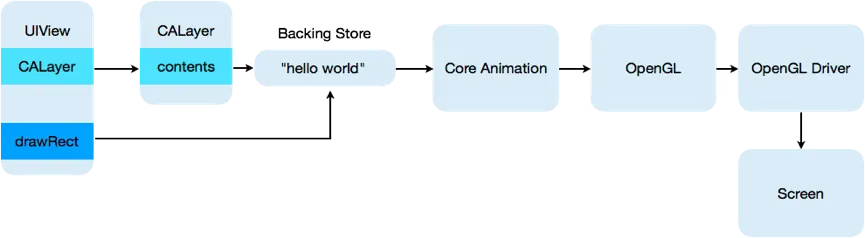
Overall, the process from UIView drawing to rendering involves the following steps:
- Every
UIViewhas alayer - Every
layerhas acontent, and thiscontentpoints to a buffer called thebacking store.
UIView drawing and rendering are two separate processes:
- When a
UIViewis drawn, theCPUexecutesdrawRect, writing data into thebacking storethrough thecontext - When the
backing storeis done, it’s handed over to theGPUfor rendering via the render server, which displays the bitmap data from the backing store on the screen.
The process from CPU to GPU described above can be illustrated by the diagram below:
Let’s discuss this process in detail.
- CPU bound:
Suppose we create a UILabel:
1
2
3
4
5
UILabel* label = [[UILabel alloc]initWithFrame:CGRectMake(10, 50, 300, 14)];
label.backgroundColor = [UIColor whiteColor];
label.font = [UIFont systemFontOfSize:14.0f];
label.text = @"test";
[self.view addSubview:label];
Nothing happens at this point. Since UILabel overrides the drawRect method, this view gets marked as “dirty”:
Something like this:
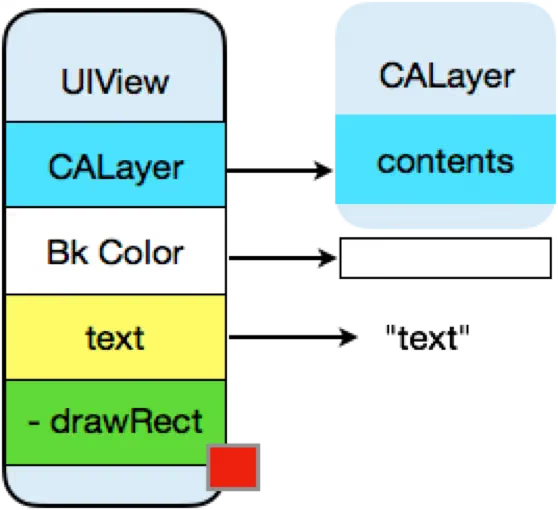
Then a new Runloop arrives. As mentioned above, the interface needs to be rendered in this Runloop. For UIKit rendering, Apple uses its Core Animation. The approach is to call this at the start of the Runloop:
1
[CATransaction begin]
And call this at the end of the Runloop:
1
2
3

[CATransaction commit]
Between begin and commit, the view is added to the view hierarchy, and again no drawing happens. After [CATransaction commit] executes, the CPU starts drawing the view:
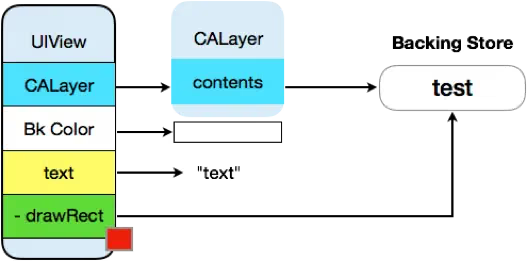
First, the CPU allocates a block of memory for the layer to draw the bitmap, called the backing store
It creates a pointer to this bitmap buffer, called CGContextRef
It draws the bitmap via the Core Graphic api, also known as Quartz2D
It points the layer’s content at the generated bitmap
It clears the dirty flag
That basically completes the CPU’s drawing.
The whole process can be fully observed with the time profiler:
1
2
3
4
5
6
7
8
9
10
11
12
13
14
15
16
17

Running Time Self Symbol Name
2.0ms 1.2% 0.0 +[CATransaction flush]
2.0ms 1.2% 0.0 CA::Transaction::commit()
2.0ms 1.2% 0.0 CA::Context::commit_transaction(CA::Transaction*)
1.0ms 0.6% 0.0 CA::Layer::layout_and_display_if_needed(CA::Transaction*)
1.0ms 0.6% 0.0 CA::Layer::display_if_needed(CA::Transaction*)
1.0ms 0.6% 0.0 -[CALayer display]
1.0ms 0.6% 0.0 CA::Layer::display()
1.0ms 0.6% 0.0 -[CALayer _display]
1.0ms 0.6% 0.0 CA::Layer::display_()
1.0ms 0.6% 0.0 CABackingStoreUpdate_
1.0ms 0.6% 0.0 backing_callback(CGContext*, void*)
1.0ms 0.6% 0.0 -[CALayer drawInContext:]
1.0ms 0.6% 0.0 -[UIView(CALayerDelegate) drawLayer:inContext:]
1.0ms 0.6% 0.0 -[UILabel drawRect:]
1.0ms 0.6% 0.0 -[UILabel drawTextInRect:]
If the label’s text is modified at some point:
1
label.text = @"hello world";
Since the content changed, the size of the layer content’s bitmap must change too. So when the new Runloop arrives, the CPU has to create a new backing store for the layer and redraw the bitmap.
The most time-consuming part for the CPU is usually Core Graphic drawing. Optimizing Core Graphic performance is another topic that involves many other things, so we won’t discuss it here.
GPU bound:
CPU completes its task: turning the view into a bitmap. Then it’s the GPU’s turn — the GPU works with Textures.
Basically, we control the GPU through OpenGL, but there needs to be a bridge from bitmap to Texture, and Core Animation happens to play that role:
Core Animation wraps the OpenGL api. When the layer we want to render already has bitmap content — which is generally a CGImageRef — CoreAnimation creates an OpenGL Texture and binds the CGImageRef (bitmap) to that Texture, identified by a TextureID.
Once this correspondence is established, the remaining task is how the GPU renders the Texture to the screen.
Here’s the GPU’s general working model:
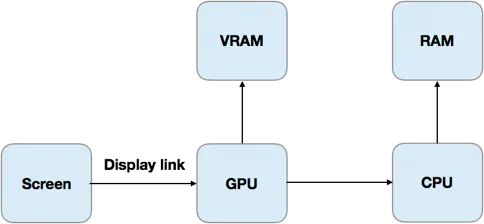
The whole process boils down to one thing:
The CPU puts the prepared bitmap in RAM, and the GPU moves that memory to VRAM for processing.
The GPU’s limit for this process is roughly completing one frame in 16.7ms, so the 60fps mentioned at the start is essentially the maximum frequency the GPU can handle.
Therefore, the GPU faces two challenges:
- Moving data from
RAMtoVRAM - Rendering the
Textureto the screen
The bottleneck between the two is basically the second one. Rendering Textures basically involves the following issues:
- Compositing:
Compositing is the process of combining multiple textures into one. In terms of UIKit, it means handling the case of multiple views being combined, e.g.:
1
2
[self.view addsubview : subview]。
If views don’t overlap, the GPU only needs to do ordinary rendering.
If multiple views overlap, the GPU needs to do blending.
Suppose two views have the same size and one is stacked on top of the other. The formula is:
R = S+D*(1-Sa)
R: the final pixel value
S: the Top Texture
D: the lower Texture
Here S and D have already pre-multiplied their respective alpha values.
Sa represents the Texture’s alpha value.
If the Top Texture’s (the upper view’s) alpha value is 1, i.e. opaque, it will cover the lower Texture.
That is, R = S. Which makes sense.
If the Top Texture’s (the upper view’s) alpha value is 0.5,
S is (1,0,0), which becomes (0.5,0,0) after multiplying by alpha.
D is (0,0,1).
The resulting R is (0.5,0,0.5).
Basically, this calculation needs to be done for each pixel.
Therefore, a complex view hierarchy, or views that are all semi-transparent (alpha not equal to 1), will bring extra computation work to the GPU.
- Size
This problem mainly comes from images. Suppose there’s a 400x400 image in memory, and we want to put it into a 100x100 imageview. If we throw it in directly without any processing, there’s a big problem: it means the GPU has to scale the large image down to fit a small area, which requires sampling the pixels. This kind of sampling is very expensive, and it also needs to take pixel alignment into account. The computation load will skyrocket.
- Offscreen Rendering And Mask
If we do this to a layer:
1
2
3
label.layer.cornerRadius = 5.0f;
label.layer.masksToBounds = YES;
it will cause offscreen rendering. The biggest problem it brings is that when rendering such a layer, extra memory needs to be allocated, the radius and mask are drawn, and then the drawn bitmap is assigned back to the layer.
Therefore, for performance reasons, Quartz provides an optimized api:
1
2
3
4
5
label.layer.cornerRadius = 5.0f;
label.layer.masksToBounds = YES;
label.layer.shouldRasterize = YES;
label.layer.rasterizationScale = label.layer.contentsScale;
Simply put, this is a cache mechanism.
Similarly, GPU performance can be measured with instrument:

Red indicates the GPU needs to do extra work to render the View; green indicates the GPU can process the bitmap without extra work.
The End