

Preface
This chapter covers AVAsset metadata (which can be simply understood as the model information of an audio format such as mp3: title: xxxx, artist: Andy Lau, album: Love You for Ten Thousand Years… and the sources of such data). In this sense, the field information is a property of AVAsset. AV Foundation handles the metadata of various audio formats through the AVAsset wrapper, such as extracting the cover artwork from an mp3 file. Here’s what this chapter covers:
Understanding Assets
Creating Assets
- iOS Asset Library
- iOS iPod Library
- macOS iTunes Library
Asynchronous Loading
Media Metadata
- Metadata Formats
- QuickTime
- MPEG-4 Audio and Video (mp4)
- MP3
Working with Metadata
- Querying Metadata
- Using
AVMetadataItem
Creating the MetaManager Demo
- MediaItem (acts as the Model)
- MediaItem Implementation
Data Converters (model to AVMetadataItem AVMetadataItem to model) - DefaultMetadata Default Conversion
- Converting Artwork (the album cover or artwork image)
- Converting Comments
- Converting Track Data (track)
- Converting Album Data
- Converting Genre Data (genre, e.g. blue blues, classic classical, pop pop, 126 kinds in total…)
- Completing the final demo
Saving Metadata
Understanding the AVAsset Asset
AVAsset is an immutable abstract class that defines the mixed presentation of media assets. It contains the audio/video tracks, formats, duration, as well as metadata NSData (binary bytes).
AVAsset abstracts away two concerns of media assets:
- Provides an abstraction layer over the basic media formats
- Removes the need to handle content retrieval differently depending on the format
This means that whether you’re dealing with Quick Time movies, MPEG-4 video, or MP3 audio, the framework provides a unified interface — we only need to understand the concept of an asset. The purpose of this is to give developers a unified way to handle content in different formats, without the headache of dealing with the detail differences of multiple encoders and container formats. Of course, this additional information can still be obtained through other means. AVAsset also hides the asset’s location (GPS) information; when dealing with a media object, you initialize it via a URL. The URL can be one inside a Bundle, a local file system URL in the sandbox, a URL obtained from the iPod library, or a URL of an audio or video stream on a remote server.
AVAsset is a loosely coupled wrapper that lets the framework handle the heavy lifting, so we can easily retrieve or load media without worrying about the file location. Since we don’t have to deal with complex issues like file format and file location, AVAsset provides developers a simple, unified way to work with timed media.
AVAsset is not itself a media asset. Think of it as a container class that carries timed media. It has many media components that describe its own metadata. AVAssetTrack is the unified media type that actually stores the media assets, and a corresponding model is built for each asset. The most common forms of AVAssetTrack are audio and video streams, but it can also represent media types such as text, subtitles, closed captions, and more. The following diagram illustrates AVAsset and AVAssetTrack:
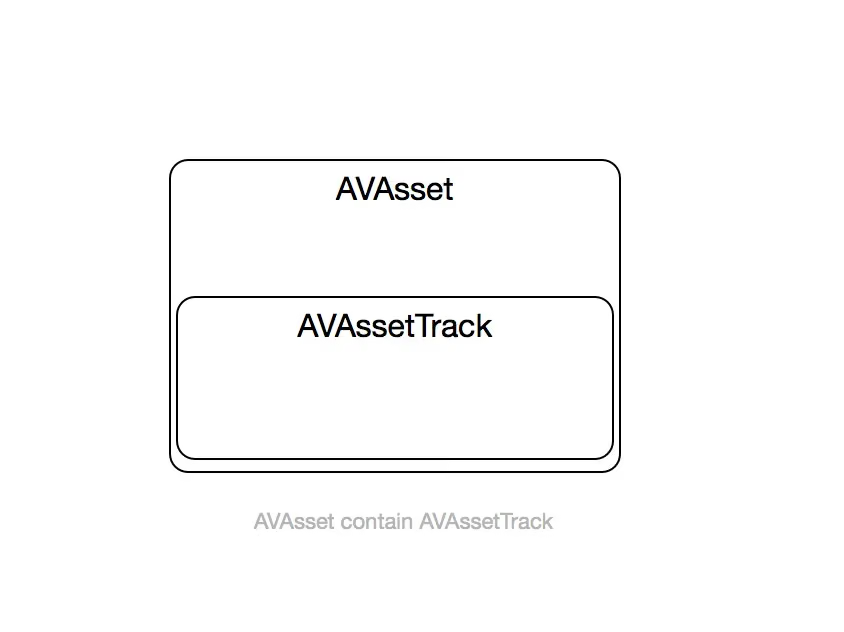
Here’s AVAsset.tracks:
1
2
@property (nonatomic, readonly) NSArray<AVAssetTrack *> *tracks;
Asset tracks can be accessed through the tracks property. This property returns an NSArray whose elements are all the tracks contained in the asset. In addition, AVAsset can also find the corresponding track by identifier, media type, or media characteristics. This makes it easy to retrieve the set of tracks we need in more advanced processing later.
Creating Assets
When creating an AVAsset object for an existing media asset, you do it by initializing it with a URL. Generally it’s a local file URL, but it can also be a remote resource URL.
1
2
    NSURL *assetURL = //....
    AVAsset *asset = [AVAsset assetWithURL: assetURL];
….
AVAsset is an abstract class and cannot be instantiated directly. When you create an instance using the assetWithURL: method, you’re actually creating AVURLAsset, a subclass of AVAsset. Sometimes you’ll use this class directly, because it allows you to fine-tune how the asset is created by passing a dictionary of options. For example, when creating an asset for use in audio or video editing scenarios, you might want to pass a dictionary of options telling the program to provide more precise duration and timing information, such as:
1
2
3
4
5

    NSURL *assetURL = //....
    NSDictionary *options = @{AVURLAssetPreferPreciseDurationAndTimingKey:@YES};
    AVAsset *asset = [AVAsset assetWithURL: assetURL];
…
What’s passed here means you’re willing to accept a slightly longer load time in exchange for more precise duration and timing information. There are many common places where developers want to create asset objects. On iOS devices, we want to access video files in the user’s photo library, or songs in the iPod library. On a Mac, we want to find media items in the user’s iTunes library. With these helper frameworks in iOS and macOS, we can use the media assets mentioned above. Here are some examples of the frameworks to use.
iOS Assets Library
Audio and video captured on iOS through the camera, or via the front and rear cameras, are stored in the user’s photo library. The Assets Library framework provided by iOS enables reading and writing from the photo library. The following example creates an AVAsset from a video in the user’s library:
1
2
3
4
5
6
7
8
9
10
11
12
13
14
15
16
17
18
ALAssetsLibrary *library = [[ALAssetsLibrary alloc] init];
    [library enumerateGroupsWithTypes:ALAssetsGroupSavedPhotos usingBlock:^(ALAssetsGroup *group, BOOL *stop) {
        //Filter down to only videos
        [group setAssetsFilter:[ALAssetsFilter allVideos]];

        //Grab the first video returned
        [group enumerateAssetsAtIndexes:[NSIndexSet indexSetWithIndex:0] options:0 usingBlock:^(ALAsset *result, NSUInteger index, BOOL *stop) {
            if (result) {
                id representation = [result defaultRepresentation];
                NSURL *url = [representation url];
                AVAsset *asset = [AVAsset assetWithURL:url];
                //Create the asset and call other APIs
            }
        }];

    } failureBlock:^(NSError *error) {
        NSLog(@"%@", [error localizedDescription]);
    }];
Above is how to get video assets stored in the photo album (this approach was deprecated after iOS 10.10). We grab the first video from the filtered results; every entry in the library is modeled as an ALAsset object. Selecting ALAsset as the default representation returns an ALAssetRepresentation object, which provides a URL suitable for creating an AVAsset.
iOS iPod Library
A common place to get media is the user’s iPod library. The MediaPlayer framework provides APIs for querying and retrieving items in the iPod library. When you find the item you want, you can get a stored URL and use it to initialize an asset, as in the following example:
1
2
3
4
5
6
7
8
9
10
11
12
13
14
15
16
17
18
19
    //Artist
    MPMediaPropertyPredicate *artistPredicate = [MPMediaPropertyPredicate predicateWithValue:@"刘德华" forProperty:MPMediaItemPropertyArtist];
    //Album
    MPMediaPropertyPredicate *albumPredicate = [MPMediaPropertyPredicate predicateWithValue:@"真永远" forProperty:MPMediaItemPropertyAlbumTitle];
    //Song title
    MPMediaPropertyPredicate *songPredicate = [MPMediaPropertyPredicate predicateWithValue:@"爱你一万年" forProperty:MPMediaItemPropertyTitle];
    //Query
    MPMediaQuery *query = [[MPMediaQuery alloc] init];
    [query addFilterPredicate:artistPredicate];
    [query addFilterPredicate:albumPredicate];
    [query addFilterPredicate:songPredicate];

    NSArray *result = [query items];
    if (result.count > 0) {
        MPMediaItem *item = result[0];
        NSURL *assetURL = [item valueForProperty:MPMediaItemPropertyAssetURL];
        AVAsset *asset = [AVAsset assetWithURL:assetURL];
        // Asset info
    }
The MediaPlayer framework provides a class called MPMediaPropertyPredicate that helps users build the query statements used to find specific content in the iPod library. The example above looks up the song 爱你一万年 in 刘德华’s 真永远 (the “True Eternity” album). After the query completes, it returns the media item’s asset URL property (MPMediaItemPropertyAssetURL), which is then used to create the AVAsset.
macOS iTunes Library
On macOS (formerly OS X), iTunes is the user’s media hub. To identify assets in the library, we usually parse the iTunes Music Library.xml file in the iTunes music directory to get the relevant data. However, after Mac OS X 10.8 Mountain Lion, there’s a simpler way — the iTunesLibrary framework.
1
2
3
4
5
6
7
8
9
10
11
12
13
14
15
ITLibrary *library = [ITLibrary libraryWithAPIVersion:@"1.0" error:nil];
    NSArray *items = library.allMediaItems;

    NSString *query = @"artist.name == '刘德华'"
                      "album.title == '真永远'"
                      "title == '爱你一万年'";
    NSPredicate *predicate = [NSPredicate predicateWithFormat:query];

    NSArray *songs = [items filteredArrayUsingPredicate:predicate];
    if (songs.count > 0) {
        ITLibMediaItem *item = songs[0];
        AVAsset *asset = [AVAsset assetWithURL:item.location];
        // asset info
    }
The iTunesLibrary framework doesn’t provide concrete query APIs like the MediaPlayer framework does. However, developers can use the standard Cocoa NSPredicate (predicate) class to build complex queries. After filtering out the desired set of media items, you can use the location property of ITLibMediaItem to get a URL and create an AVAsset.
Asynchronous Loading
AVAsset has a variety of useful methods and properties that provide information about the asset, such as duration, creation date, metadata, and more. AVAsset also includes methods for retrieving and using collections of tracks. One important point, though: when an asset is created, it’s just handling the underlying file; AVAsset uses a lazy-loading approach to speed up creating assets quickly and loading them immediately. Note that AVAsset property access is synchronous — if the property you’re requesting hasn’t been preloaded, the program will block until it responds. This isn’t a great approach. For example, avasset.duration can be a time-consuming operation: if you use an MP3 file without the TLEN tag set in the header (a tag that defines the duration value), the entire audio track needs to be parsed to accurately determine its duration. If you do such access on the main thread, it blocks the main thread until the operation completes; the app may stutter, causing the system watchdog to step in and terminate it. To solve this problem, we should query asset properties asynchronously.
1
2
3
4
- (AVKeyValueStatus)statusOfValueForKey:(NSString *)key error:(NSError * _Nullable *)outError;

- (void)loadValuesAsynchronouslyForKeys:(NSArray<NSString *> *)keys completionHandler:(void (^)(void))handler;
You can use the statusOfValueForKey:error: method to query the status of a given property; it returns an AVKeyValueStatus enum value.
1
2
3
4
5
6
7
typedef enum AVKeyValueStatus : NSInteger {
    AVKeyValueStatusUnknown,
    AVKeyValueStatusLoading,
    AVKeyValueStatusLoaded,
    AVKeyValueStatusFailed,
    AVKeyValueStatusCancelled
} AVKeyValueStatus;
It represents the current status of the requested property. If the status is not AVKeyValueStatusLoaded, it means accessing this property could cause the program to stall. To load a given property asynchronously, use the loadValuesAsynchronouslyForKeys:completionHandler: method; the keys parameter is an array of one or more asset property names, plus a callback that’s invoked when the asset is in a responsive state.
1
2
3
4
5
6
7
8
9
10
11
12
13
14
15
16
17
18
19
20
21
22
23
24
	NSURL *assetURL = [[NSBundle mainBundle] URLForResource:@"384551_1438267683" withExtension:@"mov"];
    AVAsset *asset = [AVAsset assetWithURL:assetURL];
    //Asynchronously load the tracks property
    NSArray *keys = @[@"tracks"];
    [asset loadValuesAsynchronouslyForKeys:keys completionHandler:^{
        //Query the status of the tracks property
        NSError *error = nil;
        AVKeyValueStatus status = [asset statusOfValueForKey:@"tracks" error:&error];
        switch (status) {
            case AVKeyValueStatusLoaded:
                //Continue with the follow-up logic
                break;
            case AVKeyValueStatusFailed:
                //There's an error
                break;
            case AVKeyValueStatusCancelled:
                //Handle unexpected cancellation and similar cases
                break;

            default:
                break;
        }
    }];
Here we create an AVAsset from a QuickTime movie in the bundle and asynchronously load its tracks property. Inside the completionHandler block, we want to get the status of the requested property by calling the asset’s statusOfValueForKey:error: method; the NSError is used to determine whether the asset contains error information. *Note: the completionHandler: block may be called on any queue — before updating the UI, you must switch back to the main queue, or you’ll get burned!!!*
*Note: the demo above loads a single tracks property, but you can actually request multiple properties in one call. If you request multiple properties, keep the following two points in mind:* (1) Each call to
loadValuesAsynchronouslyForKeys:completionHandler:invokes thecompletionHandlerblock only once; the number of callback invocations is not determined by the number of keys passed to the method. (2) You need to callstatusOfValueForKey:error:for each requested property; you can’t assume all properties return the same status value.
Media Metadata
When building a media application, it’s very important to understand how the media is organized. Simply showing a list of file names might be acceptable when there aren’t many files, but it becomes a real pain when you need to display large batches of files. What we really need is a way to describe the media so that users can easily find, identify, and organize it. The main media formats we work with in AV Foundation (*.mp4, *.mp3, *.mov, *.mkv…) can all embed metadata that describes their content. Since each media format describes its content differently, devising a universal strategy for parsing files in various media formats requires some understanding of the underlying technologies. However, AV Foundation makes this easy, because it lets developers ignore most format-specific details; for handling media metadata, AV Foundation provides a unified approach.
Metadata Formats
Although there are many media formats, the ones we mainly encounter in the Apple environment are four: QuickTime (mov), MPEG-4 video (mp4 and m4v), MPEG-4 audio (m4a), and MPEG-Layer III audio (mp3). Even though AV Foundation uses a single interface to process the metadata embedded in these files, it’s still valuable to understand how and where metadata is stored for these different asset types. This is just an overview, but it’s essential groundwork for any deeper study.
QuickTime
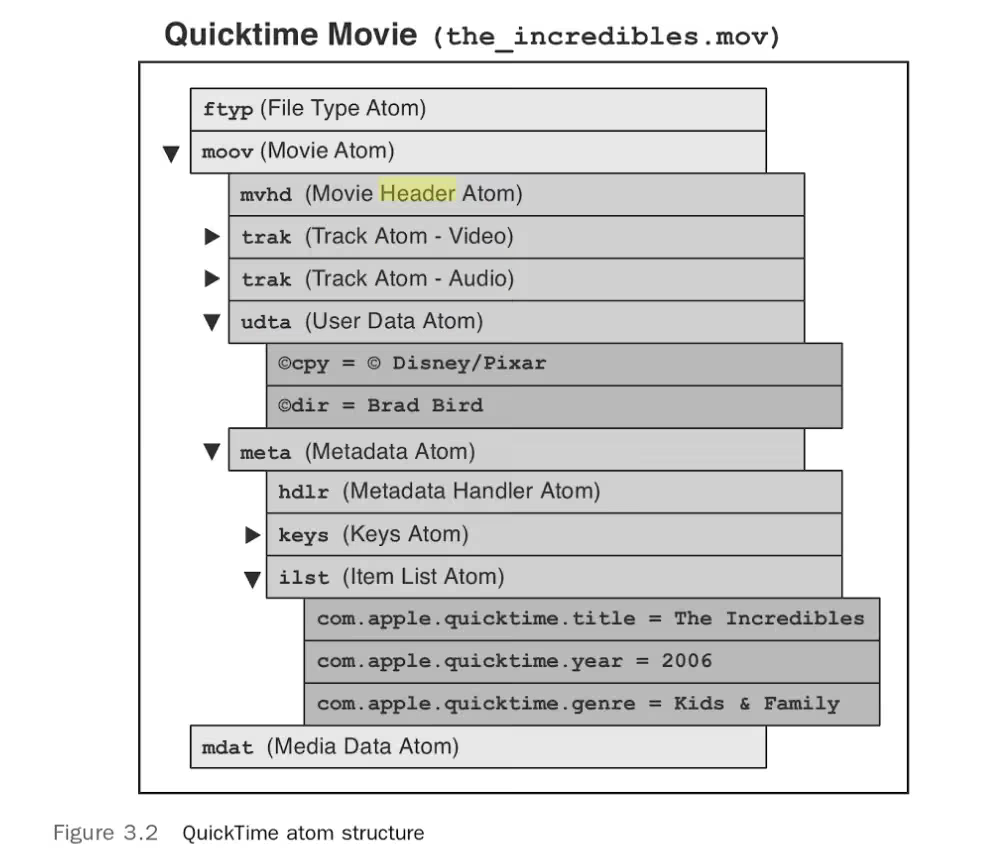
QuickTimeis a cross-platform media architecture developed by Apple, part of which is the Quick File Format specification that defines the internal structure of .mov files.QuickTimefiles are made up of data structures calledatoms. The general rule is: anatomeither contains data describing one aspect of the media asset, or nests otheratoms — but never both. Sometimes Apple’s own method implementations may violate this rule.atoms are combined into a complex tree structure that describes the layout, audio sample formats, video frame information, and even the metadata to present (author, copyright, etc.) in detail. To help myself remember
 atom, I jokingly call itAstro Boyhaha — though it has nothing to do with Astro Boy at all.A good way to learn about
QuickTimeis to open a .mov file in a hex editor. (Common hex editors include Hex Fiend or Synalyze It! Pro.) A typical hex tool will show the raw data of a realQuickTimefile, but the structure and the relationships betweenatoms aren’t very intuitive. Apple provides a tool calledAtom Inspector. It displays the atom structure in anNSOutlineView(a tree UI control similar to UITableView), so the atom’s tree structure is clearly visible. The tool also includes a small hex viewer where you can inspect the actual byte layout.Download: Atom Inspector — click here It seems you need to log in with a developer account. Download center: Apple official software download center It seems you need to log in with a developer account.
The following figure shows the atom format:
atom format
A
QuickTimefile contains at least three top-levelatomsfypydescribes the file type and compatibility typesmdatcontains the actual audio and video mediamoovatom (moo-vee) gives a complete description of every detail of the media asset, including the original binary data
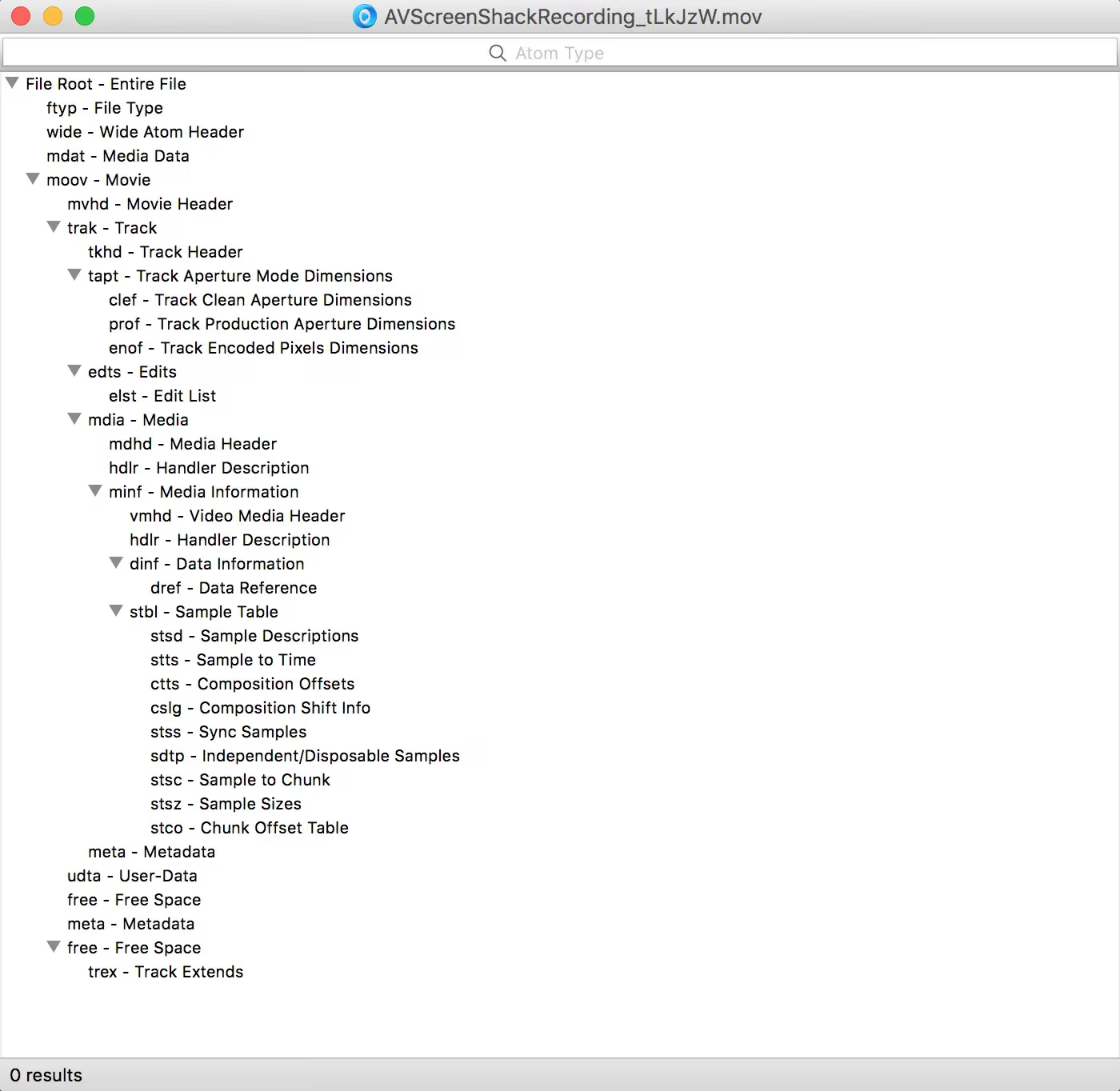
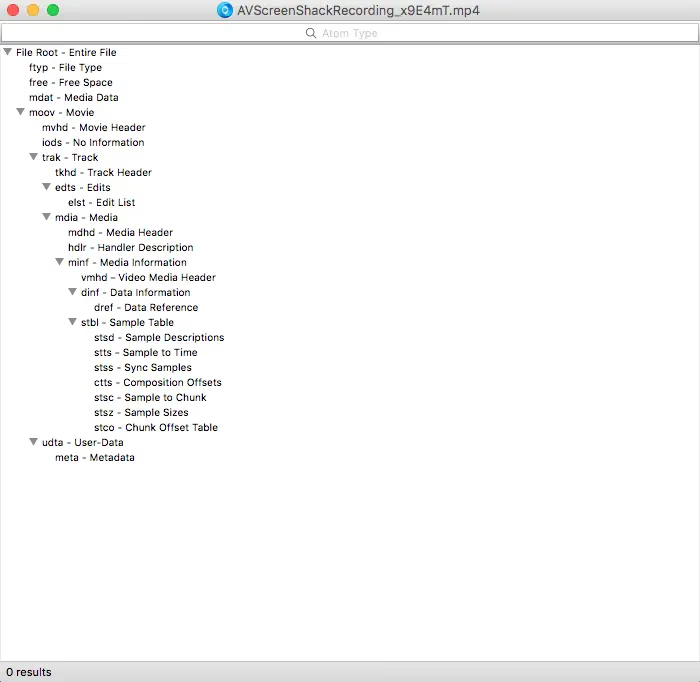
The following figure shows the atoms from a mov file I actually tested:
Real measurementWhen working with QuickTime movies, you’ll encounter two types of metadata. Standard
QuickTimemetadata, written by tools likeFinal Cut Pro X, lives in /moov/meta/plist, and almost all of its keys have the com.apple.quicktime prefix. Other types of data are consideredQuickTimeuser data and are stored in /moov/udta/.QuickTimeuser data can contain the standard data players need to look up, e.g. the song’s artist or copyright information, and can also contain any other information useful to an application. Both types of metadata are readable and writable inAV Foundation. For moreQuickTimedetails, see the official Quick Time Format Specification documentation (400+ pages). Mastering the core knowledge of the moov atom is important and helps us better understand howAV Foundationuses this data.MPEG-4 (MP4) Audio and Video
MPEG-4 Part 14 is the specification that defines the MP4 file format.
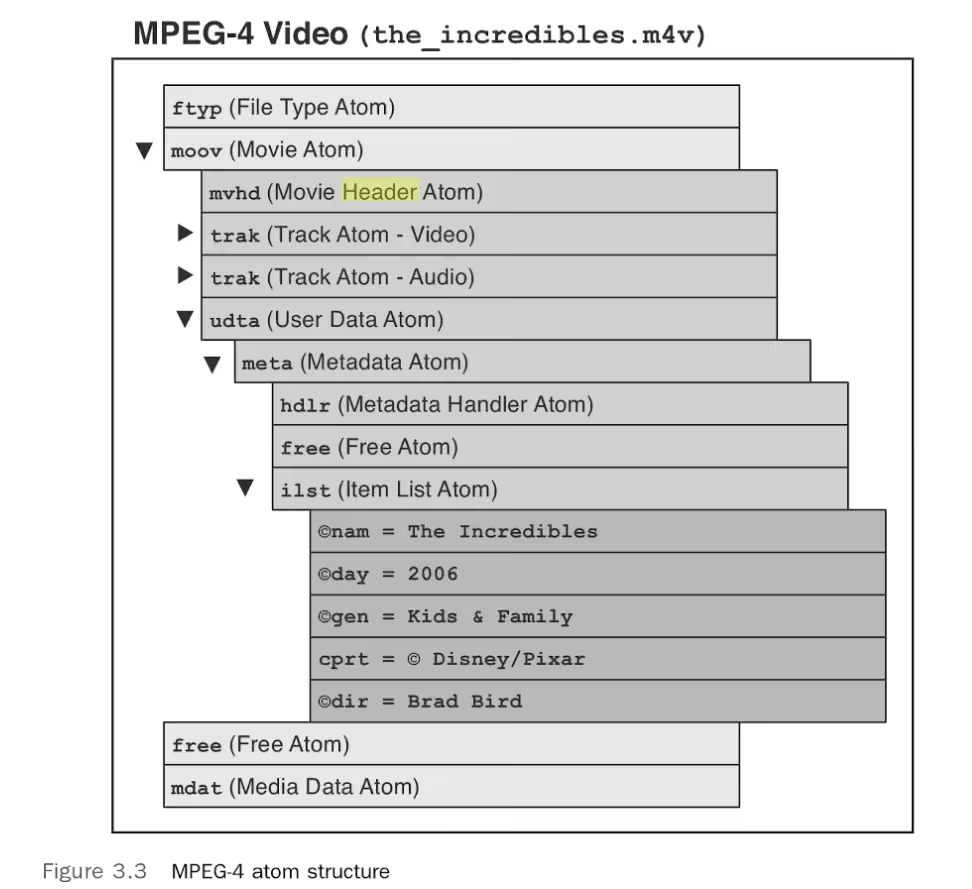
MP4is derived directly from theQuickTimefile format, so theMP4file format is very similar to theQuickTimefile structure. In fact, a tool that can parse one file type will often work with the other.MP4files are also composed of data structures calledatoms. Technically, theMPEG-4specification calls themboxes, but since most of it comes fromQuickTime, everyone still calls thematoms. MPEG-4 atom structure MPEG-4 atom structure — real measurementThe metadata of
MPEG-4files is stored in /moov/udat/meta/ilst. There’s no standard for the keys used in theatoms; everyone follows the keys defined in Apple’s unpublished iTunes metadata specification by convention. Although it was never formally released, the documentation for the iTunes metadata format has long been widely known online (I’ve always wondered — does that count as a release or not? If it was released, why is it still described as unpublished? If it wasn’t released, how did it become so well known?). You can refer to the mp4v2 library documentation for more mp4 details.mp4is the standard extension for MPEG-4 media, e.g..m4v,.m4a,.m4p,.m4b. These variants all use theMPEG-4container format, and some also include additional extensions. You only need to remember a few points:M4Vfiles areMPEG-4video format with Apple’sFairPlayencryption andAC3-audioextensionsMP4withoutFairPlayencryption and theAC3-audioextension is justM4Vwith a different extension nameM4Ais specifically for audio; this extension is used to signal that the file only contains audio assetsM4Pis Apple’s old iTunes format, using itsFairPlayextensionM4Bis used for audiobooks, containing chapter tags and bookmarking so readers can return to a specific position and resume (like an audio novel)
MP3
MP3files differ significantly fromMPEG-4 (.mp4)andQuickTime (.mov):MP3doesn’t use a container format; it uses encoded audio data, and the beginning of the file usually contains an optional block of metadata structures.mp3files use a format called ID3v2 to store descriptive information about the audio content, including the artist, performer, album, and genre.ID3data is quite simple. The first 10 bytes of anmp3file carry the embedded metadata; those 10 bytes define the header of theID3block. The first three of the 10 bytes are always ‘49 44 33’ (ID3), indicating anID3v2 tag; the next two bytes define the major version —2,3,4— and the revision number. The remaining bytes define a set of flags and the size of the ID3 block. ID3 headerThe rest of the data in the
ID3block is made up of frames — key-value pairs describing different metadata. Each frame has a 10-byte header with the actual tag name, followed by 4 bytes indicating the size, then 2 more bytes defining option flags.id3 version (2 bytes) revision (remaining bytes) flag (2 bytes) size (4 bytes) The remaining bytes of the frame contain the actual metadata value. If the value is a text type, the first byte of the tag contains the actual metadata value. If the value is a text type, the first byte of the tag is used to define the encoding type, e.g. Ox00 represents
ISO-8859-1, and other encoding types are also supported. The ID3 structure is shown in the figure below.AV Foundationsupports reading all versions ofID3v2tags, but not writing. The MP3 format is subject to patent restrictions, soAV Foundationcannot support encoding MP3 or ID3 data. However, I recently heard that the German MP3 patent institute said the patents are going to be revoked, because theAACformat will deliver better results compared to MP3. Let’s see whether future Apple API changes add support for modifying MP3 data. ID3v2 structure diagram



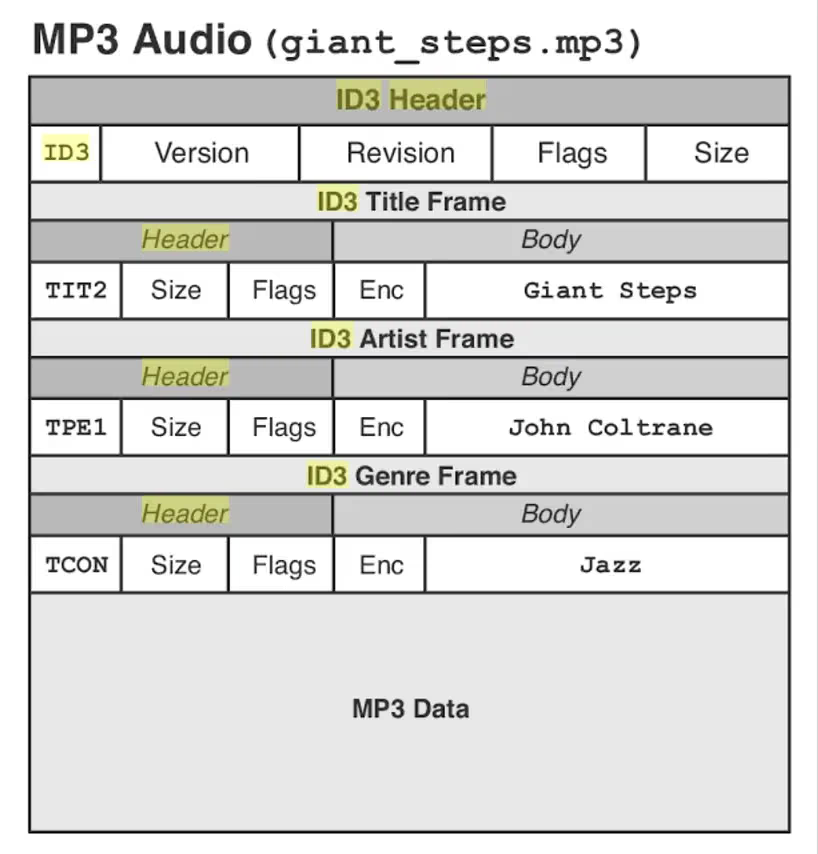
AV Foundationsupports reading allID3v2tag formats, butID3v2deserves an asterisk. The layout ofID3v2.2differs from that ofID3v2.3and later versions. Note that some tags consist of 3 characters instead of 4; for example, a song’s comment info is stored in the COM frame when the tag isID3v2.2, but when the same song uses anID3v2.3tag or newer, the song’s comment info is stored in the COMM frame. The character constants defined by the framework only apply toID3v2.3and later; in the upcoming demo we’ll show through code how to remain forward-compatible withID3v2.2.
Using Metadata
AVAsset and AVAssetTrack can query metadata.
AVAssetis used in most casesAVAssetTrackgets track-level metadata
The interfaces for reading specific asset metadata can access the metadata in QuickTime, MPEG-4 atom, and ID3 frames through the methods provided by the AVMetadataItem class. AVAsset and AVAssetTrack provide two methods for retrieving related metadata, each with its own scope of use. Before understanding the scope, you first need to know what key space means. AV Foundation uses the key space as a way to group related keys together, enabling filtering of collections of AVMetadataItem instances. Each asset contains at least two key spaces from which metadata can be retrieved. 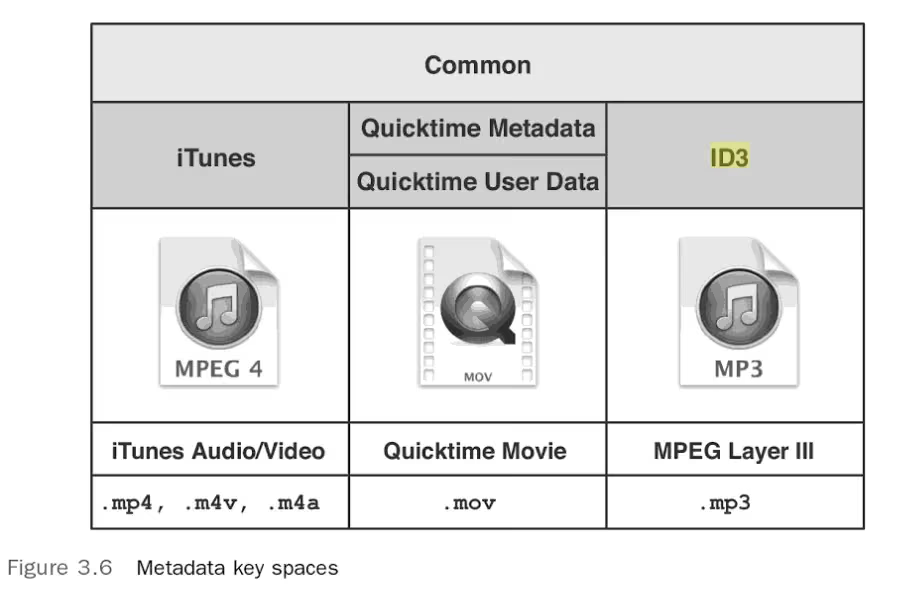
The Common key space defines keys supported by all media types, including common elements such as title, artist, and artwork information. This provides a degree of metadata standardization across all supported media formats. We can query the commonMetadata property of an asset or track from the Common key space to get metadata; this property returns an array containing all available metadata.
To access metadata for a specific format, call the metadataForFormat: method on the asset or track. This method returns an array containing all the relevant metadata information. AVMetadataFormat.h provides string constants for the different metadata formats. Since metadata in different formats can lead to mismatched key-value types, we can use availableMetadataFormats (a property of AVAsset) to get the information. Like this:
1
2
3
4
5
6
7
8
9
10
11
12
13
14

	NSURL *url = [NSURL fileURLWithPath:@"xxx.mp4"];//give a path
    //Create the asset
    AVAset *asset = [AVAsset assetWithURL:url];
    NSArray *keys = @[@"availableMetadataFormats"];
    [asset loadValuesAsynchronouslyForKeys:keys completionHandler:^{
        NSMutableArray *metadata = [NSMutableArray array];
        for (NSString *format in asset.availableMetadataFormats){
            [metadata addObjectsFromArray:[asset metadataForFormat:format]];
        }

        //Process the metadata (AVMetadataItems)
    }];
Finding Metadata
When we get an array containing metadata items (the metadata (AVMetadataItems) mentioned above), we usually iterate through it to extract the data values. The metadata (AVAsset) provides a way to iterate over AVMetadataItems. For example, say we want the performer and album metadata of an M4A audio file. Like this:
1
2
3
4
5
6
7
8
9
10
11
12
13
14
15
16
17
18
19

	NSArray *metaData = //AVMetadataItems array
    NSString *keySpace = AVMetadataKeySpaceiTunes;
    NSString *artistKey= AVMetadataiTunesMetadataKeyArtist;
    NSString *albumKey = AVMetadataiTunesMetadataKeyAlbum;

    NSArray *artistMetadata = [AVMetadataItem metadataItemsFromArray:metaData withKey:artistKey keySpace:keySpace];
    NSArray *albumMetadata = [AVMetadataItem  metadataItemsFromArray:metaData withKey:albumKey keySpace:keySpace];

    AVMetadataItem *artistItem, *albumItem;

    if (artistMetadata.count > 0) {
        artistItem = artistMetadata[0];
    }

    if (albumMetadata.count > 0) {
        albumItem = albumMetadata[0];
    }
Here we use the following method to get the standard objects matching the key and keySpace; normally this array contains only one instance.
1
+ (NSArray<AVMetadataItem *> *)metadataItemsFromArray:(NSArray<AVMetadataItem *> *)metadataItems withKey:(id)key keySpace:(AVMetadataKeySpace)keySpace;
Using AVMetadataItem
You can think of AVMetadataItem as a dictionary (key: value) type dedicated to metadata. The only difference is that its key can be a number (NSNumber), and it provides conversions to string (stringValue), numberValue, and dataValue.
For example: if the output key is 145238391… I think you’d have no idea what that means.
To solve this problem, we need to create a category extension for AVMetadataItem that converts such semantically unclear integer keys into readable string keys. Here’s the code:
1
2
3
4
5
6
7
8
9
10
11
12
13
14
15
16
17
18
19
20
21
22
23
24
25
26
27
28
29
30
31
32
33
34
35
36
37
38
39
40
41
42
43
44
45
46
47
#import "AVMetadataItem+Additions.h"

@implementation AVMetadataItem (Additions)

- (NSString *)keyString {
    if ([self.key isKindOfClass:[NSString class]]) {                        // 1
        return (NSString *)self.key;
    }
    else if ([self.key isKindOfClass:[NSNumber class]]) {

        UInt32 keyValue = [(NSNumber *) self.key unsignedIntValue];         // 2

        // Most, but not all, keys are 4 characters ID3v2.2 keys are
        // only be 3 characters long.  Adjust the length if necessary.

        size_t length = sizeof(UInt32);                                     // 3
        if ((keyValue >> 24) == 0) --length;
        if ((keyValue >> 16) == 0) --length;
        if ((keyValue >> 8) == 0) --length;
        if ((keyValue >> 0) == 0) --length;

        long address = (unsigned long)&keyValue;
        address += (sizeof(UInt32) - length);

        // keys are stored in big-endian format, swap
        keyValue = CFSwapInt32BigToHost(keyValue);                          // 4

        char cstring[length];                                               // 5
        strncpy(cstring, (char *) address, length);
        cstring[length] = '\0';

        // Replace '©' with '@' to match constants in AVMetadataFormat.h
        if (cstring[0] == '\xA9') {                                         // 6
            cstring[0] = '@';
        }

        return [NSString stringWithCString:(char *) cstring                 // 7
                                  encoding:NSUTF8StringEncoding];

    }
    else {
        return @"<<unknown>>";
    }
}

@end
That’s it for the basics. In the next post, I’ll write a demo showing how the different metadata formats can be parsed in a unified way.
End of article