
Preface
The first post of the 2018 new year. Let me sort out the Category of AVAudioSession to solve the various audio development problems where playback gets interrupted or there is no sound on first launch.
Opening
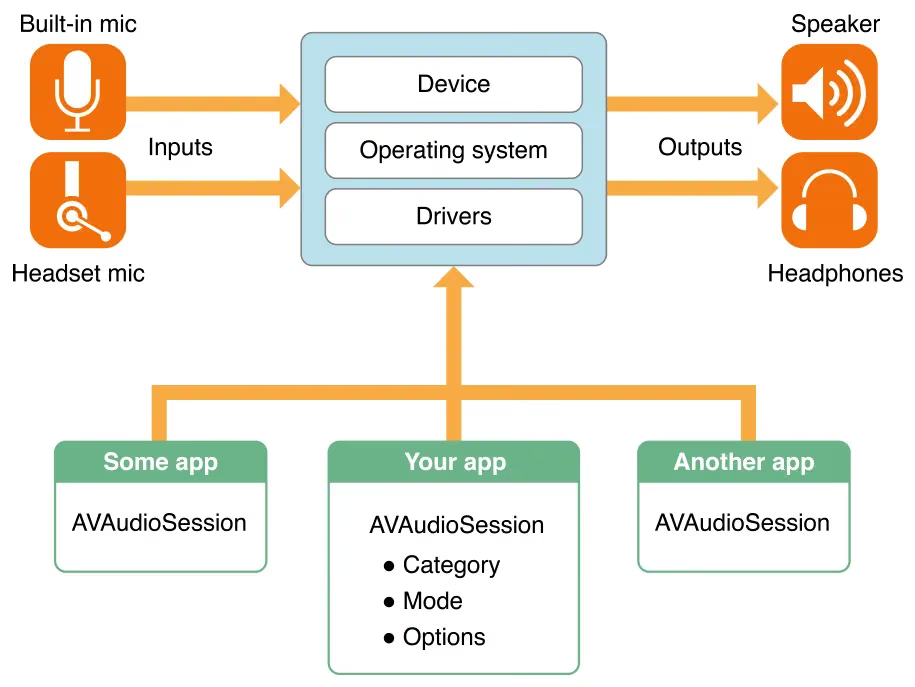
Because of the special nature of the iOS system, all Apps share a single AVAudioSession, so this session is a singleton object. (macOS supports playing multiple audio files simultaneously.)
When things like plugging/unplugging headphones, incoming calls, or invoking siri happen, the audio session is interrupted by system events, and you’ll see behaviors like the following:
- Should we record or play?
- What should happen when the system mute switch is toggled?
- Should sound come from the speaker or from the earpiece?
- What should happen after plugging/unplugging headphones?
- What should happen when a call comes in or the alarm goes off?
- What should happen when other audio Apps start?
Default session behavior
- Playback is allowed, but recording is not.
- When the user flips the mute switch on the phone to “mute”, if audio is playing, the playback will be muted.
- When the user presses the lock button or the phone auto-locks, if audio is playing, the playback will be muted and paused.
- If your App starts playing while other Apps such as QQ Music are playing, the other players will be muted and paused.
The default behavior of AVAudioSession is equivalent to setting the Category to AVAudioSessionCategorySoloAmbient
Example code:
1
2
3
4
5
6
- (void)configSession{
    [[AVAudioSession sharedInstance] setCategory:AVAudioSessionCategorySoloAmbient error:&error];
    if (error) {
        NSLog(@"%@",error);
    }
}
AVAudioSession
As mentioned above, this class is a singleton
1
+ (AVAudioSession *)sharedInstance;
Obtain the singleton via the method above
Although the system activates this single AVAudioSession when the app launches, it’s best to activate it again when you actually use it:
1
- (BOOL)setActive:(BOOL)active error:(NSError * _Nullable *)outError;
Set active to YES to activate the Session, or NO to deactivate it. The BOOL return value indicates success; on failure, you can check the cause via NSError’s error.localizedDescription.
Because
AVAudioSessionaffects the behavior of otherApps, when yourApp’sSessionis activated, the sessions of otherAppsare deactivated.
What if you want to restore the activation state of other Apps' Sessions after deactivating your own?
In that case you can use:
1
- (BOOL)setActive:(BOOL)active withOptions:(AVAudioSessionSetActiveOptions)options error:(NSError * _Nullable *)outError;
Just pass AVAudioSessionSetActiveOptionNotifyOthersOnDeactivation as the options here.
Of course, you can also use the otherAudioPlaying property to check in advance whether another app is currently playing audio.
1
NSLog(@"Current Category:%@", [AVAudioSession sharedInstance].category); //返回当前 category
1
Current Category:AVAudioSessionCategorySoloAmbien
The Seven Categories
Below I’ll introduce the seven very important Category types of AVAudioSession.
1
2
3
4
5
6
7
8
9
10
11
12
13
14
15
#pragma mark -- Values for the category property --

AVF_EXPORT NSString *const AVAudioSessionCategoryAmbient;

AVF_EXPORT NSString *const AVAudioSessionCategorySoloAmbient;

AVF_EXPORT NSString *const AVAudioSessionCategoryPlayback;

AVF_EXPORT NSString *const AVAudioSessionCategoryRecord;

AVF_EXPORT NSString *const AVAudioSessionCategoryPlayAndRecord;

AVF_EXPORT NSString *const AVAudioSessionCategoryAudioProcessing NS_DEPRECATED_IOS(3_0, 10_0) __TVOS_PROHIBITED __WATCHOS_PROHIBITED;

AVF_EXPORT NSString *const AVAudioSessionCategoryMultiRoute NS_AVAILABLE_IOS(6_0);
AVAudioSession divides audio usage scenarios into seven categories. By setting the Session to different categories, you can control:
- Whether activating the Session interrupts audio from other Apps that don’t support mixing
- Whether it responds to the phone’s “mute” switch or lockscreen by muting
- Whether the current state supports recording
- Whether the current state supports playback
- Every app starts with the default state described above, i.e., other Apps are interrupted and playback responds to the “mute” switch. The table below breaks down what each category supports:
| Category | Muted when “mute” is pressed or the screen is locked | Interrupts Apps that don’t support mixing | Supports recording and playback |
|---|---|---|---|
| AVAudioSessionCategoryAmbient | Yes | No | Playback only |
| AVAudioSessionCategoryAudioProcessing | N/A | Neither | N/A |
| AVAudioSessionCategoryMultiRoute | No | Yes | Both recording and playback |
| AVAudioSessionCategoryPlayAndRecord | No | Not by default | Both recording and playback |
| AVAudioSessionCategoryPlayback | No | Yes by default | Playback only |
| AVAudioSessionCategoryRecord | No | Yes | Recording only |
| AVAudioSessionCategorySoloAmbient | Yes | Yes | Playback only |
You can see that the default is in fact the AVAudioSessionCategorySoloAmbient category.
From the table we can summarize the following:
AVAudioSessionCategoryAmbient: Only for playing music, and it can play simultaneously with QQ Music. For example, if you want to keep listening to QQ Music while playing a game, set the game’s background audio to this category. At the same time, the audio is muted when the user locks the screen or mutes. This category basically fits the background scenarios of all Apps.AVAudioSessionCategoryAudioProcessing: Mainly for audio format processing; usually used together with AudioUnit.AVAudioSessionCategoryMultiRoute: Imagine a DJ app: the phone is connected via HDMI to speakers playing the current track while the next track plays in the headphones — a scenario ordinary people wouldn’t understand. This category supports input/output from multiple devices.AVAudioSessionCategoryPlayAndRecord: What if you want to both play and record? For scenarios like VoIP or phone calls, PlayAndRecord is designed exactly for this.AVAudioSessionCategoryPlayback: What if you want to keep hearing audio when the screen is locked? Use this category — for example, when the app itself is a player. Meanwhile, when this app is playing, other apps like QQ Music can’t play. So this category is generally used by player-type apps.AVAudioSessionCategoryRecord: With players, there must be recorders. For example, WeChat voice message recording uses this category. Since you want quiet recording, you certainly don’t want QQ Music playing, so other playback is interrupted. Think of the WeChat voice message scenario and you’ll know when to use it.AVAudioSessionCategorySoloAmbient: Also playback-only, but unlikeAVAudioSessionCategoryAmbient, with this one you can forget about listening to QQ Music — it’s for Apps that don’t want QQ Music interference, like Rhythm Master. Likewise, the audio is muted when the user locks the screen or mutes; once the screen is locked, you can’t play Rhythm Master anymore.
Once we understand these seven categories, we can set the appropriate category according to our needs:
1
- (BOOL)setCategory:(NSString *)category error:(NSError **)outError;
Just pass the corresponding category string. If it returns NO, you can check the cause via NSError’s error.localizedDescription.
You can use:
1
@property(readonly) NSArray<NSString *> *availableCategories;
This property shows which categories the current device supports. Set the category based on it to guarantee the passed-in argument is valid and reduce the chance of errors.
For example, with the following code:
1
2
3
4
5
6
7
8
	NSLog(@"Current Category:%@", [AVAudioSession sharedInstance].category);
    NSError *error = nil;
    [[AVAudioSession sharedInstance] setCategory:AVAudioSessionCategoryPlayback error:&error];
    if (nil != error) {
        NSLog(@"set Option error %@", error.localizedDescription);
    }
    NSLog(@"Current Category:%@", [AVAudioSession sharedInstance].category);
Now when playing music, if you press the mute switch, you’ll find that the music keeps playing and isn’t muted.
Category Options
The seven categories above can be thought of as seven main scenarios, but these seven certainly can’t satisfy all developer needs. CoreAudio’s approach is: first pick one of the seven as the baseline, then fine-tune. CoreAudio provides a few options for each Category to do the fine-tuning.
After setting the category, you can use:
1
@property(readonly) AVAudioSessionCategoryOptions categoryOptions;
This property shows which options the current category has set. Note that the return value is AVAudioSessionCategoryOptions, which is actually the | combination of multiple options.
By default it is 0.
1
2
3
4
5
6
7
8
9
10
typedef NS_OPTIONS(NSUInteger, AVAudioSessionCategoryOptions)
{
	AVAudioSessionCategoryOptionMixWithOthers			= 0x1,
	AVAudioSessionCategoryOptionDuckOthers				= 0x2,
	AVAudioSessionCategoryOptionAllowBluetooth	__TVOS_PROHIBITED __WATCHOS_PROHIBITED		= 0x4,
	AVAudioSessionCategoryOptionDefaultToSpeaker __TVOS_PROHIBITED __WATCHOS_PROHIBITED		= 0x8,
	AVAudioSessionCategoryOptionInterruptSpokenAudioAndMixWithOthers NS_AVAILABLE_IOS(9_0) = 0x11,
	AVAudioSessionCategoryOptionAllowBluetoothA2DP API_AVAILABLE(ios(10.0), watchos(3.0), tvos(10.0)) = 0x20,
	AVAudioSessionCategoryOptionAllowAirPlay API_AVAILABLE(ios(10.0), tvos(10.0)) __WATCHOS_PROHIBITED = 0x40,
} NS_AVAILABLE_IOS(6_0);
| Option | Applicable Categories | Effect |
|---|---|---|
| AVAudioSessionCategoryOptionMixWithOthers | AVAudioSessionCategoryPlayAndRecord, AVAudioSessionCategoryPlayback, and AVAudioSessionCategoryMultiRoute | Whether it can mix with other background Apps |
| AVAudioSessionCategoryOptionDuckOthers | AVAudioSessionCategoryAmbient, AVAudioSessionCategoryPlayAndRecord, AVAudioSessionCategoryPlayback, and AVAudioSessionCategoryMultiRoute | Whether it lowers other Apps’ audio |
| AVAudioSessionCategoryOptionAllowBluetooth | AVAudioSessionCategoryRecord and AVAudioSessionCategoryPlayAndRecord | Whether Bluetooth headsets are supported |
| AVAudioSessionCategoryOptionDefaultToSpeaker | AVAudioSessionCategoryPlayAndRecord | Whether it uses the speakerphone by default |
These are the main options for now, each with corresponding use cases. Besides these, there are also some newly added after iOS 9
| Option | Applicable Categories | Effect | Minimum System |
|---|---|---|---|
| AVAudioSessionCategoryOptionInterruptSpokenAudioAndMixWithOthers | – | – | iOS 9 |
| AVAudioSessionCategoryOptionAllowBluetoothA2DP | – | – | iOS 10 |
| AVAudioSessionCategoryOptionAllowAirPlay | – | Supports Bluetooth A2DP headsets and AirPlay | iOS 10 |
Below I’ll explain the effect of each sub-scenario option:
AVAudioSessionCategoryOptionMixWithOthers: If you really useAVAudioSessionCategoryPlaybackfor background audio but still want it to coexist with QQ Music, you can set this option under theAVAudioSessionCategoryPlaybackcategory and the two can coexist.AVAudioSessionCategoryOptionDuckOthers: In real-time call scenarios — for example, when making a video call, you’ll notice that QQ Music’s volume automatically drops. This is achieved by setting this option to duck other music Apps.AVAudioSessionCategoryOptionAllowBluetooth: If you want to support Bluetooth headset calls, you need to set this option.AVAudioSessionCategoryOptionDefaultToSpeaker: If you want the speakerphone enabled by default in VoIP mode, you need to set this option.
Through the interface:
1
- (BOOL)setCategory:(NSString *)category withOptions:(AVAudioSessionCategoryOptions)options error:(NSError **)outError;
you can set options on the current category.
Example code:
1
2
3
4
5
6
7
8
- (void)xxxMethod{
    [[AVAudioSession sharedInstance] setCategory:AVAudioSessionCategoryPlayback withOptions:AVAudioSessionCategoryOptionMixWithOthers error:&error];
    if (nil != error) {
        NSLog(@"set Option error %@", error.localizedDescription);
    }
    options = [[AVAudioSession sharedInstance] categoryOptions];
    NSLog(@"Category[%@] has %lu options",  [AVAudioSession sharedInstance].category, options);
}
Now, if you open the QQ Music player and then start playing, you’ll find that both QQ Music and our instance are playing, with automatic mixing.
The Seven Modes
With the seven categories above:
1
2
3
4
5
6
7
8
9
10
11
12
13
14
15
16
17
#pragma mark -- Values for the mode property --

AVF_EXPORT NSString *const AVAudioSessionModeDefault NS_AVAILABLE_IOS(5_0);

AVF_EXPORT NSString *const AVAudioSessionModeVoiceChat NS_AVAILABLE_IOS(5_0);

AVF_EXPORT NSString *const AVAudioSessionModeGameChat NS_AVAILABLE_IOS(5_0);

AVF_EXPORT NSString *const AVAudioSessionModeVideoRecording NS_AVAILABLE_IOS(5_0);

AVF_EXPORT NSString *const AVAudioSessionModeMeasurement NS_AVAILABLE_IOS(5_0);

AVF_EXPORT NSString *const AVAudioSessionModeMoviePlayback NS_AVAILABLE_IOS(6_0);

AVF_EXPORT NSString *const AVAudioSessionModeVideoChat NS_AVAILABLE_IOS(7_0);

AVF_EXPORT NSString *const AVAudioSessionModeSpokenAudio NS_AVAILABLE_IOS(9_0);
We’ve basically covered the common main scenarios. Within each main scenario, you can fine-tune via Option. To this end, CoreAudio provides seven common fine-tuned sub-scenarios, called the modes of each category.
| Mode | Applicable Categories | Scenario |
|---|---|---|
| AVAudioSessionModeDefault | All categories | Default mode |
| AVAudioSessionModeVoiceChat | AVAudioSessionCategoryPlayAndRecord | VoIP |
| AVAudioSessionModeGameChat | AVAudioSessionCategoryPlayAndRecord | Game recording; set automatically by GKVoiceChat, no manual call needed |
| AVAudioSessionModeVideoRecording | AVAudioSessionCategoryPlayAndRecord AVAudioSessionCategoryRecord | When recording video |
| AVAudioSessionModeMoviePlayback | AVAudioSessionCategoryPlayback | Video playback |
| AVAudioSessionModeMeasurement | AVAudioSessionCategoryPlayAndRecord AVAudioSessionCategoryRecord AVAudioSessionCategoryPlayback | Minimal system |
| AVAudioSessionModeVideoChat | AVAudioSessionCategoryPlayAndRecord | Video calls |
Each mode has its applicable categories, so there aren’t literally “7×7 = 49” combinations. If the current category doesn’t support a mode, setting it will fail.
After setting the Category, you can use the following code:
1
2
@property(readonly) NSArray<NSString *> *availableModes;
This property shows which modes are supported, for validity checks.
Now let me talk about specific use cases:
AVAudioSessionModeDefault: Every category defaults to this mode, so to restore the default, set it back to this mode.AVAudioSessionModeVoiceChat: Mainly for VoIP scenarios. The system chooses the best input device — for example, when headphones are plugged in, it uses the headset microphone for capture. There’s a side effect: it sets the category option toAVAudioSessionCategoryOptionAllowBluetoothto support Bluetooth headsets.AVAudioSessionModeVideoChat: Mainly for video calls, such as QQ Video and FaceTime. The system also chooses the best input device — for example, when headphones are plugged in, it uses the headset microphone for capture, and sets the category options toAVAudioSessionCategoryOptionAllowBluetoothandAVAudioSessionCategoryOptionDefaultToSpeaker.AVAudioSessionModeGameChat: Suited to game apps’ capture and playback, e.g. theGKVoiceChatobject; generally no manual setup is needed.
The other modes have little to do with audio apps; generally we only need to pay attention to VoIP or video calls.
By calling:
1
- (BOOL)setMode:(NSString *)mode error:(NSError **)outError;
you can set the mode after setting the Category.
Of course, these modes are just summaries by CoreAudio and may not fully meet your needs. Even for specific modes, you can still fine-tune in iOS10.
Through the interface:
1
2
3

- (BOOL)setCategory:(NSString *)category mode:(NSString *)mode options:(AVAudioSessionCategoryOptions)options error:(NSError **)outError;
But on iOS9 and below, you can only adjust on the Category. In essence it’s the same, and you can think of it as API syntactic sugar and interface encapsulation.
Responding to System Interruptions
Everything above — Category, Option, and Mode — describes behavior when your app is the playback owner. But suppose something is currently playing and a call suddenly comes in, the alarm goes off, or the user launches another app that affects playback through the methods above — how should our app behave? The most common approach is to pause first, then resume when playback is restored. So how does our app sense this interruption and know when to resume?
AVAudioSession provides various Notifications for such situations. Incoming calls, alarms, and the like are all categorized as general interruptions.
They are reported via AVAudioSessionInterruptionNotification. The userInfo returned in the callback mainly contains two keys:
AVAudioSessionInterruptionTypeKey: A value ofAVAudioSessionInterruptionTypeBeganmeans the interruption has begun, and we should pause playback and capture. A value ofAVAudioSessionInterruptionTypeEndedmeans the interruption has ended, and we can resume playback and capture.AVAudioSessionInterruptionOptionKey: Currently there’s only one value,AVAudioSessionInterruptionOptionShouldResume, indicating that playback and capture should also be resumed now.
When another App takes over the AudioSession, AVAudioSessionSilenceSecondaryAudioHintNotification is used to notify. TheuserInfo key returned in the callback is:
1
AVAudioSessionSilenceSecondaryAudioHintTypeKey
Possible values:
AVAudioSessionSilenceSecondaryAudioHintTypeBegin: Indicates that anotherApphas started occupying theSession.AVAudioSessionSilenceSecondaryAudioHintTypeEnd: Indicates that anotherApphas started releasing theSession.
Peripheral Changes
Besides other Apps and system services, the user’s own actions can also affect our App. By default, the AudioSession picks an optimal output route when the App launches — for example, headphones when they’re plugged in. But during this, the user might unplug the headphones. How does our app sense this?
Likewise, AVAudioSession also uses Notifications for such situations.
Suppose there’s an app like this: 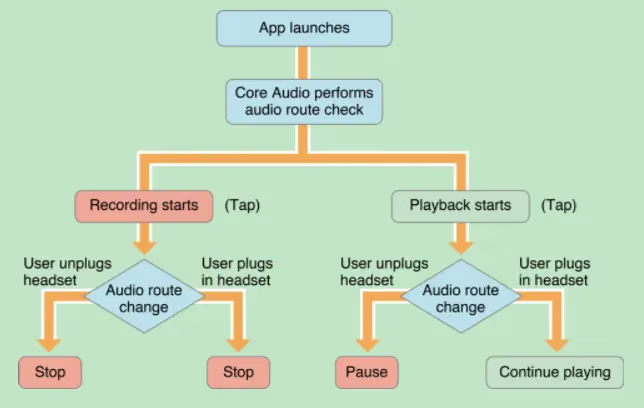
At first, when recording, we stop recording when the user plugs in or unplugs the headphones. A Notification tells us a new device has appeared or a device was removed, and we control stopping the recording accordingly. Or during playback, when headphones are unplugged, the Notification fires and we pause the music, resuming when the headphones are plugged back in.
Register for AVAudioSessionRouteChangeNotification in NSNotificationCenter. Its userInfo contains these keys:
AVAudioSessionRouteChangeReasonKey: Indicates the reason for the changeAVAudioSessionSilenceSecondaryAudioHintTypeKey: Has the same meaning as the interruption above.
| Enum Value | Meaning |
|---|---|
| AVAudioSessionRouteChangeReasonUnknown | Unknown reason |
| AVAudioSessionRouteChangeReasonNewDeviceAvailable | A new device is available |
| AVAudioSessionRouteChangeReasonOldDeviceUnavailable | The old device is unavailable |
| AVAudioSessionRouteChangeReasonCategoryChange | The category changed |
| AVAudioSessionRouteChangeReasonOverride | The app reset its output settings |
| AVAudioSessionRouteChangeReasonWakeFromSleep | Woke from sleep |
| AVAudioSessionRouteChangeReasonNoSuitableRouteForCategory | No suitable device for the current Category |
| AVAudioSessionRouteChangeReasonRouteConfigurationChange | The route configuration changed |
Summary
AVAudioSession builds the context for an audio usage lifecycle. Whether the current state supports recording, what impact it has on other Apps, whether it responds to the system mute switch, how to detect incoming calls — all of these can be implemented through it. What’s especially important is that AVAudioSession works not only with AVAudioPlyaer/AVAudioRecorder in AVFoundation, but other recording/playback tools such as AudioUnit and AudioQueueService also need it to provide the context for recording, muting, and the like.
Reference
Reference 2
The End