
Preface
Today I found a valuable article online that explains the image rendering process in computers, along with knowledge about pixel computation and coordinate points.
The Computer Graphics Rendering Process
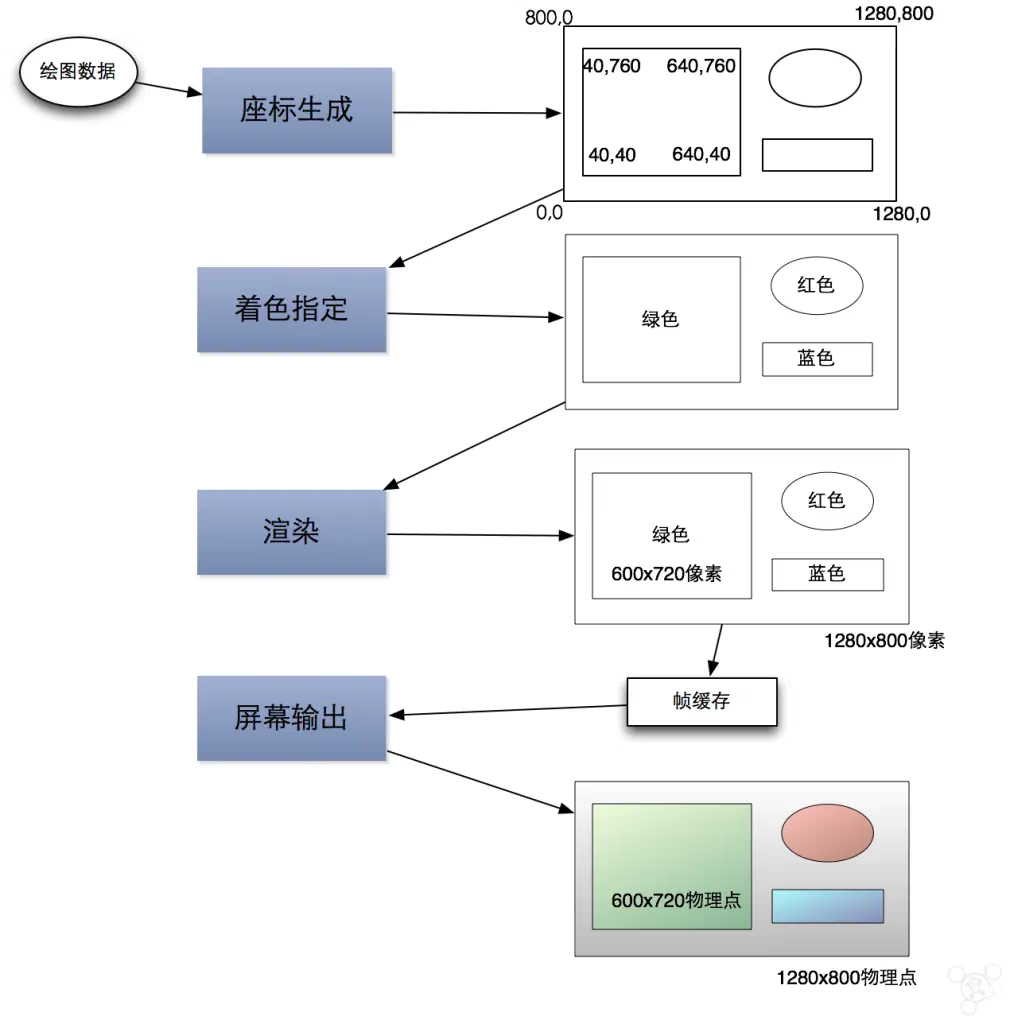
The computer’s drawing process can be simply explained with a pipeline, and the product (data) is the image rendered onto the screen through the pipeline’s operations. This pipeline can be simplified (in this article’s terms) as: drawing coordinate specification; shading specification; output specification. The diagram below briefly explains this pipeline process. Computer drawing needs input drawing data, which can be specified by the user, determined by the operating system, or a mix of both. This data is organized into groups.
- Coordinate generation: When drawing data is fed into the coordinate generation system, the pipeline dispatches coordinates for it. The wireframe diagram in the upper right of Figure 1 abstractly describes this process.
- Shading specification: Once the coordinate system has generated drawing data with coordinates, it needs to be fed into the shader, which specifies the fill color or texture for these wireframes.
- Rendering: After the shader adds shading data to the drawing data, it’s sent to the renderer. The renderer fills pixels into the described wireframe groups according to the drawing data description and sends them to the frame buffer, which is then sent to the display. The display receives the frame buffer’s data and draws to the screen according to the data description.
Pixels, Points (point), and Dots (dot)
Pixels, points (point), and dots (dot) — these three units are easily confused, because in many cases they can be used interchangeably. However, this article needs to distinguish between these two concepts.
A pixel refers to a data structure that contains three pieces of data, RGB, corresponding to red, green, and blue. When we talk about a computer-generated bitmap, we say it’s so many pixels x so many pixels, e.g., 800x600 pixels. It’s worth noting that a pixel has no fixed unit of size; it’s just an abstract concept.
A dot refers to a dot on the display screen or a printed dot — a concrete, tangible thing. What we mean by DPI is dots per inch — how many dots per inch. Generally, one dot corresponds to one pixel. The common printing size is 72DPI, i.e., 72 dots per inch, meaning data containing 72 pixels. Only when a pixel is output by the computer as a dot projected onto the screen or paper does it acquire the concept of size — that is, a dot.
A point refers to a coordinate point — a data structure that contains two (or three) pieces of data: X and Y (and Z) coordinates. The drawing data contains this coordinate data. For operating systems that don’t use HiDPI, one coordinate point corresponds to one pixel.
A Point Is Not Necessarily Equal to a Pixel
Generally speaking, dots and pixels could be used interchangeably, and we used them that way until the Retina concept was introduced. But now these two concepts must be distinguished. A pixel is just a data structure describing RGB; it has no unit of size, and it isn’t even a rectangle. When pixels are output to a screen or paper, we should use “dot” to refer to this concrete thing that has color and size.
For ordinary displays or printers, we say that a dot on the screen is made up of one pixel (RGB data), and a printed dot is made up of one pixel after color conversion (CMYK data).
For printers, the typical DPI is 72. That is, a 720x720 pixel bitmap we see on the display screen will occupy an area of 10x10 inches after printing, but the bitmap’s area on screen won’t match the printed area, because the size of a dot on screen differs from the size of a printed dot.
PPI refers to how many pixels per inch, and it differs from DPI conceptually. PPI generally refers to the dot density of a screen, while DPI refers to the density of printed dots. PPI isn’t fixed — different screen sizes combined with different resolutions yield different PPIs, but DPI is relatively fixed at 72.
HiDPI is an Apple drawing technology. With it, a point in the computer’s coordinate system no longer corresponds to one pixel; generally, one coordinate point corresponds to four pixels, and one pixel corresponds to a physical dot on the screen.
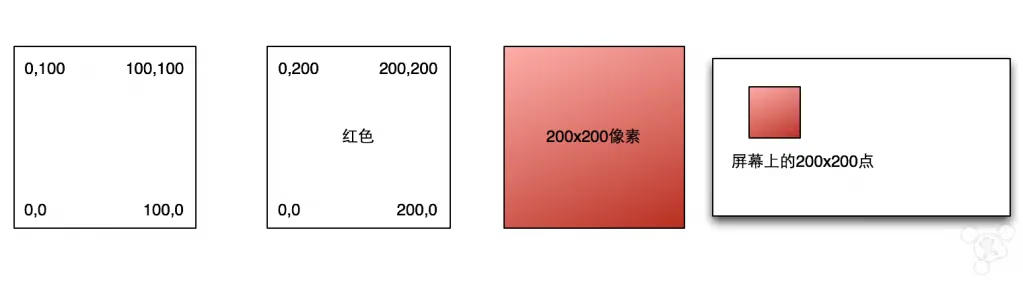
Since a pixel is a set of color data, the drawing data only contains it after passing through the shader. For example, before being fed into the shader, the drawing data describes a 100x100 rectangle. After the shader specifies its color attributes, it’s fed into a HiDPI system, which adds 200x200 pixels of data to the drawing data. After passing through the renderer, it’s equivalent to filling 200x200 pixels into the 100x100 rectangular wireframe.
Frame Buffer and the Display Screen
The frame buffer stores the graphics data rendered by the computer, including coordinates, pixels, resolution, and the like. Simply put, it’s the data that describes the image. When this descriptive data is fed into the display, the display knows how to draw.
Screen resolution generally refers to the arrangement of pixel data produced by the renderer, e.g., 1280x800 pixels. It’s worth noting that this screen resolution has nothing to do with the physical dot arrangement of the display screen. Screen resolution is settable, while the display’s physical dot arrangement is fixed. For example, if the frame buffer’s resolution is 1280x800 pixels but the display screen has a 1920x1200 dot arrangement, how does the display present the frame buffer’s data on the screen? The answer is adaptive scaling — it’s converted by the display’s internal chip.
The 13-inch RMBP describes its resolution settings like this: “looks like 1280x800 pixels,” “looks like 1440x900 pixels.” We should understand it this way: 1280x800 pixels is relative to the older non-Retina machines — i.e., the coordinate system before the drawing data is fed into the shader corresponds 1:1 to the coordinates after rendering. In reality, after rendering, its actual pixel count is 2560x1600, meaning the data in the frame buffer is 2560x1600 pixels. Likewise, “looks like 1440x900 pixels” actually renders to 2880x1800 pixels. Since the 13-inch screen’s actual dot arrangement is 2560x1600, the frame buffer’s 2880x1800 pixels get adaptively scaled down when output to the screen.
DPI and Retina
The operating system’s standard desktop printing DPI is 72, but with the advent of HiDPI technology and high-PPI screens, this standard may shift somewhat. When we create a new file in Photoshop on a Retina OS X, the default DPI is set to 144 — a sign of this standard changing.
On operating systems that don’t use HiDPI-like technology, the printing DPI corresponding to the screen resolution is 72. Retina machines using HiDPI have a printing DPI of 144, ensuring greater dot density at a uniform scale. This is very important for pre-press work.
The End