
Preface

This post is strongly colored by personal opinions. If it makes you uncomfortable, please close the page as soon as possible. This post is for personal learning records only. Reposting or sharing within the scope of the license agreement is welcome, but please respect the copyright and keep the original link. Thank you for your understanding and cooperation. If you find this site helpful, you can subscribe via RSS. Thanks for your support!
How to Batch Convert HEIC Images to PNG
Recently, the company held an activity that required us to organize our group’s hobbies and record the good moments, so taking some photos was unavoidable. I forgot to change the settings on my phone, so all the photos I took were in the HEIC (H.265) encoded format. However, the company needed these images converted to PNG or JPEG for upload, which is how today’s batch of technical articles came about.
Write a Script to Convert HEIC to PNG
Let me first show the results before conversion 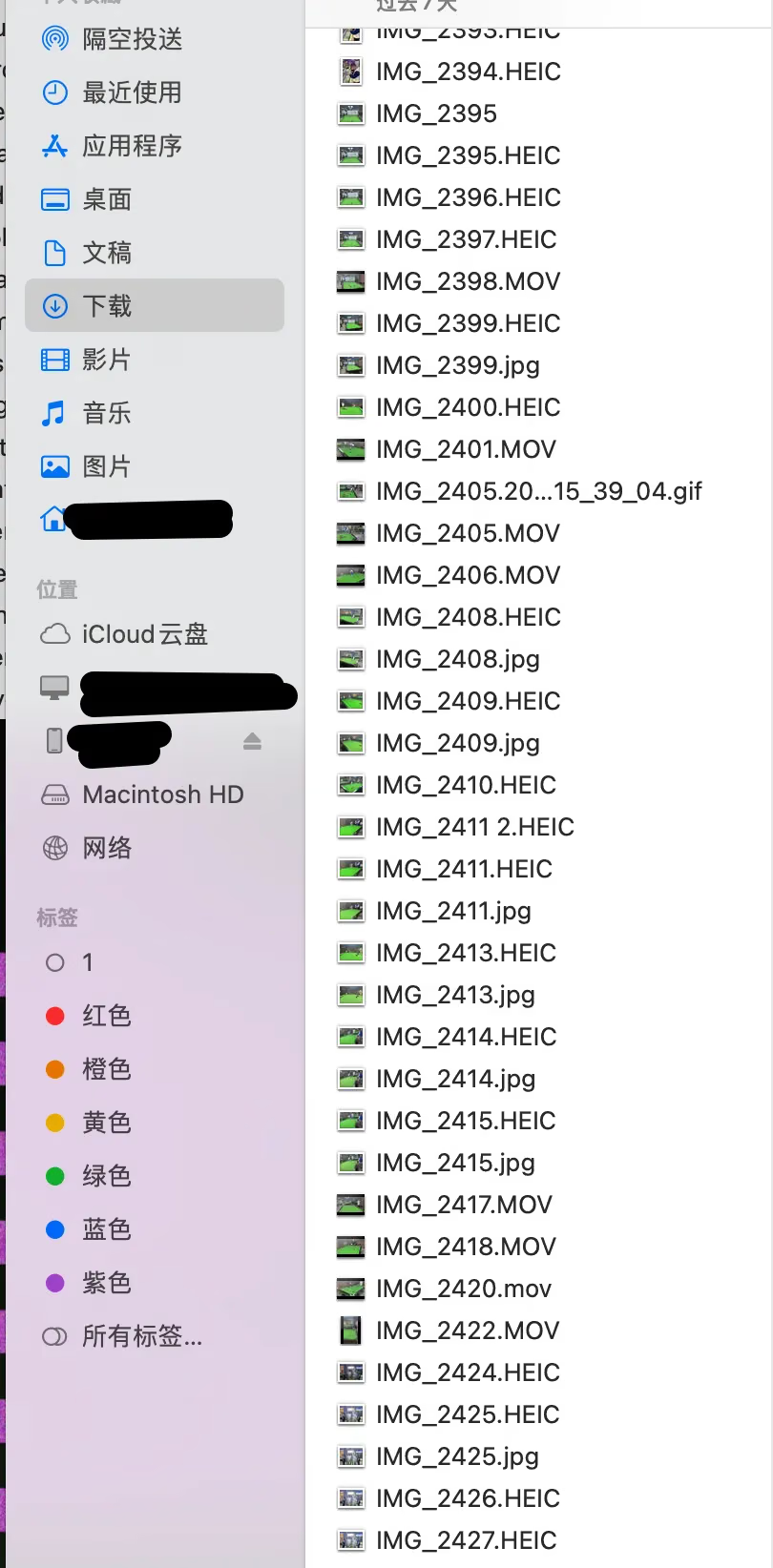
The results after conversion 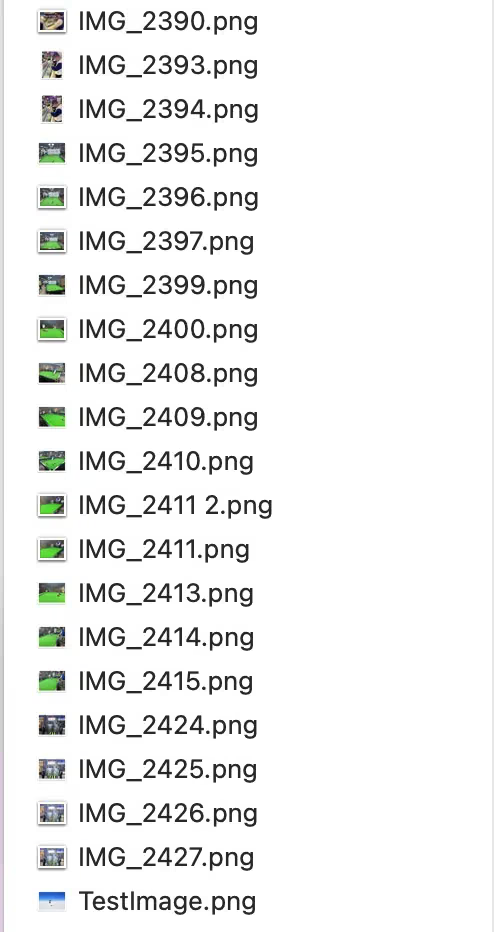
Now let’s write a script to implement it.
As someone who hasn’t really studied scripting for many years, I felt quite numb facing this sudden requirement. Miao Shen (the “Cat God”) once said: “When many people first encounter a technology they’re not good at, they feel a sense of fear, and this fear comes from the unknown!” So how do you solve technical problems you don’t understand? – ChatGPT
First open ChatGPT and enter the following:
写个shell脚本 指定 Mac 中Downloads目录下的所有HEIC格式一次批量转成png
To batch convert all HEIC files in the Downloads directory on Mac to PNG format using a Shell script, you can use the sips command. Here is an example script:
1
2
3
4
5
6
7
8
9
10
11
12
13
14
15
16
17
18
19
20
21
22
23
24
#!/bin/bash

# Define the Download directory path
download_dir="$HOME/Downloads"

# Convert HEIC files to PNG format
convert_heic_to_png() {
  local file_path="$1"
  local file_name="$(basename "$file_path")"
  local file_extension="${file_name##*.}"
  local file_name_no_extension="${file_name%.*}"

  if [[ "$file_extension" == "HEIC" || "$file_extension" == "heic" ]]; then
    png_file_path="$download_dir/$file_name_no_extension.png"
    sips -s format png "$file_path" --out "$png_file_path"
    echo "转换完成: $png_file_path"
  fi
}

# Traverse the files in the Download directory
find "$download_dir" -type f | while read -r file; do
  convert_heic_to_png "$file"
done
Save the above script as a file (e.g. convert_heic_to_png.sh), then open Terminal and run the following command to add execute permission to the script:
1
chmod +x convert_heic_to_png.sh
After that, you can run the script with the following command:
1
2
./convert_heic_to_png.sh
The script will traverse all files in the Download directory and convert HEIC files to PNG format. The converted PNG files will be stored in the same directory, and the script will print the path of each converted PNG file. Note that the script only works on Mac, and you need to install the Xcode command line tools to get the sips command.
Write a Script to Convert HEIC to WebP
To batch convert all HEIC files in the Downloads directory on Mac to WebP format using a Shell script, you can use the cwebp command. Here is an example script:
1
2
3
4
5
6
7
8
9
10
11
12
13
14
15
16
17
18
19
20
21
22
23
24
#!/bin/bash

# Define the Downloads directory path
downloads_dir="$HOME/Downloads"

# Convert HEIC files to WebP format
convert_heic_to_webp() {
  local file_path="$1"
  local file_name="$(basename "$file_path")"
  local file_extension="${file_name##*.}"
  local file_name_no_extension="${file_name%.*}"

  if [[ "$file_extension" == "HEIC" || "$file_extension" == "heic" ]]; then
    webp_file_path="$downloads_dir/$file_name_no_extension.avif"
    cwebp -q 80 "$file_path" -o "$webp_file_path"
    echo "转换完成: $webp_file_path"
  fi
}

# Traverse the files in the Downloads directory
find "$downloads_dir" -type f | while read -r file; do
  convert_heic_to_webp "$file"
done
Save the above script as a file (e.g. convert_heic_to_webp.sh), then open Terminal and run the following command to add execute permission to the script:
1
chmod +x convert_heic_to_webp.sh
After that, you can run the script with the following command:
1
./convert_heic_to_webp.sh
The script will traverse all files in the Downloads directory and convert HEIC files to WebP format. The converted WebP files will be stored in the same directory, and the script will print the path of each converted WebP file. Note that the script only works on Mac, and you need to install the webp library to get the cwebp command. You can install the webp library via Homebrew:
1
brew install webp
As for converting other formats, I don’t think I need to say more!
Summary
I’m absolutely blown away by the magical power of ChatGPT. I’m not good at writing scripts, and this is just too useful. Sharing it with everyone.